TL;DR
Claude Code runs on the same engine across every surface. Your CLAUDE.md files, settings, and MCP servers work everywhere. A session is not tied to a single surface: you can start a task on the web or the iOS app, then pull it into your terminal with claude --teleport. This FAQ answers the most common questions about session sharing, configuration portability, and choosing the right surface for each need.
Claude Code runs on the same engine across every surface. Your CLAUDE.md files, settings, and MCP servers work everywhere. A session is not tied to a single surface: you can start a task on the web or the iOS app, then pull it into your terminal with claude --teleport. This FAQ answers the most common questions about session sharing, configuration portability, and choosing the right surface for each need.
For an overview of the available surfaces, see the surfaces and environments page.
SFEIR Institute trainings
Claude Code Training
1 day · Fundamentals
AI-Augmented Developer
2 days · Intermediate
Are sessions shared across surfaces?
Yes. The official documentation states it plainly: sessions are not tied to a single surface. You can move your work between environments as your context changes.
In practice, several mechanisms make this possible:
- Remote Control lets you keep working on a local session from your phone or another device.
- claude --teleport pulls a task you kicked off on the web or the iOS app into your terminal.
- /desktop hands off a terminal session to the desktop app for visual diff review.
- Dispatch lets you message a task from your phone, then open the Desktop session it creates.
Bottom line: a Claude Code session travels between surfaces. You start where it is convenient and continue where it is effective.
Do my CLAUDE.md files work on every surface?
Yes. Each surface connects to the same underlying Claude Code engine. The official documentation states that your CLAUDE.md files, settings, and MCP servers work across all of them.
CLAUDE.md is a markdown file you add to your project root that Claude Code reads at the start of every session. You use it to set coding standards, architecture decisions, and preferred libraries. Because the engine is identical everywhere, those instructions apply whether you work in the terminal, in VS Code, or on the web.
To understand how this memory works in detail, see the guide on the CLAUDE.md memory system.
Bottom line: CLAUDE.md is part of the engine's shared configuration, so it applies on every surface with no extra setup.
Are my MCP servers available everywhere?
Yes. MCP (Model Context Protocol) is an open standard that connects AI tools to external data sources. Like CLAUDE.md and settings, MCP servers belong to the Claude Code engine's shared configuration, so they work across all surfaces.
This means you can read your design docs in Google Drive, update Jira tickets, or pull data from Slack regardless of which surface you are working on.
The guide on MCP (Model Context Protocol) covers server configuration.
Bottom line: an MCP server configured once stays available across surfaces, because it is part of the engine's shared configuration.
Which surface should I choose to work in my terminal?
The Terminal CLI is the most complete environment for working directly on the command line. You edit files, run commands, and manage your project from the terminal.
The recommended native install takes a single command:
curl -fsSL https://claude.ai/install.sh | bash
Then you start in any project:
cd your-project
claude
The Terminal guide covers this surface in detail.
Bottom line: for full command-line control, the Terminal CLI is the reference surface.
Which surface should I choose to stay in my editor?
To stay in your editor, use the VS Code / Cursor extension or the JetBrains plugin.
The VS Code extension brings inline diffs, @-mentions, plan review, and conversation history directly into the editor. It also installs for Cursor. You can search for it in the Extensions view, then open the Command Palette and select Open in New Tab.
The JetBrains plugin targets IntelliJ IDEA, PyCharm, WebStorm, and other JetBrains IDEs. It offers interactive diff viewing and selection context sharing. Install it from the JetBrains Marketplace, then restart your IDE.
The IDE guide covers these integrations.
Bottom line: VS Code and Cursor for inline diffs and @-mentions, JetBrains for IntelliJ-suite IDEs.
Which surface should I choose for long-running tasks with no local setup?
The web, available at claude.ai/code, runs Claude Code in your browser with no local setup. It is built to kick off long-running tasks and check back when they are done, work on repos you do not have locally, or run multiple tasks in parallel.
The web is available on desktop browsers and in the Claude iOS app. You can start a local task and then continue it on mobile through the web or the iOS app.
The Web guide goes deeper into this surface.
Bottom line: the web is the ideal surface for long-running tasks, remote repos, and parallel work, with no local setup.
Which surface should I choose outside my IDE and terminal?
The desktop app is a standalone app for running Claude Code outside your IDE or terminal. It is available on macOS (Intel and Apple Silicon), Windows (x64), and Windows ARM64.
It lets you review diffs visually, run multiple sessions side by side, schedule recurring tasks, and kick off cloud sessions. A paid subscription is required. After installing, launch Claude, sign in, and click the Code tab to start coding.
The Desktop guide covers this surface.
Bottom line: the desktop app is built for visual diff review, side-by-side sessions, scheduled tasks, and cloud sessions.
Which surface should I choose for team chat, the browser, and CI?
Beyond the terminal, IDEs, desktop, and web, Claude Code integrates with chat, browser, and CI/CD workflows.
- Slack: mention
@Claudewith a bug report and get a pull request back. - Chrome: debug live web applications.
- GitHub Code Review: get automatic code review on every PR.
- GitHub Actions and GitLab CI/CD: automate code review and issue triage in CI.
The Chat and CI guide covers these integrations.
Bottom line: Slack to turn a bug into a PR, Chrome to debug live web apps, and GitHub Code Review for automatic review on every pull request.
How can I quickly compare the surfaces?
Every surface shares the same engine, so the choice mostly depends on your working context. For a structured comparison of each environment's strengths, see the surface comparison page.
| Need | Best option |
|---|---|
| Full command-line control | Terminal CLI |
| Stay in the editor | VS Code / Cursor or JetBrains |
| Long-running tasks, remote repos, parallelism | Web |
| Visual review outside the IDE, parallel sessions | Desktop app |
| Bug to PR from chat | Slack |
| Debug a live web app | Chrome |
| Automatic review on every PR | GitHub Code Review |
Bottom line: choose the surface based on your context, not its underlying capabilities, since the engine is identical everywhere.
Going further
You now understand session sharing and how to choose the right surface. To go deeper, explore the guides for each environment from the surfaces and environments page.
If you want structured, hands-on training on the tool, the SFEIR Institute Claude Code course (1 day) walks you through labs covering installation, configuration, and full hands-on use of the tool.
Bottom line: the same engine, your CLAUDE.md, settings, and MCP servers everywhere, and sessions that travel from one surface to another based on what you need at the moment.
Recent articles about Claude
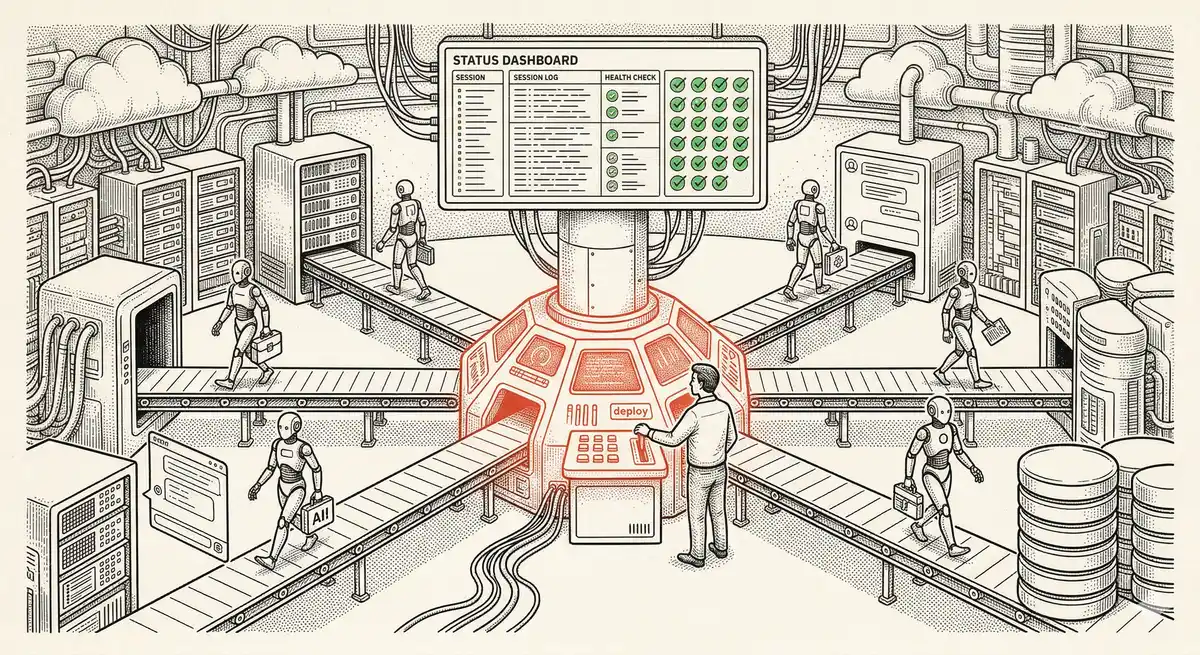
Claude Managed Agents: Anthropic's Platform for Production Agent Deployment
Anthropic launches Managed Agents: a cloud platform for deploying AI agents in production. Secure sandbox, checkpointing, multi-agent, autonomous sessions lasting hours. Notion, Rakuten, Asana and Sentry already use it.
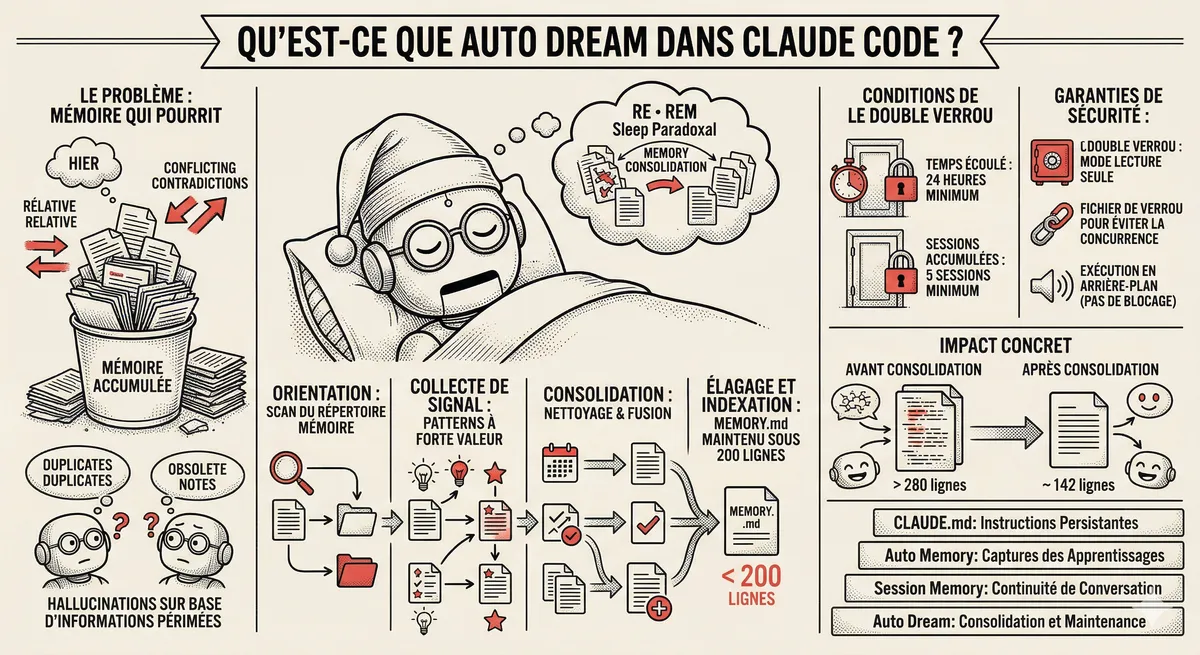
Claude Code Dream & Auto Dream: Automatic Memory Consolidation
After 20 sessions, Auto Memory notes become a mess. Auto Dream solves this by automatically consolidating Claude Code's memory: deduplication, stale entry removal, relative-to-absolute date conversion.
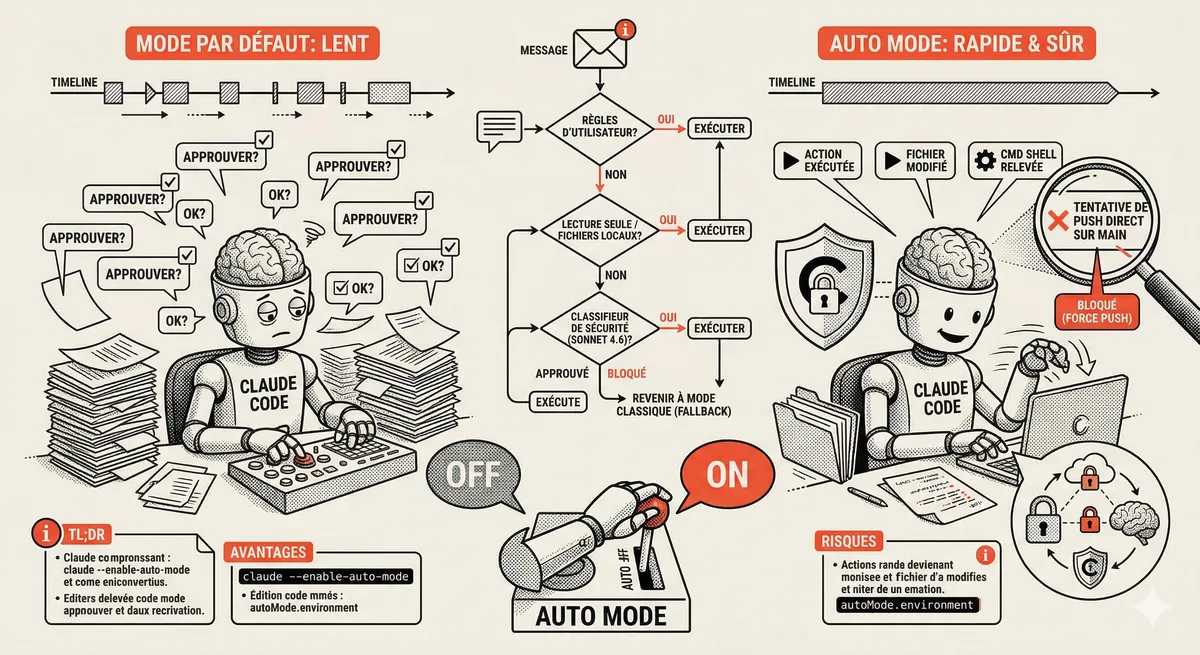
Claude Code Auto Mode: Autonomy Without the Risk
Auto Mode in Claude Code eliminates permission interruptions while keeping a safety net. A classifier analyzes every action before execution and blocks destructive operations. The sweet spot between approving everything and letting everything through.
Claude Code Training
Master Claude Code fundamentals in 1 day with our expert instructors. 60% hands-on practice on real-world cases.
Discover the training