TL;DR
Claude Code on the web runs tasks on Anthropic-managed cloud infrastructure at claude.ai/code. You run long-running tasks with no local setup, on repositories you don't have locally, and in parallel. Sessions persist even when you close your browser, you monitor them from the Claude mobile app, and you can pull any session into your terminal with claude --teleport.
Claude Code on the web runs tasks on Anthropic-managed cloud infrastructure at claude.ai/code. You run long-running tasks with no local setup, on repositories you don't have locally, and in parallel. Sessions persist even when you close your browser, you monitor them from the Claude mobile app, and you can pull any session into your terminal with claude --teleport.
Claude Code runs on the same engine across every surface. Your CLAUDE.md, your settings, and your MCP servers work everywhere, from the terminal to the web. This page focuses on the web surface and the mobile app. For the big picture, start from the Surfaces and Environments hub.
SFEIR Institute trainings
Claude Code Training
1 day · Fundamentals
AI-Augmented Developer
2 days · Intermediate
What is Claude Code on the web?
Claude Code on the web runs your tasks on cloud infrastructure managed by Anthropic, available at claude.ai/code. Each session starts in a fresh, isolated virtual machine with your repository already cloned.
The feature is in research preview for Pro, Max, and Team accounts, and for Enterprise users with premium seats or Chat + Claude Code seats.
Three traits set this surface apart from the classic terminal:
- No local setup. The VM already includes common runtimes (Python, Node.js, Ruby, PHP, Java, Go, Rust, C/C++), Docker, PostgreSQL 16, and Redis 7.0. You work without configuring your machine.
- Long-running tasks that persist. A session keeps running even if you close the browser or shut your laptop.
- Parallel work. Each task runs in its own independent cloud session, so you can launch several at once.
Key takeaway: Claude Code on the web moves execution to Anthropic's cloud VMs, which removes any local setup and enables long-running, parallel tasks.
How do you connect your GitHub account?
Cloud sessions need access to your GitHub repositories to clone code and push branches. Two methods exist.
The first is to authorize the Claude GitHub App during web onboarding. It is the recommended option for teams that want to enable automatic pull request fixing (Auto-fix).
The second is to run /web-setup in your terminal. This command syncs your local gh CLI token to your Claude account. It suits individual developers who already use gh.
With either method, a cloud session can access any repository the connecting GitHub account can see. To restrict which repositories are reachable, limit access on GitHub itself. Organizations with Zero Data Retention enabled cannot use /web-setup or other cloud session features.
Key takeaway: authorize the Claude GitHub App, or run /web-setup to sync your local gh token.
How do you run a task on a remote repository?
Once GitHub is connected, open claude.ai/code, pick a repository, and describe your task. The VM clones the repository from GitHub, so you don't need it locally.
You can also start a cloud session straight from your terminal with the --remote flag:
claude --remote "Fix the authentication bug in src/auth/login.ts"
This creates a new cloud session on claude.ai. It clones your current directory's GitHub remote at your current branch. Push your local commits first, since the VM clones from GitHub rather than from your machine. The task runs in the cloud while you keep working locally.
To check progress, use /tasks in the CLI, or open the session on claude.ai or in the mobile app to interact directly.
If your repository isn't connected to GitHub (for example GitLab or Bitbucket), claude --remote automatically bundles your local repository and uploads it to the cloud session. The bundle must be under 100 MB and the directory must have at least one commit. A session created from a bundle can't push back to a remote unless you also have GitHub authentication configured.
Key takeaway: launch a task from claude.ai/code or with claude --remote. The VM clones the repository from GitHub, or bundles your local repository when GitHub isn't connected.
How do you run several tasks in parallel?
Each --remote command creates its own cloud session that runs independently. You can start several at the same time:
claude --remote "Fix the flaky test in auth.spec.ts"
claude --remote "Update the API documentation"
claude --remote "Refactor the logger to use structured output"
Monitor all sessions with /tasks in the CLI. When a session completes, you can create a pull request from the web interface or teleport the session into your terminal to continue.
A productive pattern is to plan locally and execute remotely. Start Claude in plan mode to collaborate on the approach without editing source code:
claude --permission-mode plan
Once the plan is approved, save it to the repo, commit, push, then start a cloud session for autonomous execution:
claude --remote "Execute the migration plan in docs/migration-plan.md"
Key takeaway: each cloud session is independent, so several --remote commands run in parallel. Track them all with /tasks.
How do you monitor your sessions from the Claude mobile app?
Cloud sessions persist even if you close your browser or your laptop. You find them and drive them from the Claude mobile app, available for iOS and Android.
From mobile, you can open a running session, follow its progress, steer Claude, answer its questions, or leave comments, exactly like any other conversation. You can also ask Claude to watch a pull request and automatically fix CI failures or review comments.
This continuity shows the same-engine-everywhere principle in action: a task started in the terminal continues in the browser, then you monitor it from your phone.
Key takeaway: cloud sessions persist and are driven from the Claude mobile app, so you can follow a long-running task wherever you are.
How do you pull a cloud session into your terminal with teleport?
When you want to take over locally on a session launched in the cloud, use teleport. It pulls the cloud session and its branch into your terminal.
There are several ways to do it:
- From the command line, run
claude --teleportfor an interactive session picker, orclaude --teleportto resume a specific session directly. - Inside an existing CLI session, run
/teleport(or/tp) to open the same picker without restarting Claude Code. - From
/tasks, find your background sessions, then presstto teleport into one. - From the web interface, select Open in CLI to copy a command you can paste into your terminal.
When you teleport, Claude verifies you're in the correct repository, fetches and checks out the branch from the cloud session, then loads the full conversation history into your terminal.
A few requirements apply: your working directory must be clean (teleport prompts you to stash changes), you must run it from a checkout of the same repository (not a fork), the session's branch must have been pushed to the remote, and you must be authenticated to the same claude.ai account. Teleport requires claude.ai subscription authentication. If you're signed in via API key, Bedrock, Vertex AI, or Microsoft Foundry, run /login to sign in with your claude.ai account.
Don't confuse the two: --teleport pulls a cloud session and its branch, whereas --resume reopens a conversation from this machine's local history and doesn't list cloud sessions.
Key takeaway: claude --teleport (or /teleport in a session) pulls a cloud session and its branch into your terminal, provided you have a clean git state and the same claude.ai account.
How do you move between terminal and web?
From the CLI, session handoff is one-way: you can pull a cloud session into your terminal with --teleport, but you can't push an existing terminal session to the web. The --remote flag creates a new cloud session for your current repository.
If you want to send a running local session to the web, the Desktop app provides a Continue in menu for that transfer.
The table below summarizes the available flows.
| Direction | Command / action | Effect |
|---|---|---|
| Terminal to web | claude --remote "task" | Creates a new cloud session for the current repo |
| Web to terminal | claude --teleport | Pulls a cloud session and its branch locally |
| Session to terminal | /teleport or /tp | Same picker, without restarting Claude Code |
| Local session to web | Continue in menu (Desktop) | Sends a running local session to the web |
To compare the terminal and the other surfaces point by point, see the Surfaces comparison page. For the terminal itself, see the Terminal page.
Key takeaway: --remote sends a task to the cloud, --teleport brings it back to the terminal, and the Desktop Continue in menu pushes a local session to the web.
What are the limits of cloud sessions?
Before building a workflow on cloud sessions, account for these documented constraints.
Cloud sessions share the same rate limits as the rest of your Claude and Claude Code usage. Running multiple tasks in parallel consumes those limits proportionately. There is no separate compute charge for the cloud VM.
Repository cloning and pull request creation require GitHub. Self-hosted GitHub Enterprise Server instances are supported for Team and Enterprise plans. GitLab, Bitbucket, and other non-GitHub repositories can be sent as a local bundle, but the session can't push results back to the remote.
Each session runs with approximate resource ceilings (around 4 vCPUs, 16 GB of RAM, 30 GB of disk) that may change over time. For heavier workloads, run Claude Code on your own hardware via Remote Control.
Key takeaway: cloud sessions share your rate limits, depend on GitHub to push, and run inside VMs with bounded resources.
Going further
To practice agentic coding end to end, from the terminal to the web, the SFEIR Institute Claude Code course (1 day) covers installation, configuration, and a full hands-on of the tool through guided labs.
Continue exploring the surfaces:
- Chat and automate: the Chat and CI page covers Slack and GitHub Code Review.
- Compare the surfaces: the Comparison page lines up each surface.
- Back to the index: the Surfaces and Environments hub lists every page in this sub-pillar.
Key takeaway: the web surface complements the terminal and the IDE. Master the --remote and --teleport handoffs to move freely between cloud and local.
Recent articles about Claude
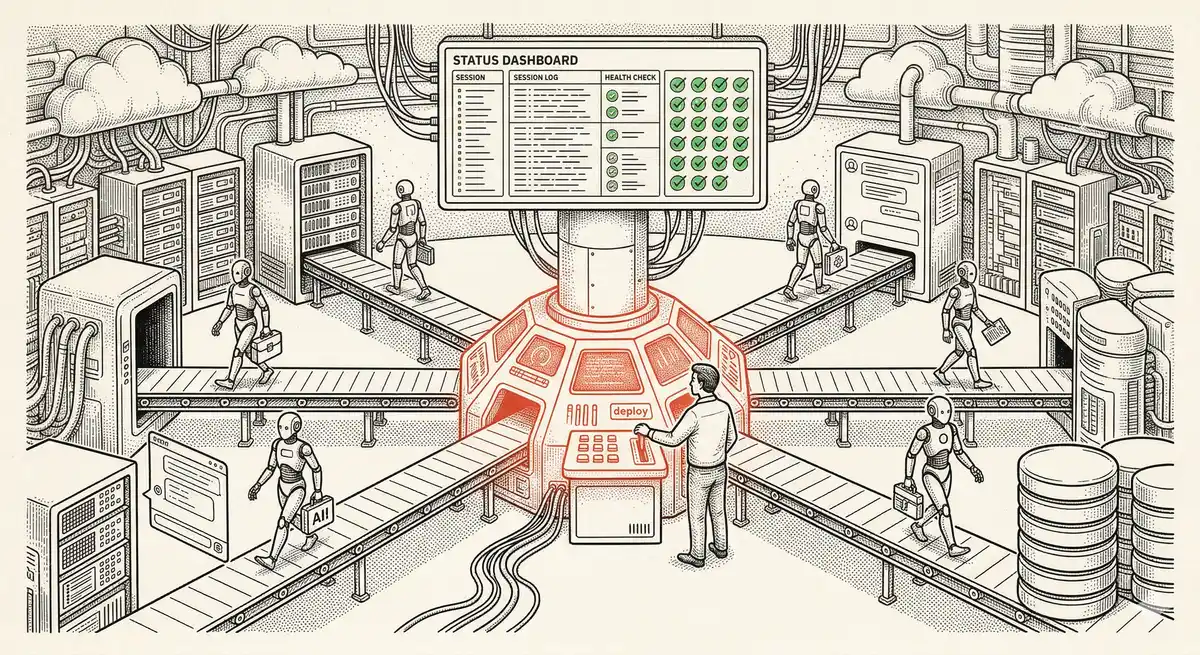
Claude Managed Agents: Anthropic's Platform for Production Agent Deployment
Anthropic launches Managed Agents: a cloud platform for deploying AI agents in production. Secure sandbox, checkpointing, multi-agent, autonomous sessions lasting hours. Notion, Rakuten, Asana and Sentry already use it.
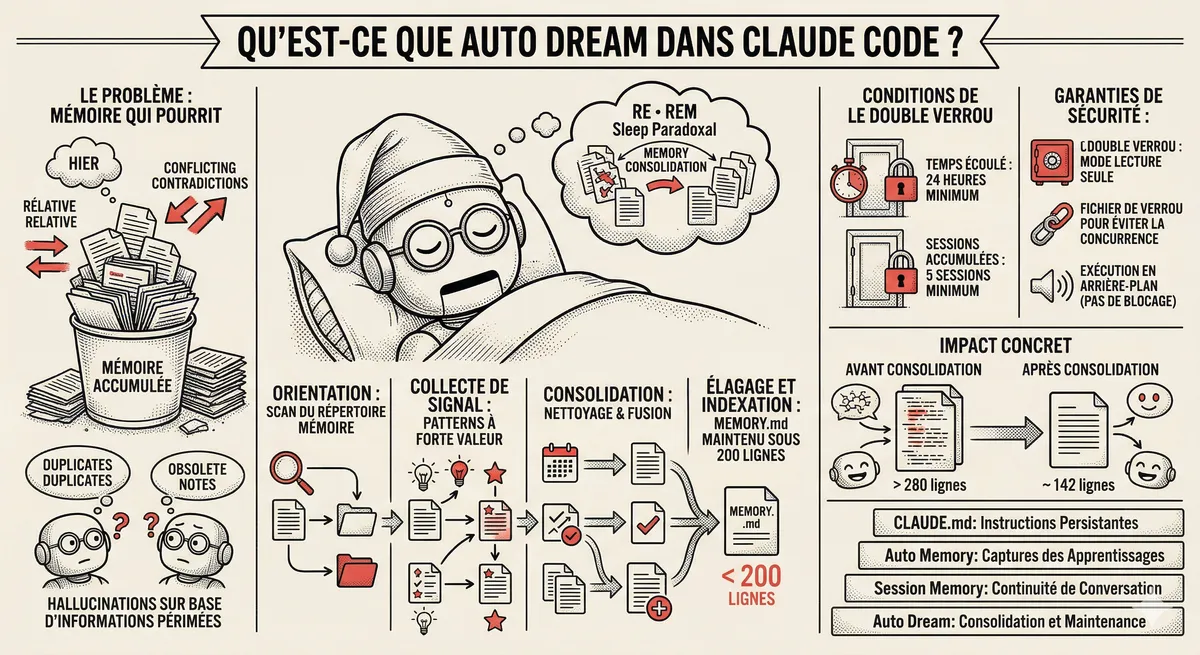
Claude Code Dream & Auto Dream: Automatic Memory Consolidation
After 20 sessions, Auto Memory notes become a mess. Auto Dream solves this by automatically consolidating Claude Code's memory: deduplication, stale entry removal, relative-to-absolute date conversion.
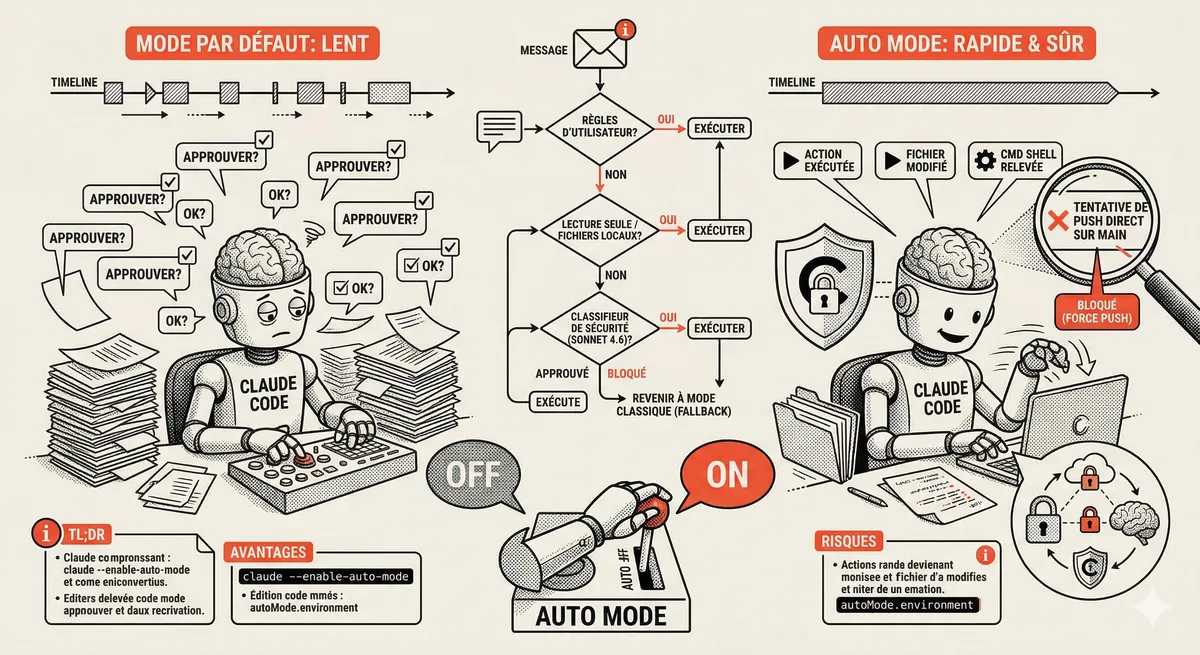
Claude Code Auto Mode: Autonomy Without the Risk
Auto Mode in Claude Code eliminates permission interruptions while keeping a safety net. A classifier analyzes every action before execution and blocks destructive operations. The sweet spot between approving everything and letting everything through.
Claude Code Training
Master Claude Code fundamentals in 1 day with our expert instructors. 60% hands-on practice on real-world cases.
Discover the training