TL;DR
Claude Code runs on the same engine across every surface, and your CLAUDE.md files, settings, and MCP servers work everywhere. This comparison puts the terminal, the IDE extension, the desktop app, web and mobile, Slack, Chrome, and CI side by side, with the best use case for each one so you can choose without hesitating.
Claude Code runs on the same engine across every surface, and your CLAUDE.md files, settings, and MCP servers work everywhere. This comparison puts the terminal, the IDE extension, the desktop app, web and mobile, Slack, Chrome, and CI side by side, with the best use case for each one so you can choose without hesitating.
Many people still assume Claude Code is only the terminal. It is not: Anthropic ships a family of surfaces that share the same brain. You pick the environment based on the moment, not a technical constraint. For the full picture of this sub-pillar, head back to the Surfaces and environments page.
SFEIR Institute trainings
Claude Code Training
1 day · Fundamentals
AI-Augmented Developer
2 days · Intermediate
What works across every surface?
Anthropic's official documentation is explicit: each surface connects to the same underlying Claude Code engine. In practice, three configuration elements follow you everywhere.
- CLAUDE.md: the markdown file at your project root, read at the start of every session, where you set coding standards and review checklists.
- Settings: your personal and project configuration (
settings.json). - MCP servers: your Model Context Protocol connections to Google Drive, Jira, Slack, or your own custom tooling.
This means you configure your project once and then move freely between surfaces without re-setting anything. To understand how this sharing works in practice, see the sub-pillar overview on Surfaces and environments.
Key takeaway: the engine is shared, so CLAUDE.md, your settings, and your MCP servers apply to every surface with no extra setup.
Which surface should you choose for your use case?
Here is the reference table. Each row maps a surface to its best use case and the capabilities highlighted in the official documentation.
| Surface | Best use case | Key capabilities |
|---|---|---|
| Terminal (CLI) | Daily work, scripting, Unix automation | Full CLI, claude -p to pipe and script, CI integration |
| IDE extension (VS Code / Cursor) | Coding in the editor with visual review | Inline diffs, @-mentions, plan review, conversation history |
| JetBrains plugin | IntelliJ, PyCharm, WebStorm | Interactive diff viewing, selection context sharing |
| Desktop app | Parallel sessions outside IDE and terminal | Visual diff review, multiple sessions side by side, scheduled tasks, cloud sessions |
| Web (claude.ai/code) and iOS | Long-running tasks, repos you don't have locally | Long-running tasks, remote repos, parallel tasks, mobile access |
| Slack | Turning a bug report into a pull request | Mention @Claude in a channel, get a PR back |
| Chrome | Debugging live web applications | Debug running web apps |
| CI (GitHub / GitLab) | Automated PR review, issue triage | GitHub Actions, GitLab CI/CD, GitHub Code Review on every PR |
Each surface keeps its own reason to exist. The terminal stays unbeatable for scripting, the IDE for line-by-line visual review, the web for tasks you kick off and forget while they run.
Key takeaway: choose the surface based on the moment, not a tool constraint, because the engine stays the same.
Terminal or IDE: which one for daily coding?
This is the most common question. Both surfaces are excellent choices for daily work, but they serve different preferences.
The terminal is the full CLI. You start Claude Code in a project with a single command:
cd your-project
claude
Its strength is Unix-philosophy composition. You can pipe logs, script tasks, and chain Claude Code with other tools:
tail -200 app.log | claude -p "Slack me if you see any anomalies"
The IDE extension (VS Code or Cursor) brings inline diffs, @-mentions, plan review, and conversation history directly into your editor. You stay in the visual context of your code, which makes reviewing changes before you accept them easier.
To dig into each option, read the dedicated Terminal and IDE pages.
Key takeaway: take the terminal for scripting and automation, the IDE extension for visual diff review without leaving your editor.
When are the desktop or web surfaces a better fit?
The desktop app is available for macOS and Windows, including Windows ARM64. It runs outside your IDE and terminal. Its strengths are visual diff review, multiple sessions side by side, scheduled tasks, and kicking off cloud sessions. It is the ideal surface when you orchestrate several sessions in parallel and want to watch them from one screen. A paid subscription is required.
The web at claude.ai/code needs no local setup. It is built for long-running tasks you pick up once they are done, for working on repos you don't have locally, and for running multiple tasks in parallel. It is available in desktop browsers and in the Claude iOS app, so you can start a task and then follow it from your phone.
The Desktop and Web and mobile pages cover both environments.
Key takeaway: desktop excels for parallel and scheduled sessions, web for long-running tasks and repos you don't have locally.
Slack, Chrome, and CI: what are the specialized use cases?
Three surfaces cover targeted needs beyond interactive work.
Slack routes tasks from team chat. Mention @Claude in a channel with a bug report, and you get a pull request back. It is the bridge between team conversation and the code repo.
Chrome is for debugging live web applications. You point Claude Code at your running app to analyze its real behavior.
CI automates code review and issue triage. The official documentation cites GitHub Actions and GitLab CI/CD for pipelines, plus GitHub Code Review to get automatic review on every pull request.
The Chat and CI page groups these integrations.
Key takeaway: Slack links chat to code, Chrome debugs live web apps, and CI automates review and triage on your pipelines.
How do you move a session from one surface to another?
Sessions aren't tied to a single surface. The official documentation describes several bridges to keep your work wherever you are.
- Remote Control: continue a local session from your phone or another device.
claude --teleport: kick off a long-running task on the web or the iOS app, then pull it into your terminal./desktop: hand off a terminal session to the desktop app for visual diff review.- Slack: mention
@Claudeto turn a bug report into a pull request.
This portability rests on the shared engine mentioned earlier. You start where it is most convenient and continue elsewhere without losing context. The Surfaces and environments page places these bridges within the full sub-pillar.
Key takeaway: Remote Control, claude --teleport, and /desktop move a single session across phone, web, terminal, and desktop.
Where should you start if you're unsure?
If you are starting out, begin with the terminal or the IDE extension for daily work, then add the specialized surfaces as your needs grow. The table above stays your starting point for every decision.
A useful rule of thumb: set up your CLAUDE.md and MCP servers once, since they apply to every surface, then try two or three environments on real tasks. You will quickly learn which ones match how you work.
To go further, the SFEIR Institute Claude Code course (1 day) lets you practice the tool on guided labs, and the AI-Augmented Developer course (2 days) covers advanced workflows. Any remaining questions are answered on the FAQ page.
Key takeaway: configure CLAUDE.md and MCP once, start with the terminal or IDE, then add the specialized surfaces based on your real needs.
Recent articles about Claude
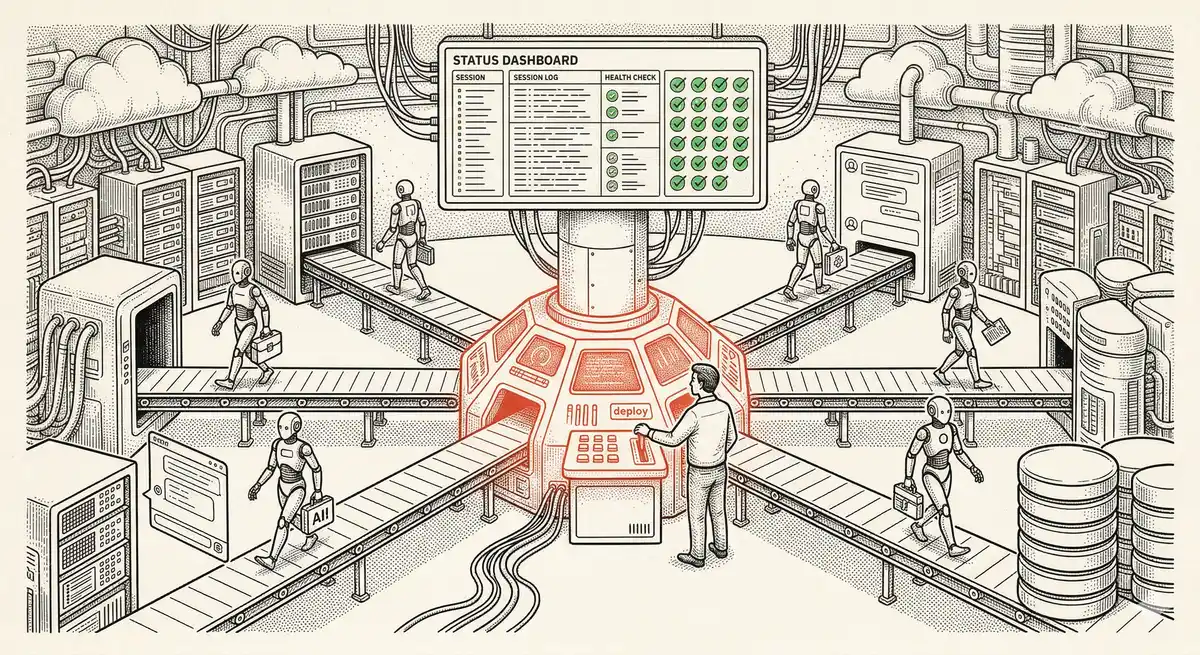
Claude Managed Agents: Anthropic's Platform for Production Agent Deployment
Anthropic launches Managed Agents: a cloud platform for deploying AI agents in production. Secure sandbox, checkpointing, multi-agent, autonomous sessions lasting hours. Notion, Rakuten, Asana and Sentry already use it.
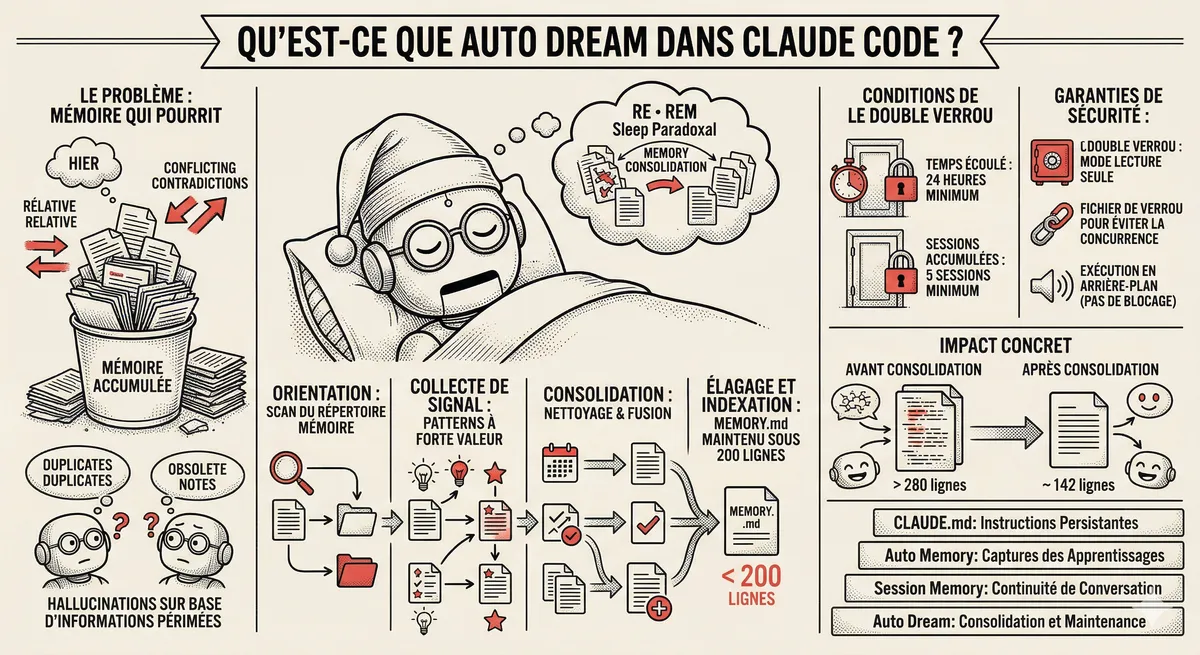
Claude Code Dream & Auto Dream: Automatic Memory Consolidation
After 20 sessions, Auto Memory notes become a mess. Auto Dream solves this by automatically consolidating Claude Code's memory: deduplication, stale entry removal, relative-to-absolute date conversion.
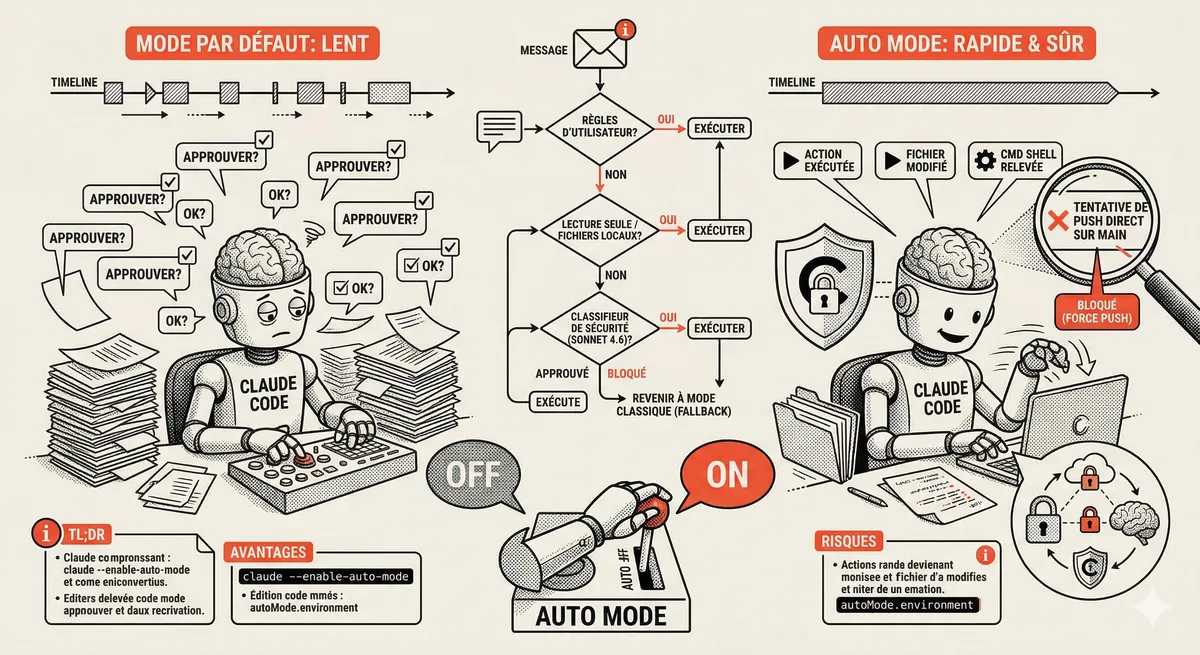
Claude Code Auto Mode: Autonomy Without the Risk
Auto Mode in Claude Code eliminates permission interruptions while keeping a safety net. A classifier analyzes every action before execution and blocks destructive operations. The sweet spot between approving everything and letting everything through.
Claude Code Training
Master Claude Code fundamentals in 1 day with our expert instructors. 60% hands-on practice on real-world cases.
Discover the training