TL;DR
This tutorial guides you step by step to install Claude Code on your machine, configure OAuth authentication, and launch your first codebase analysis. In 30 minutes, you will go from a blank terminal to an operational AI assistant capable of navigating your projects.
This tutorial guides you step by step to install Claude Code on your machine, configure OAuth authentication, and launch your first codebase analysis. In 30 minutes, you will go from a blank terminal to an operational AI assistant capable of navigating your projects.
Claude Code is the command-line interface (CLI) developed by Anthropic that allows developers to interact with the Claude model directly from their terminal. Developers use Claude Code daily to accelerate their development workflow.
The recommended way to install Claude Code is the native installer, a self-contained binary that auto-updates and requires no Node.js. It runs on macOS, Linux, and Windows (native or via WSL). This installation and first launch guide covers every step, from system prerequisites to mastering keyboard shortcuts, so you can be productive from your very first session.
SFEIR Institute trainings
Claude Code Training
1 day · Fundamentals
AI-Augmented Developer
2 days · Intermediate
What are the system prerequisites for installing Claude Code?
Before starting the installation, verify that your environment meets the minimum requirements. Claude Code itself does not require Node.js: the recommended native installer ships a self-contained binary. Node.js 18 or higher is needed only if you choose the npm installation path. Git is recommended (and on native Windows, Git for Windows is recommended so the Bash tool works), but not mandatory.
You also need an account to sign in: a Claude Pro, Max, Team, or Enterprise subscription, a Claude Console account, or a supported cloud provider (Amazon Bedrock, Google Vertex AI, or Microsoft Foundry).
| Prerequisite | Requirement | When it is needed | Verification Command |
|---|---|---|---|
| Operating system | macOS, Linux, or Windows (native or WSL) | Always | uname -a |
| Account | Claude Pro/Max/Team/Enterprise, Console, or a supported cloud provider | Always (for sign-in) | n/a |
| Git | Recommended (Git for Windows on native Windows for the Bash tool) | Git workflows | git --version |
| Node.js | Version 18 or higher | Only for the npm install method | node --version |
If you choose the npm path and Node.js is not installed, you can use nvm (Node Version Manager) to install it. Nvm is a version manager that lets you switch between different Node.js versions with a single command. You will find additional details in the installation quickstart guide.
curl -o- https://raw.githubusercontent.com/nvm-sh/nvm/v0.40.1/install.sh | bash
source ~/.bashrc
nvm install 22
If you seenvm: command not found, restart your terminal or runsource ~/.zshrc(macOS) /source ~/.bashrc(Linux).
Key takeaway: Claude Code runs without Node.js when you use the recommended native installer; Node.js 18+ is required only for the npm install path, and Git is recommended for Git workflows.
How to install Claude Code? (Step 1)
The recommended method is the native installer, a self-contained binary that auto-updates and needs no Node.js. Open your terminal and run the command for your platform.
On macOS, Linux, or WSL:
curl -fsSL https://claude.ai/install.sh | bash
On Windows PowerShell:
irm https://claude.ai/install.ps1 | iex
On Windows CMD:
curl -fsSL https://claude.ai/install.cmd -o install.cmd && install.cmd && del install.cmd
Verification: run claude --version to confirm the installation. You should get a version number.
Package managers are first-class alternatives. On macOS and Linux you can use Homebrew, and on Windows you can use WinGet:
brew install --cask claude-code
winget install Anthropic.ClaudeCode
On Linux, distribution package managers are also supported: apt (Debian/Ubuntu), dnf (Fedora/RHEL), and apk (Alpine).
As a secondary alternative, you can install Claude Code with npm. This is the only method that requires Node.js 18 or higher (Node.js is not required for Claude Code itself, only for this install path):
npm install -g @anthropic-ai/claude-code
If you seeEACCES: permission deniedwith the npm method, do not runsudo npm install. Instead, fix npm permissions withmkdir ~/.npm-global && npm config set prefix '~/.npm-global', then addexport PATH=~/.npm-global/bin:$PATHto your~/.bashrcor~/.zshrcfile.
To keep Claude Code up to date, run claude update with the native installer. Homebrew and WinGet do not auto-update, so use brew upgrade claude-code or winget upgrade Anthropic.ClaudeCode. For the npm method, reinstall the package. Check the installation FAQ for advanced use cases like installing behind an enterprise proxy.
| Installation Method | Command | Use Case | |
|---|---|---|---|
| Native installer (recommended) | `curl -fsSL https://claude.ai/install.sh \ | bash` | No Node.js dependency, self-contained, auto-updates |
| Native installer (Windows) | `irm https://claude.ai/install.ps1 \ | iex` | Windows PowerShell, auto-updates |
| Homebrew (macOS/Linux) | brew install --cask claude-code | Managed via Homebrew (brew upgrade to update) | |
| WinGet (Windows) | winget install Anthropic.ClaudeCode | Managed via WinGet (winget upgrade to update) | |
| npm (alternative) | npm install -g @anthropic-ai/claude-code | Requires Node.js 18+ |
Key takeaway: the native installer is the recommended, Node.js-free, auto-updating method; Homebrew and WinGet are first-class alternatives, and npm is a secondary option that requires Node.js 18+.
How to launch Claude Code for the first time? (Step 2)
Navigate to an existing project directory, then launch Claude Code:
cd ~/your-project
claude
Verification: an interactive welcome screen appears with the interactive prompt ready to receive your instructions.
On first launch, Claude Code analyzes the current directory structure. The tool automatically detects the primary language, the framework in use, and the configuration files present. You can also launch Claude Code without a project to ask general questions.
If you want to explore different ways to start a conversation, the first conversations with Claude Code guide offers concrete examples for each situation.
You can launch Claude Code from any directory, including an empty one. Running it inside a project root simply gives it access to your full codebase from the start.
Key takeaway: always launch Claude Code from the root of your project so it has access to your entire codebase.
How to authenticate with the OAuth flow? (Step 3)
Run claude in your terminal. On first launch, the tool prompts you to log in and opens your browser for sign-in:
claude
# → On first use, you are prompted to log in
# → Your browser opens for OAuth sign-in
Verification: a login page opens in your default browser. Sign in with your Anthropic account, then return to the terminal.
Claude Code uses a browser-based sign-in flow to obtain and store your credentials. After you log in through the browser, your credentials are stored locally in the ~/.claude/ directory. Inside a running session, type /login to switch accounts.
| Authentication Type | Method | Validity Period | Renewal |
|---|---|---|---|
| OAuth (default) | Browser + token | Stored locally, reused | Automatic |
| API Key | ANTHROPIC_API_KEY variable | Unlimited | Manual |
| Enterprise SSO | SAML/OIDC | Per policy | Automatic |
For server environments without a browser, set an API key as an environment variable:
export ANTHROPIC_API_KEY="sk-ant-api03-your-key-here"
claude
the OAuth flow is recommended for developer workstations as it provides automatic renewal and centralized revocation. The API key remains useful for CI/CD pipelines and headless environments. To understand how Claude Code manages permissions after authentication, check the permissions and security guide.
If the browser does not open automatically, copy the URL displayed in the terminal and paste it manually into your browser.
Key takeaway: the browser-based OAuth sign-in is the default authentication method; after you log in once, your credentials are stored locally and reused automatically.
How to analyze and understand your codebase with Claude Code?
Once authenticated, you can ask Claude Code to explore your project. Here is how to get an overview in a few seconds. Type your questions directly in natural language at the prompt.
Explain the structure of this project
What are the main dependencies?
Show me the application entry points
Claude Code browses the file tree, reads configuration files (package.json, tsconfig.json, Dockerfile, etc.) and produces a structured summary. In practice, this overview takes just a few seconds, depending on the size and complexity of your project.
You can also ask targeted questions about specific files:
What does the handleAuth function in src/auth.ts do?
Are there vulnerabilities in this file?
Claude Code works with a large context window, whose size depends on the selected model, letting it analyze substantial portions of your codebase in a single conversation. To master context management and avoid overflows, explore the techniques described in the context management guide.
The CLAUDE.md file at the root of your project lets you provide persistent instructions to Claude Code. CLAUDE.md is a memory file that Claude Code reads automatically at each launch. Create it to specify your team's conventions. The dedicated CLAUDE.md memory system tutorial shows you how to structure this file for optimal results.
/init
# → Claude Code generates a CLAUDE.md file tailored to your project
Key takeaway: Claude Code understands your codebase in natural language. Ask your questions directly, no special syntax needed.
What are the essential keyboard shortcuts and navigation commands?
Productivity with Claude Code comes from mastering shortcuts. Memorize these combinations to save time in every session. In practice, developers who rely on keyboard shortcuts move through Claude Code noticeably faster than those who type everything manually.
| Shortcut | Action | Context |
|---|---|---|
Tab | Command / path completion | While typing a command or @ file path |
Ctrl+C | Cancel current generation | During a response |
Ctrl+L | Redraw the screen | Anytime |
Up / Down | Navigate through history | Empty prompt |
Ctrl+D | Quit Claude Code | End of session |
/help | Display full help | Anytime |
/clear | Reset the conversation | Anytime |
Slash commands form the primary navigation system. A slash command is a text shortcut starting with / that triggers a predefined action. Discover all slash commands in the essential commands guide and the advanced slash commands tutorial.
/help # Displays all available commands
/clear # Starts a fresh conversation
/compact # Summarizes the conversation to free context
/config # Opens configuration settings
The /compact command is particularly useful for long sessions. It summarizes the conversation history while retaining key information, freeing a variable amount of available context.
Key takeaway: Tab for completion, Ctrl+C to cancel, /compact to free context. These few shortcuts cover most day-to-day interactions.
How to integrate Claude Code into your Git workflow?
Claude Code integrates natively with Git to automate repetitive tasks. Use it to generate commit messages, create pull requests, and resolve conflicts. Claude Code works with your local git repository regardless of remote provider (GitHub, GitLab, Bitbucket).
Create a commit with the current changes
Generate a PR with a summary of the changes
Help me resolve the conflict in src/index.ts
In practice, Claude Code analyzes the Git diff, understands the semantic context of changes, and produces commit messages conforming to your project's conventions (Conventional Commits, Gitmoji, etc.). using Claude Code for commit generation significantly reduces code review time.
To leverage all of Claude Code's Git features, check the complete Git integration with practical examples guide. You will find workflows for interactive rebase, assisted cherry-pick, and automatic conflict resolution.
If you want to go further in mastering Claude Code, SFEIR Institute offers the one-day Claude Code training. You will practice installation, advanced configuration, and real-world enterprise use cases through labs led by certified instructors.
Key takeaway: Claude Code generates commits, PRs, and resolves Git conflicts directly from the terminal, without switching tools.
What common errors should you avoid during installation?
Here are the 5 most frequent problems encountered by developers during their first installation, along with their solutions. SFEIR Institute has compiled this feedback from its training sessions.
1. Incompatible Node.js version (npm method only)
# Error: "engine" requirements not met
nvm install 22 && nvm use 22
This error only affects the npm install path on machines with an outdated Node.js. Switching to the native installer avoids it entirely, since it needs no Node.js.
2. npm global permissions
# Error: EACCES permission denied
npm config set prefix '~/.npm-global'
export PATH=~/.npm-global/bin:$PATH
3. Enterprise proxy blocking OAuth
# Solution: use an API key
export ANTHROPIC_API_KEY="sk-ant-api03-..."
export HTTPS_PROXY="http://proxy.company.com:8080"
4. WSL2 without configured browser
# Solution: set the default browser
export BROWSER="/mnt/c/Program Files/Google/Chrome/Application/chrome.exe"
5. Firewall blocking HTTPS connections
Claude Code communicates with the Anthropic API via standard HTTPS calls. Verify that your firewall allows outbound HTTPS connections to api.anthropic.com on port 443.
For other scenarios, the complete installation FAQ covers over 20 troubleshooting scenarios with tested solutions.
Key takeaway: most npm-method installation problems are resolved by updating Node.js and fixing npm permissions; the native installer sidesteps both since it requires no Node.js.
How to go further after installation?
You have installed Claude Code, configured authentication, and explored your first project. Now move to the next level with these resources and advanced practices.
Recommended next steps:
- Configure the CLAUDE.md file to customize Claude Code's behavior on each project
- Explore advanced slash commands (
/compact,/config,/cost) - Integrate Claude Code into your CI/CD pipeline for automatic PR analysis
- Test multi-file mode for large-scale refactoring
- Enable custom hooks to automate pre-commit checks
To dive deeper into each of these topics, check the installation and first launch page which centralizes all available guides.
The 2-day AI-Augmented Developer training offered by SFEIR Institute covers advanced use of Claude Code combined with other AI tools. You will learn to orchestrate multiple AI assistants in a complete professional workflow with hands-on exercises on real projects. For those who already master the basics, the one-day AI-Augmented Developer - Advanced training covers prompt optimization strategies, fine-grained context management, and integration into enterprise architectures.
Key takeaway: installation is just the beginning. Configure CLAUDE.md, master slash commands, and integrate Claude Code into your CI/CD pipeline to get the most out of it.
Recent articles about Claude

Claude Managed Agents: Anthropic's Platform for Production Agent Deployment
Anthropic launches Managed Agents: a cloud platform for deploying AI agents in production. Secure sandbox, checkpointing, multi-agent, autonomous sessions lasting hours. Notion, Rakuten, Asana and Sentry already use it.

Claude Code Dream & Auto Dream: Automatic Memory Consolidation
After 20 sessions, Auto Memory notes become a mess. Auto Dream solves this by automatically consolidating Claude Code's memory: deduplication, stale entry removal, relative-to-absolute date conversion.
Claude Code Auto Mode: Autonomy Without the Risk
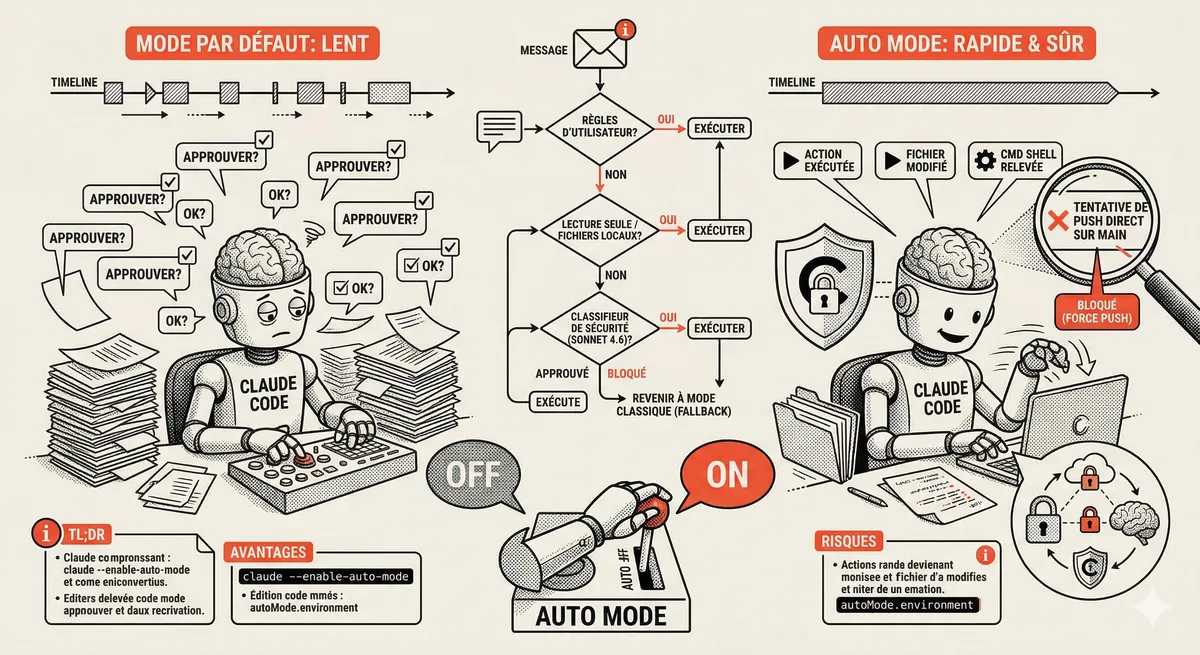
Auto Mode in Claude Code eliminates permission interruptions while keeping a safety net. A classifier analyzes every action before execution and blocks destructive operations. The sweet spot between approving everything and letting everything through.
This topic is covered in Module 2 of our Claude Code training
Claude Code Installation and Configuration
1-day training • 60% hands-on labs • Expert instructors
View full program