TL;DR
Configure Claude Code permissions and sandboxing in under 5 minutes with this quickstart guide. You will learn how to choose the right permission mode, define allow/deny rules in `settings.json`, and enable protection against prompt injections.
Configure Claude Code permissions and sandboxing in under 5 minutes with this quickstart guide. You will learn how to choose the right permission mode, define allow/deny rules in settings.json, and enable protection against prompt injections.
Claude Code permission security is a set of mechanisms (permission modes, allow/deny rules, and sandboxing) that protect your development environment against unauthorized executions. many incidents related to AI agents stem from misconfigured permissions. This guide lets you secure your installation in 5 concrete steps, without unnecessary theory.
SFEIR Institute trainings
Claude Code Training
1 day · Fundamentals
AI-Augmented Developer
2 days · Intermediate
What are the prerequisites before configuring permissions?
Before starting, verify that you have the following:
- Claude Code installed (step-by-step installation guide)
- Node.js 18 or higher (only needed for npm-based installs; the native binary does not require Node)
- A terminal with access to the
~/.claude/directory - 5 minutes of your time
Run this command to confirm your version:
claude --version
If you do not see a version, consult the installation quickstart to install or update.
Key takeaway: on Linux and WSL2 the sandbox relies on the bubblewrap and socat system packages; on macOS it uses the built-in Seatbelt framework, with nothing to install.
How to choose the right permission mode?
Claude Code offers 6 permission modes via the --permission-mode flag. Each mode defines the level of autonomy granted to the agent. In practice, many use default mode daily.
| Mode | CLI Flag | Behavior | Use Case | Risk Level |
|---|---|---|---|---|
default | --permission-mode default | Asks confirmation for every sensitive action | Daily development | Low |
acceptEdits | --permission-mode acceptEdits | Auto-approves file edits | Everyday development | Medium |
plan | --permission-mode plan | Analysis, proposes a plan before execution | Code review, architecture | Minimal |
auto | --permission-mode auto | LLM classifier decides (research preview; requires Opus 4.6+ or Sonnet 4.6, Anthropic API only, not Bedrock/Vertex/Foundry) | Advanced development | Variable |
dontAsk | --permission-mode dontAsk | Pre-approved tools only | Restricted execution | Low |
bypassPermissions | --dangerously-skip-permissions | Executes everything without confirmation | CI/CD and automated pipelines | High |
Launch Claude Code in the desired mode with --permission-mode:
# Default mode
claude

# acceptEdits mode - for everyday development
claude --permission-mode acceptEdits

# Plan mode - analysis before action
claude --permission-mode plan

# In session, use Shift+Tab or Alt+M to cycle through modes
default mode is recommended if you are discovering the tool. It asks for confirmation before every sensitive action, allowing you to understand the agent's behavior. In session, use Shift+Tab or Alt+M to cycle through permission modes. Consult the first conversations tutorial to see these modes in action.
Key takeaway: start in default mode to learn, use Shift+Tab/Alt+M to cycle through modes, then switch to acceptEdits once comfortable.
How to configure allow/deny rules in settings.json in 5 minutes?
Allow/deny rules in settings.json are Claude Code's granular control mechanism. They give you granular control over which commands run without prompting and which are blocked outright, independently of the active permission mode.
Open the global configuration file:
# Create the directory if needed
mkdir -p ~/.claude

# Edit the settings.json file
nano ~/.claude/settings.json
Add this base configuration to secure your environment:
{
 "permissions": {
 "allow": [
 "Read",
 "Glob",
 "Grep",
 "Bash(npm test)",
 "Bash(npm run lint)",
 "Bash(git status)",
 "Bash(git diff)"
 ],
 "deny": [
 "Bash(rm -rf *)",
 "Bash(curl * | bash)",
 "Bash(git push --force)",
 "Bash(chmod 777 *)"
 ]
 }
}
In practice, each rule follows the Tool(pattern) format. The * wildcard works like a glob. Here are the most commonly used patterns:
| Pattern | Effect | Concrete Example |
|---|---|---|
Bash(npm *) | Allows all npm commands | npm test, npm install |
Bash(git diff) | Allows only git diff | Not git diff --staged without * |
Bash(rm -rf *) in deny | Blocks all recursive deletions | Protection against accidents |
Read | Allows file reading | Without path restriction |
You can also define project-level rules. Create a .claude/settings.json file at the root of your repository for project-specific rules. Project rules are merged with your user (global) rules across scopes. A deny rule at any scope always overrides an allow rule at any other scope, so a user-level deny blocks a project-level allow.
For further configuration, consult the advanced permissions tips that cover complex patterns and edge cases.
Key takeaway: deny rules always take priority over allow rules. Place your critical prohibitions first.
How to enable sandboxing with Seatbelt or bubblewrap?
Sandboxing is an isolation layer that prevents Claude Code from accessing files and networks outside the authorized perimeter. Seatbelt is the native mechanism on macOS, bubblewrap on Linux. It provides OS-level filesystem and network isolation for Bash commands, but it is not a complete isolation boundary.
Which sandbox for which system?
| System | Tool | Activation | Performance Impact |
|---|---|---|---|
| macOS 13+ | Seatbelt | Built in, opt-in via /sandbox | Minimal overhead |
| Linux (Ubuntu 22+) | bubblewrap (bwrap) + socat | Install packages, opt-in via /sandbox | Minimal overhead |
| Windows (WSL2) | bubblewrap + socat via WSL | Install packages, opt-in via /sandbox | Minimal overhead |
Sandboxing is opt-in. Enable it per project by running /sandbox, or for all projects set "sandbox": { "enabled": true } in ~/.claude/settings.json.
On Linux and WSL2, install both required system packages first:
sudo apt-get install bubblewrap socat
macOS needs nothing installed: it uses the built-in Seatbelt framework.
To inspect sandbox status, run the /sandbox command inside a session. Its Dependencies tab shows what is available and its Config tab shows the resolved settings. For installation diagnostics, use claude doctor.
By default, sandboxed commands can write only to the working directory and its subdirectories; read access defaults to the whole filesystem except paths you deny. Add credential directories like ~/.aws and ~/.ssh to denyRead to block reads.
To resolve common sandboxing issues, consult the common permission errors page that details solutions for the most frequent blockers.
Key takeaway: sandboxing is your safety net. Enable it with /sandbox and keep it on in production, even when you use bypassPermissions mode.
How to protect against prompt injections in 5 minutes?
Protection against prompt injections is a mechanism that prevents malicious content (files, web pages, API results) from hijacking Claude Code's behavior. Prompt injections remain the number one attack vector against AI agents.
Configure the protections in your settings.json:
{
 "permissions": {
 "deny": [
 "Bash(curl *)",
 "Bash(wget *)",
 "Bash(bash)",
 "Bash(bash *)",
 "Bash(sh)",
 "Bash(sh *)",
 "Bash(eval *)"
 ]
 }
}
A critical detail: Claude Code matches permission rules per subcommand. It splits a compound command on the separators &&, ||, ;, |, |&, &, and newlines, then matches each subcommand independently against your rules. A deny pattern that itself contains a pipe, such as Bash(curl | bash), never matches, because the running command curl x | bash is split into curl x and bash and neither matches the literal pattern. Never embed a pipe inside a single Bash() rule. Instead, deny the dangerous interpreter directly (Bash(bash), Bash(sh)) and the download tools (Bash(curl ), Bash(wget *)), so the curl x | bash attack is blocked on the bash subcommand.
Here are the most common injection vectors and how Claude Code blocks them:
- Booby-trapped files: a
.mdor.txtfile containing hidden instructions. Normal mode shows you the content before execution. - Command results: a
curlcommand that returns execution instructions. Denyingcurl,wget,bash, andshblocks the download-and-execute chain on each individual subcommand. - Compromised dependencies: a
package.jsonwith maliciouspostinstallscripts. AddBash(npm install *)to deny and useBash(npm install --ignore-scripts)in allow. - External MCP context: an MCP server injecting instructions. Consult the MCP quickstart to secure your connections.
SFEIR Institute best practices for AI agent security include systematically verifying results before execution. You will find concrete examples of secure conversations that illustrate how to identify an injection attempt.
Key takeaway: combining plan mode, deny rules, and sandboxing provides layered defense-in-depth against prompt-injection attempts.
How to verify everything is working?
Claude Code gives you three dedicated checks. Run each one:
| Command | What it shows |
|---|---|
/sandbox | Sandbox state, available dependencies, and the resolved configuration |
/permissions | Active allow/deny rules and which settings file each one comes from |
claude doctor | Installation and configuration diagnostics |
If any check shows a warning, revisit the corresponding step. For complex cases, the complete permissions and security guide covers each parameter in detail.
Then confirm a blocked command is properly rejected. Run /permissions to verify your deny rules are loaded, then ask Claude to run a specific denied command in an interactive session and confirm it is blocked:
# In an interactive session, confirm a denied command is refused
/permissions
If a denied command runs anyway, your deny rules are not loaded. Check the settings.json file path.
To master the slash commands that facilitate permission navigation, consult the slash commands tutorial and the associated examples.
Key takeaway: use /permissions and /sandbox to confirm your security state, and re-run them after every settings.json modification.
What are the recommended settings for your profile?
Your ideal configuration depends on your context. Here are the typical profiles and associated settings:
| Profile | Mode | Allow Rules | Sandbox | Injection Protection |
|---|---|---|---|---|
| Beginner | plan | Minimal (Read, Glob) | Enabled | Enabled |
| Solo developer | default | npm, git, Read, Write | Enabled | Enabled |
| CI/CD team | bypassPermissions (via --dangerously-skip-permissions) | Pipeline scripts only | Enabled | Enabled |
| Code review | plan | Read, Grep, Glob | Enabled | Enabled |
In practice, the "Solo developer" profile covers the majority of daily use cases. Copy this complete configuration to get started:
{
 "permissions": {
 "allow": [
 "Read",
 "Write",
 "Glob",
 "Grep",
 "Bash(npm *)",
 "Bash(git *)",
 "Bash(node *)"
 ],
 "deny": [
 "Bash(rm -rf *)",
 "Bash(curl * | *)",
 "Bash(git push --force *)",
 "Bash(eval *)",
 "Bash(chmod 777 *)"
 ]
 }
}
To deepen Claude Code security, SFEIR Institute offers the one-day Claude Code training. You will practice permission configuration on real cases, with labs dedicated to sandboxing and allow/deny rules.
If you want to go further, the AI-Augmented Developer training (2 days) covers secure integration of AI agents into your complete workflow, and the AI-Augmented Developer - Advanced training (1 day) covers advanced security strategies for CI/CD pipelines.
Key takeaway: adapt your permissions to your context: too restrictive slows productivity, too permissive exposes you to risks.
What's next?
You have secured Claude Code in 5 minutes. Here are the next steps to go further:
- Explore the complete permissions and security guide to master advanced configurations
- Consult the permissions tips to optimize your allow/deny rules
- Avoid the pitfalls listed in common permission errors
- Configure your MCP servers securely with the MCP quickstart
- Practice with conversation examples to test your rules in real conditions
Recent articles about Claude
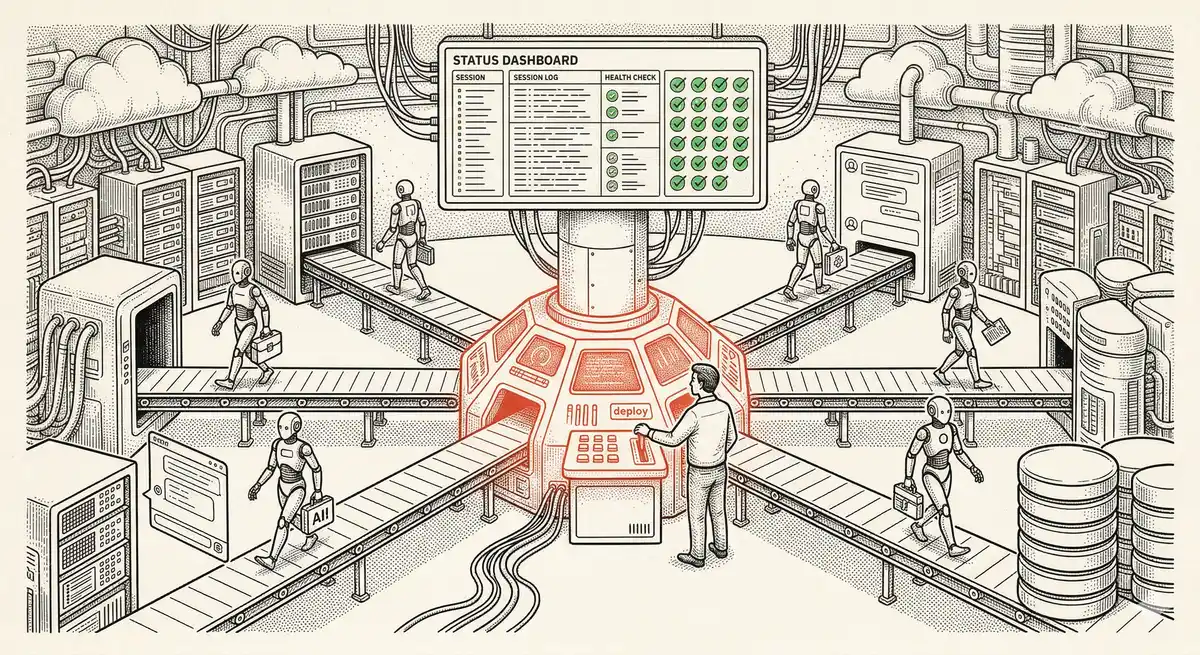
Claude Managed Agents: Anthropic's Platform for Production Agent Deployment
Anthropic launches Managed Agents: a cloud platform for deploying AI agents in production. Secure sandbox, checkpointing, multi-agent, autonomous sessions lasting hours. Notion, Rakuten, Asana and Sentry already use it.

Claude Code Dream & Auto Dream: Automatic Memory Consolidation
After 20 sessions, Auto Memory notes become a mess. Auto Dream solves this by automatically consolidating Claude Code's memory: deduplication, stale entry removal, relative-to-absolute date conversion.

Claude Code Auto Mode: Autonomy Without the Risk
Auto Mode in Claude Code eliminates permission interruptions while keeping a safety net. A classifier analyzes every action before execution and blocks destructive operations. The sweet spot between approving everything and letting everything through.
This topic is covered in Module 4 of our Claude Code training
Documentation, Organization and Prompt Management
1-day training • 60% hands-on labs • Expert instructors
View full program