TL;DR
Install Claude Code and launch your first codebase analysis in under 5 minutes. This quickstart guide covers the native installer, OAuth authentication, and immediate hands-on use of the tool - step by step, no detours.
Install Claude Code and launch your first codebase analysis in under 5 minutes. This quickstart guide covers the native installer, OAuth authentication, and immediate hands-on use of the tool: step by step, no detours.
Installing Claude Code is the fastest way to get started with this command-line development assistant created by Anthropic. The recommended native installer sets up Claude Code with a single command and works across the languages and frameworks in your codebase. Claude Code significantly reduces time spent on repetitive development tasks.
SFEIR Institute trainings
Claude Code Training
1 day · Fundamentals
AI-Augmented Developer
2 days · Intermediate
What are the system prerequisites for installing Claude Code?
Before starting the installation, verify that your machine has the following:
- A terminal: Terminal.app (macOS), Windows Terminal, or any Linux emulator
- An account: a Claude Pro, Max, Team, or Enterprise subscription, a Claude Console account, or a supported cloud provider (Amazon Bedrock, Google Vertex AI, or Microsoft Foundry)
- Git (optional): recommended for version control workflows; on native Windows, Git for Windows is recommended so the Bash tool works
- Node.js 18+ (only for the npm install method): required exclusively if you install Claude Code with npm. The recommended native installer is self-contained and does not require Node.js
| Prerequisite | Requirement | Verification Command |
|---|---|---|
| Account | Claude Pro/Max/Team/Enterprise, Console, or a supported cloud provider | - |
| Terminal | macOS, Linux, or Windows terminal | - |
| Git | Optional; recommended on Windows for the Bash tool | git -v |
| Node.js | 18+ only if installing via npm | node -v |
The native installer is the recommended path and bundles everything it needs, so Node.js is not a prerequisite for Claude Code itself. For a detailed guide on each component, see the complete installation and first launch tutorial which also covers advanced configurations.
Key takeaway: the only universal prerequisites are a terminal and a supported account; Node.js 18+ is needed solely for the npm install method, not for Claude Code in general.
How to install Claude Code?
The recommended way to install Claude Code is the native installer. It is a self-contained binary that auto-updates and does not require Node.js.
On macOS, Linux, or WSL, open your terminal and run:
curl -fsSL https://claude.ai/install.sh | bash
On Windows PowerShell:
irm https://claude.ai/install.ps1 | iex
On Windows CMD:
curl -fsSL https://claude.ai/install.cmd -o install.cmd && install.cmd && del install.cmd
Verify that the installation worked:
claude --version
You should get a version number confirming the installation.
Alternative installation methods
Homebrew (macOS and Linux):
brew install --cask claude-code
Homebrew does not auto-update Claude Code; run brew upgrade claude-code to update.
WinGet (Windows):
winget install Anthropic.ClaudeCode
WinGet does not auto-update Claude Code; run winget upgrade Anthropic.ClaudeCode to update.
Linux package managers: Claude Code is also available through apt (Debian/Ubuntu), dnf (Fedora/RHEL), and apk (Alpine).
npm (secondary alternative, requires Node.js 18+): use this path only if you prefer managing Claude Code through npm. Node.js 18+ is required for this method, and for this method alone.
npm install -g @anthropic-ai/claude-code
To update the native installer, run claude update. For package-manager installs, update through the corresponding manager; for npm, reinstall the package.
For specific cases like enterprise proxies, the installation and first launch FAQ addresses the most common issues. You will also find solutions for constrained environments.
Key takeaway: the native installer (curl -fsSL https://claude.ai/install.sh | bash) is the recommended, Node.js-free method; Homebrew, WinGet, Linux package managers, and npm are alternatives.
How to resolve authentication and OAuth flow on first launch?
OAuth authentication is the mechanism that links Claude Code to your Anthropic account. Launch Claude Code for the first time:
claude
A link appears in the terminal. Open this link in your browser. You are redirected to the Anthropic login page where you authorize Claude Code to access your account.
| OAuth Step | Action | Estimated Duration |
|---|---|---|
| 1. Launch | claude in the terminal | 2 seconds |
| 2. Open URL | Click on the displayed link | 5 seconds |
| 3. Login | Sign in to your Anthropic account (claude.ai, or the Console for API accounts) | 15 seconds |
| 4. Authorization | Accept permissions | 3 seconds |
| 5. Return to terminal | Token is stored automatically | instant |
the OAuth token is stored locally in ~/.claude/ and renews automatically. In practice, you only need to authenticate once per machine.
If the browser does not open automatically, copy the URL manually. For environments without a graphical interface (servers, Docker containers), use an API key:
export ANTHROPIC_API_KEY="sk-ant-your-key-here"
claude
In case of authentication issues, the permissions and security guide details the available authorization modes and best practices for securing your configuration.
Key takeaway: the OAuth flow happens only once. Claude Code stores and renews the token automatically.
How to understand your codebase with Claude Code in 5 minutes?
Understanding your codebase with Claude in 5 minutes is possible from the very first launch. Navigate to the root of your project and launch Claude Code:
cd /path/to/your-project
claude
Claude Code automatically analyzes the project structure: files, dependencies, configuration. Ask your questions directly in natural language.
Here is how to use the most helpful commands at startup:
> Explain the architecture of this project
> What are the main entry points?
> Summarize the contents of src/index.ts
> Find all API calls in this project
In practice, Claude Code reads relevant files on demand as you ask questions, following imports and dependencies. It does not build a prior index: it explores the codebase agentically using its file-read and search tools.
To go further with exploration, the essential slash commands let you interact more efficiently with the tool. You can also check the first conversation examples to discover concrete use cases.
| Natural Command | Result Obtained |
|---|---|
| "Explain this project" | Architecture overview |
| "Find potential bugs" | List with file and line |
| "Summarize this file" | Structured summary |
| "What tests are missing?" | Coverage suggestions |
Key takeaway: run claude at the root of your project and ask your questions: no configuration needed.
Which keyboard shortcuts speed up navigation in Claude Code?
Claude Code keyboard shortcuts let you navigate without leaving the terminal. Here are the most useful combinations to memorize from day one:
| Shortcut | Action | Context |
|---|---|---|
Ctrl+C | Cancel current generation | During a response |
Ctrl+L | Clear terminal screen | Anytime |
Tab | Autocomplete a slash command | While typing |
Up / Down | Navigate through history | While typing |
Ctrl+D | Quit Claude Code | End of session |
/help | Display built-in help | While typing |
Test the /help command immediately to display the full list of available options:
> /help
Slash commands are at the core of advanced interaction with Claude Code. Try /init to generate a CLAUDE.md file that will serve as persistent memory for your assistant. To master all shortcuts, the slash commands guide with examples offers step-by-step scenarios.
In practice, the /init command analyzes your project and generates a CLAUDE.md file that guides Claude Code's behavior for your project. The CLAUDE.md memory system tutorial explains how to leverage this feature so that Claude remembers your preferences and team conventions.
Key takeaway: /help, Tab, and Ctrl+C are the three shortcuts to know from your very first session.
How to verify that everything works correctly?
After installation, run this complete verification sequence:
claude --version # Verify installation
claude "Say hello" # Test API connection
claude "What OS?" # Validate command execution
If all three commands return a result, your installation is operational. Total verification time does not exceed 30 seconds.
Quick checklist:
claude --versiondisplays a version number -> installation OKclaude "Say hello"returns a response -> authentication OKclaudein a Git repo -> codebase analysis OK
In case of error, the most common causes are: an unconfigured proxy, an expired token, or (for npm installs only) a Node.js version below 18. The installation cheatsheet gathers all diagnostic commands on a single page.
SFEIR Institute offers a dedicated one-day Claude Code training that lets you master the tool through hands-on labs, from installation to advanced workflows. For those who want to integrate Claude Code into a broader approach, the 2-day AI-Augmented Developer training covers the full range of development assistance tools.
Key takeaway: three commands are enough to validate a complete Claude Code installation.
What are the next steps after installation?
Your Claude Code environment is ready. Here is how to deepen your mastery of the tool:
- Explore your first conversations with Claude Code to learn how to formulate effective requests
- Configure the CLAUDE.md memory system to customize Claude Code for your project
- Discover MCP (Model Context Protocol) to connect Claude Code to external tools like databases or APIs
- Master the essential slash commands to speed up every interaction
In practice, developers who configure CLAUDE.md from day one report significant productivity gains. The one-day AI-Augmented Developer - Advanced training teaches you to leverage advanced patterns like autonomous agents and CI/CD integration.
Key takeaway: configure CLAUDE.md and explore slash commands to get the most out of Claude Code from your very first days.
Recent articles about Claude
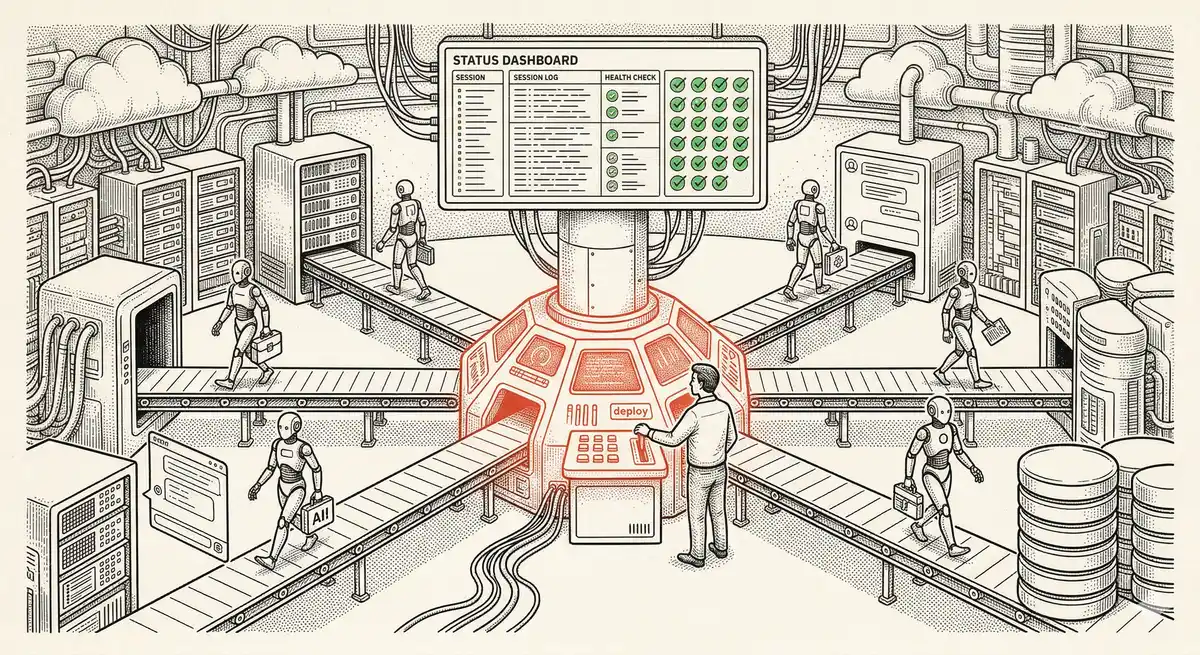
Claude Managed Agents: Anthropic's Platform for Production Agent Deployment
Anthropic launches Managed Agents: a cloud platform for deploying AI agents in production. Secure sandbox, checkpointing, multi-agent, autonomous sessions lasting hours. Notion, Rakuten, Asana and Sentry already use it.

Claude Code Dream & Auto Dream: Automatic Memory Consolidation
After 20 sessions, Auto Memory notes become a mess. Auto Dream solves this by automatically consolidating Claude Code's memory: deduplication, stale entry removal, relative-to-absolute date conversion.
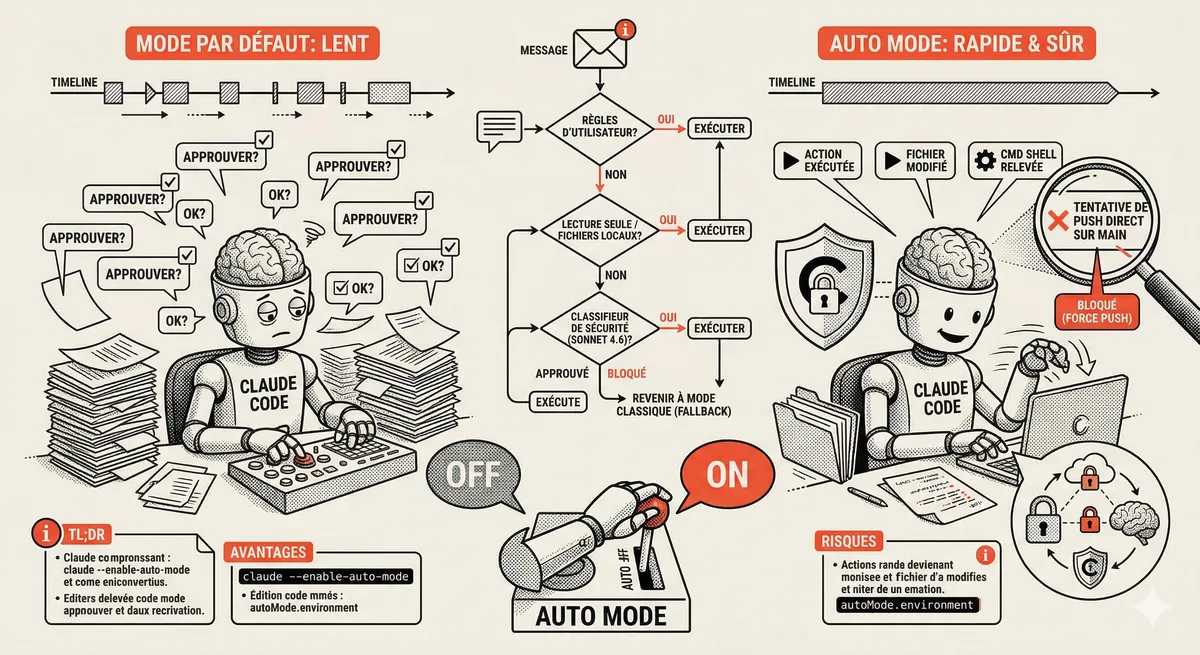
Claude Code Auto Mode: Autonomy Without the Risk
Auto Mode in Claude Code eliminates permission interruptions while keeping a safety net. A classifier analyzes every action before execution and blocks destructive operations. The sweet spot between approving everything and letting everything through.
This topic is covered in Module 2 of our Claude Code training
Claude Code Installation and Configuration
1-day training • 60% hands-on labs • Expert instructors
View full program