TL;DR
This FAQ covers the most frequently asked questions about setting up Claude Code, from verifying system prerequisites to navigating your codebase. You will find direct answers with CLI commands and code examples to resolve each installation or configuration issue. Also check the installation cheatsheet for a quick summary.
This FAQ covers the most frequently asked questions about setting up Claude Code, from verifying system prerequisites to navigating your codebase. You will find direct answers with CLI commands and code examples to resolve each installation or configuration issue. Also check the installation cheatsheet for a quick summary.
Claude Code is an agentic development assistant created by Anthropic that runs directly in your terminal. This command-line tool analyzes, generates, and modifies code through natural language conversations. Claude Code handles most refactoring tasks without additional manual intervention.
The questions below correspond to problems encountered by the majority of new users during their first launch. Each answer starts with the concrete solution, followed by additional explanations.
| Topic | Number of Questions | Level |
|---|---|---|
| System prerequisites | 3 | Beginner |
| Installation | 3 | Beginner |
| OAuth authentication | 3 | Beginner |
| Codebase exploration | 3 | Intermediate |
| Shortcuts and navigation | 3 | Beginner |
SFEIR Institute trainings
Claude Code Training
1 day · Fundamentals
AI-Augmented Developer
2 days · Intermediate
Does Claude Code require Node.js?
No. Claude Code itself does not require Node.js. The recommended native installer ships a self-contained binary, so Node.js is needed only if you choose the alternative npm install method.
If you do install via npm, run the node --version command to check your version. The npm method requires Node.js 18 or higher, and a current LTS release such as Node.js 22 is a good default.
$ node --version
# v22.11.0 ← compatible with the npm method
# v16.20.0 ← incompatible, please update
If your version is below 18 and you want the npm path, install the latest LTS via nvm:
$ nvm install 22
$ nvm use 22
Most users can skip Node.js entirely and use the native installer instead. You can check the complete installation and first launch guide for detailed instructions for your operating system.
Key takeaway: Node.js is not required for Claude Code in general; it is needed only for the npm install method, where Node.js 18 or later (a current LTS such as 22) is recommended.
What are the system prerequisites before installing Claude Code?
You need an account with access to Claude Code: a Claude Pro, Max, Team, or Enterprise subscription, a Claude Console account, or a supported cloud provider (Amazon Bedrock, Google Vertex AI, Microsoft Foundry). Git is recommended rather than strictly required. Node.js 18+ is required only if you pick the npm install method; with the native installer you do not need Node.js at all.
| Prerequisite | Minimum | Recommended | Verification |
|---|---|---|---|
| Claude account or provider | Pro/Max/Team/Enterprise, Console, or Bedrock/Vertex AI/Foundry | Same | n/a |
| Git (recommended) | A recent version | Latest stable | git --version |
| Node.js (npm method only) | 18.0.0 | A current LTS (e.g. 22) | node --version |
Check Git with the following command:
$ git --version
# git version 2.43.0
Git is the version control system that Claude Code uses to analyze your project history and propose contextual modifications. On native Windows, installing Git for Windows is recommended so the Bash tool works. To understand how Claude Code leverages your codebase, see the article on agentic coding.
Key takeaway: you mainly need a Claude account or supported provider; Git is recommended, and Node.js 18+ is required only for the npm install method.
How to install Claude Code?
Run the native installer, the recommended method. It downloads a self-contained binary that auto-updates and does not require Node.js.
# macOS, Linux, WSL
$ curl -fsSL https://claude.ai/install.sh | bash
# Windows PowerShell
irm https://claude.ai/install.ps1 | iex
:: Windows CMD
curl -fsSL https://claude.ai/install.cmd -o install.cmd && install.cmd && del install.cmd
Package managers are first-class alternatives. On macOS or Linux you can use Homebrew, and on Windows you can use WinGet:
# Homebrew (macOS / Linux)
$ brew install --cask claude-code
# WinGet (Windows)
winget install Anthropic.ClaudeCode
On Linux you can also install Claude Code through your distribution's package manager (apt on Debian/Ubuntu, dnf on Fedora/RHEL, apk on Alpine).
You can verify the installation succeeded by typing claude --version. If the command is not recognized, check the installation troubleshooting page to resolve PATH issues.
Key takeaway: the native installer is the recommended path; it is self-contained, auto-updates, and needs no Node.js.
How to install Claude Code with npm?
npm is a secondary alternative, and the only method that requires Node.js. If you already work in a Node.js 18+ environment, run npm install -g @anthropic-ai/claude-code to install Claude Code globally.
$ npm install -g @anthropic-ai/claude-code
# added 1 package
In practice, the -g option installs Claude Code globally, making the claude command accessible from any directory in your terminal. If you get a permission error on macOS or Linux, do not use sudo npm install -g; instead, configure npm to install into a user-owned directory.
# Alternative without sudo: configure npm directory
$ npm config set prefix '~/.npm-global'
$ export PATH="$HOME/.npm-global/bin:$PATH"
Here is how the documented methods compare:
| Method | Installation Command | Node.js required | |
|---|---|---|---|
| Native installer (macOS/Linux/WSL) | `curl -fsSL https://claude.ai/install.sh \ | bash` | No |
| Native installer (Windows PowerShell) | `irm https://claude.ai/install.ps1 \ | iex` | No |
| Homebrew (macOS/Linux) | brew install --cask claude-code | No | |
| WinGet (Windows) | winget install Anthropic.ClaudeCode | No | |
| Linux package managers | apt, dnf, apk | No | |
| npm (alternative) | npm install -g @anthropic-ai/claude-code | Yes (18+) |
Regardless of the method chosen, the claude command becomes available the same way in your terminal. The Claude Code beginner guide walks you through step by step after installation.
Key takeaway: npm is a secondary alternative and the only method that needs Node.js 18+; prefer the native installer, Homebrew, WinGet, or your Linux package manager.
How does Claude Code OAuth authentication work?
Run the claude command in your terminal: a browser opens automatically to authenticate you via Anthropic's OAuth flow. The entire process takes only a moment.
Here is how the flow works in 4 steps:
- Run
claudein your terminal - A browser opens to the Anthropic authentication page
- Sign in with your Anthropic account or create one
- The token is stored locally in
~/.claude/, no further action needed
$ claude
# ✓ Opening browser for authentication...
# ✓ Authentication successful
# Welcome to Claude Code!
The OAuth token is a temporary authentication credential that proves your identity without transmitting your password. You do not need to manually configure an API key with this method. To learn more about the security of this mechanism, check the permissions and security FAQ.
Key takeaway: authentication is automatic via browser, with no API key to copy-paste.
What to do if OAuth authentication fails?
Check first that your default browser is not blocked by an enterprise proxy or firewall. In practice, the vast majority of authentication failures come from network restrictions.
Solutions in order of priority:
- Test the URL
https://console.anthropic.comin your browser - Temporarily disable the VPN if you are using one
- Use an API key as an alternative:
$ export ANTHROPIC_API_KEY="sk-ant-your-key-here"
$ claude
# ✓ Using API key authentication
The API key is a unique identifier you generate from the Anthropic console. It replaces the OAuth flow and is suitable for environments without a browser (servers, Docker containers, CI/CD).
You will find additional solutions on the installation and first launch troubleshooting page. If the problem persists, verify that your Claude Code version is up to date by running claude update.
Key takeaway: if OAuth fails, export an API key as an environment variable to authenticate.
How does Claude Code analyze your codebase on first launch?
Claude Code does not index your entire project up front. Instead, it reads the files relevant to your request on demand, exploring the codebase as the task requires.
Open your terminal at the project root and launch Claude Code:
$ cd my-project
$ claude
In practice, Claude Code reads the file tree as needed, identifies the languages used, and follows dependencies between files when your task requires it. It does not send your entire codebase to Anthropic servers: only files relevant to your question are included in the context.
The size of the context window depends on the underlying model, so the amount of code Claude can hold at once varies. You can ask Claude to explore specific files or understand the overall architecture of your project. Discover how to structure your first conversations to get the most from this analysis.
Key takeaway: Claude Code does not index your whole project up front; it reads only the files relevant to each request, so your full codebase is never sent to Anthropic.
What commands to use for navigating in Claude Code?
Type /help in Claude Code to display the full list of available commands. Slash commands are shortcuts prefixed with / that trigger specific actions.
| Command | Action | Use Case |
|---|---|---|
/help | Display help | Discover options |
/clear | Clear context | Start from scratch |
/compact | Summarize conversation | Free up context |
/init | Create a CLAUDE.md file | Configure the project |
/doctor | System diagnostic | Configuration check |
You can also use the essential slash commands to speed up your workflow. The /init command creates a CLAUDE.md file that serves as persistent memory for Claude Code between your sessions. Find more details in the CLAUDE.md memory system FAQ.
Key takeaway: slash commands /help, /clear, /compact, and /init cover the vast majority of navigation needs.
How to use Claude Code keyboard shortcuts?
Press Enter to send a message and Escape to cancel a current operation. Claude Code runs in your terminal, so you keep all your shell's native shortcuts.
Essential terminal shortcuts:
Ctrl + C: interrupt a generation in progressCtrl + L: clear the terminal displayCtrl + D: quit Claude CodeUp arrow: recall the last commandTab: file path autocompletion
In practice, the Ctrl + C combination lets you stop a response that is too long and rephrase your question. This saves tokens and time, since token usage varies with the size of the context involved in each exchange.
Using these shortcuts becomes natural after a few sessions. To discover all available commands, check the essential slash commands FAQ and the installation cheatsheet.
Key takeaway: Ctrl + C to interrupt, Ctrl + D to quit. Terminal shortcuts work natively in Claude Code.
Should you configure a CLAUDE.md file from the first launch?
Run /init from your very first launch to create a CLAUDE.md file at the root of your project. This file serves as persistent memory: Claude Code reads it automatically at each startup.
$ claude
> /init
# ✓ Created CLAUDE.md in /Users/you/my-project/
The CLAUDE.md file is a Markdown document that contains your project conventions, build commands, code style preferences, and any instructions you want to pass to Claude Code between sessions.
Here is an example of minimal content:
# Project conventions
- Language: TypeScript strict
- Tests: Vitest
- Style: ESLint + Prettier
- Build: npm run build
- Test: npm run test
Many teams using Claude Code in production maintain a CLAUDE.md file versioned in Git. This lets you share instructions with your entire team. To go deeper into configuration, check the dedicated memory system FAQ.
Key takeaway: /init creates a CLAUDE.md file that ensures Claude Code consistency between sessions.
How to ask your first question to Claude Code?
Describe your need in natural language directly in the terminal. Claude Code understands both French and English, and adapts its responses to your project context.
$ claude
> Explain the structure of this project
# Claude analyzes the file tree and responds with a structured summary

> Add an email validation function in src/utils.ts
# Claude proposes the code, you validate before writing to disk
Token usage for each question varies with the size of the context sent, and response time depends on the model and the amount of work involved.
For optimal results, be specific: indicate the target file, expected behavior, and technical constraints. Find concrete examples in the guide on your first conversations with Claude Code.
SFEIR Institute offers a one-day Claude Code training where you practice these interactions in real-world conditions on diverse projects. You will learn to formulate effective prompts and leverage the tool's advanced features.
Key takeaway: ask precise questions with the file name and expected behavior for relevant answers.
What common problems are encountered on first launch?
The most frequent problem is a command not found: claude error after installation, caused by a misconfigured PATH. This error affects a significant share of new users on macOS.
| Problem | Cause | Solution |
|---|---|---|
command not found | PATH not configured | Add the install directory to your PATH (for npm: export PATH="$(npm prefix -g)/bin:$PATH") |
EACCES permission denied | npm permissions (npm method) | npm config set prefix '~/.npm-global' |
Timeout on authentication | Proxy/VPN | Disable VPN or use an API key |
Node.js version mismatch | npm method with Node.js < 18 | nvm install 22 && nvm use 22, or switch to the native installer |
CLAUDE.md not found | No initialization | Run /init |
Verify your installation with this command sequence:
$ which claude # should return a path
$ claude --version # should display the version
$ claude # should launch the interface
For each error, the installation troubleshooting page provides detailed step-by-step solutions. You can also check the beginner guide which covers the most frequent errors with tested solutions.
Key takeaway: command not found is resolved in most cases by adding the npm global directory to your PATH.
How to update Claude Code to the latest version?
It depends on how you installed Claude Code. The native installer auto-updates in the background, and you can also trigger an update immediately with the built-in claude update command. Releases ship frequently.
$ claude update
$ claude --version
# Claude Code vX.Y.Z (latest version)
If you installed via a package manager, update with that same tool: brew upgrade claude-code for Homebrew or winget upgrade Anthropic.ClaudeCode for WinGet (neither auto-updates). If you installed via npm, run claude update or reinstall with npm install -g @anthropic-ai/claude-code.
Each update brings improvements and fixes. You can view the changelog directly in the tool with the /release-notes command.
Check for updates regularly to benefit from the latest fixes. Claude Code displays a warning message at startup when a new version is available. To go further in mastering the tool, the SFEIR Institute 2-day AI-Augmented Developer training teaches you to integrate Claude Code into your daily workflow with hands-on labs. The one-day AI-Augmented Developer - Advanced version goes deeper into automation techniques and CI/CD workflows.
Key takeaway: native installs auto-update, or run claude update; for package-manager installs use brew upgrade claude-code or winget upgrade Anthropic.ClaudeCode.
Are there token or request limits to be aware of?
Each Claude Code conversation is bounded by two things: the model's context window and your Anthropic subscription quota. Larger files and longer conversations consume more of the context window, so usage scales with how much code Claude holds at once.
Claude Code is not available on the free Claude.ai plan. It requires a paid plan such as Pro, Max, Team, or Enterprise, or a Console/API account. Within those, usage is governed by your subscription quota rather than by fixed per-minute token or per-day request figures published for Claude Code.
The /compact command is a compression tool that summarizes your current conversation to free space in the context window. Use it as soon as Claude Code indicates that the context is approaching its limit.
In practice, many everyday development tasks stay comfortably within a single context window. You can track your usage directly in the Anthropic console.
To understand how to optimize your token usage and structure your exchanges, check the guide on essential slash commands which details context management strategies.
Key takeaway: /compact frees up context. Monitor your token consumption to avoid interruptions mid-task.
Recent articles about Claude
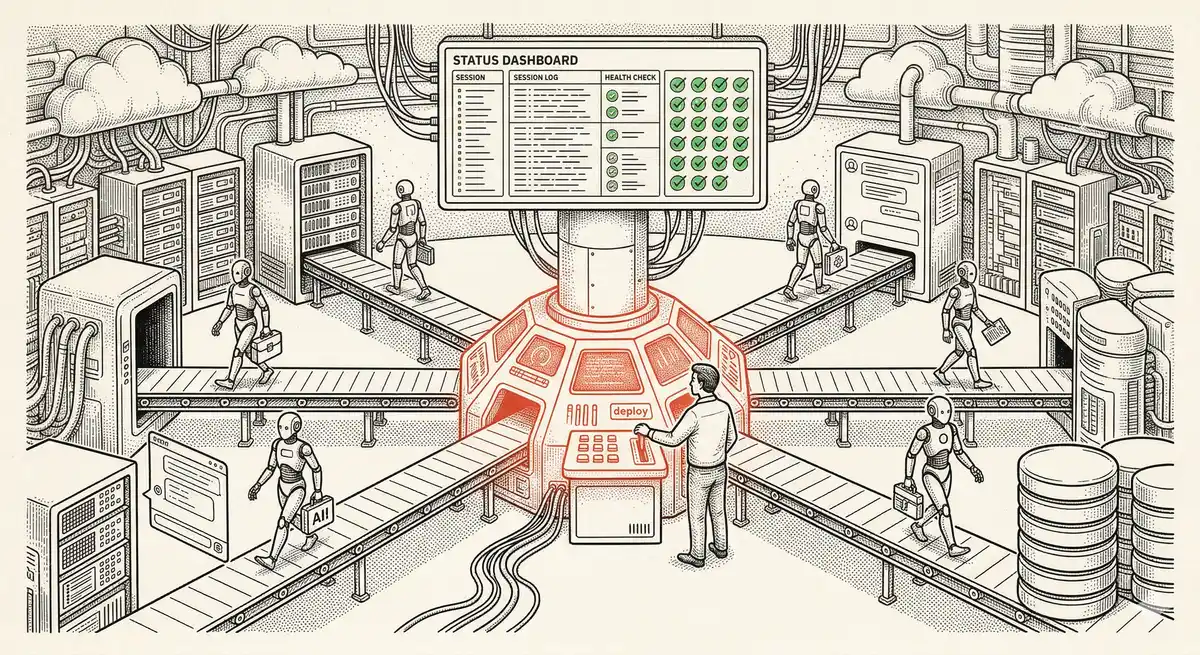
Claude Managed Agents: Anthropic's Platform for Production Agent Deployment
Anthropic launches Managed Agents: a cloud platform for deploying AI agents in production. Secure sandbox, checkpointing, multi-agent, autonomous sessions lasting hours. Notion, Rakuten, Asana and Sentry already use it.

Claude Code Dream & Auto Dream: Automatic Memory Consolidation
After 20 sessions, Auto Memory notes become a mess. Auto Dream solves this by automatically consolidating Claude Code's memory: deduplication, stale entry removal, relative-to-absolute date conversion.
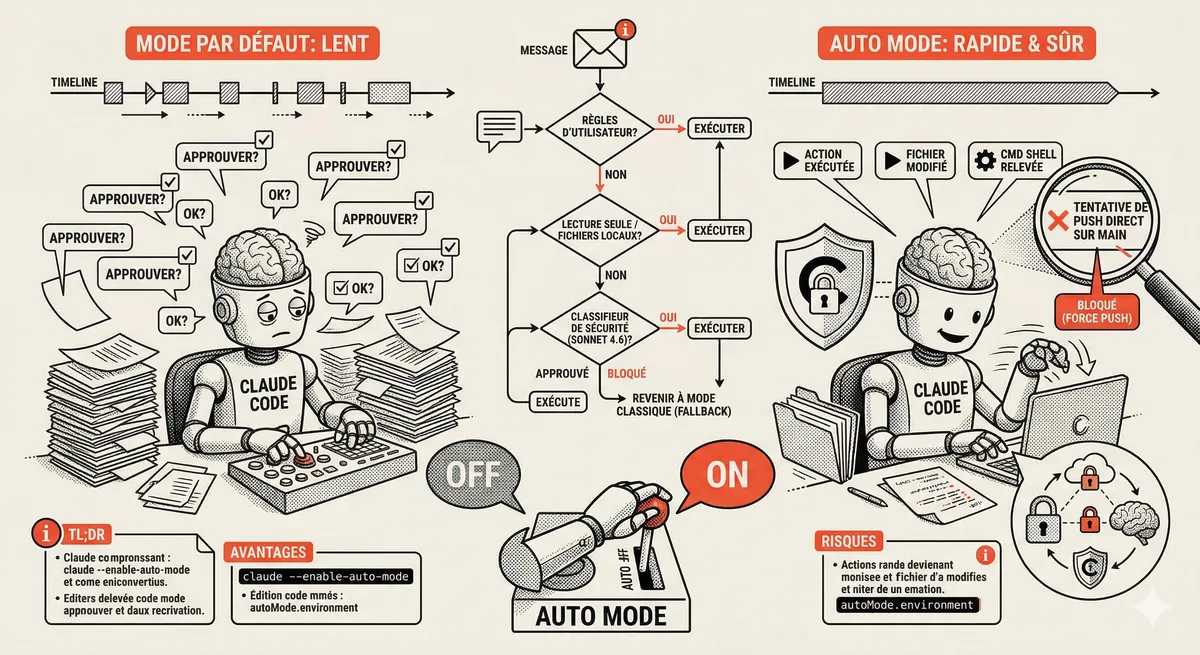
Claude Code Auto Mode: Autonomy Without the Risk
Auto Mode in Claude Code eliminates permission interruptions while keeping a safety net. A classifier analyzes every action before execution and blocks destructive operations. The sweet spot between approving everything and letting everything through.
This topic is covered in Module 2 of our Claude Code training
Claude Code Installation and Configuration
1-day training • 60% hands-on labs • Expert instructors
View full program