TL;DR
Claude Code offers over a dozen slash commands that drive your session without leaving the terminal. From `/init` to bootstrap a project to `/compact` to free up the context window, this guide details each command with concrete examples to master the command-line tool.
Claude Code offers over a dozen slash commands that drive your session without leaving the terminal. From /init to bootstrap a project to /compact to free up the context window, this guide details each command with concrete examples to master the command-line tool.
The essential slash commands in Claude Code are the primary interaction mechanism between the developer and the AI agent directly from the terminal. Claude Code exposes dozens of native slash commands covering configuration, context management, debugging, and persistent memory.
These commands are the fastest way to drive an agentic session compared to natural language input.
SFEIR Institute trainings
Claude Code Training
1 day · Fundamentals
AI-Augmented Developer
2 days · Intermediate
How to list and discover all available slash commands?
Type /help in the Claude Code interactive prompt to display the complete list of available commands and their short descriptions.
$ claude
> /help
This command displays all native commands as well as any custom commands defined in your configuration files. In practice, /help is the entry point you will use from your very first session to explore the tool's capabilities.
You can also check the dedicated slash commands tutorial which covers each command with step-by-step use cases. If you are new to Claude Code, start with the Your first conversations page to understand the general workflow.
| Command | Primary Role | Usage Frequency |
|---|---|---|
/help | Display help | Occasional |
/init | Initialize a project | Once per project |
/clear | Clear the conversation | Frequent |
/compact | Compress the context | Frequent |
/cost | Display costs | Regular |
/config | Modify configuration | Occasional |
/model | Switch model | Occasional |
/memory | Edit memory | Regular |
/doctor | Diagnose installation | As needed |
/status | Display session status | Occasional |
/permissions | Manage tool permissions | Occasional |
/diff | View current modifications | Regular |
/feedback (aliases /bug, /share) | Submit feedback, report a bug, or share your conversation to Anthropic | As needed |
Key takeaway: /help is your compass: run it first to discover all available commands in your version.
How to initialize a project with /init?
The /init command automatically generates a CLAUDE.md file at the root of your project. This file serves as persistent memory that Claude Code reads at the start of every session.
> /init
Claude Code then analyzes the repository structure, detects the primary language, package manager, and naming conventions. Specifically, it produces a pre-filled CLAUDE.md containing the build commands, test commands, and style rules for the project.
You only need to run /init once per repository, then refine the file manually.
To understand the structure and best practices of the generated file, check the guide on the CLAUDE.md memory system. You will find the writing conventions that maximize the agent's understanding.
Key takeaway: /init creates the CLAUDE.md file that anchors project memory: run it once, then iterate on the content.
How to manage context with /clear and /compact?
The Claude Code context window is large (Claude Sonnet 4.6 supports up to 1M tokens), but it remains a finite resource you must manage. Two commands allow you to actively manage it: /clear and /compact.
/clear: start from scratch
Use /clear to delete the entire current conversation. This command is useful when you switch topics or when the accumulated context is no longer relevant.
> /clear
The context is cleared, but the CLAUDE.md file remains loaded. You start fresh without losing project memory.
/compact: compress without losing
Run /compact to ask Claude Code to summarize the conversation and free up space in the context window. This command preserves key decisions while often freeing a substantial share of the context window. The exact amount depends on the conversation.
> /compact
You can also provide custom compaction instructions:
> /compact focus on the database migration decisions
In practice, on a long session, /compact can reclaim a meaningful portion of the context window while preserving critical information. The amount freed varies with how much of the conversation can be summarized.
| Action | /clear | /compact |
|---|---|---|
| Clears the context | Yes, completely | No, summarizes |
Preserves CLAUDE.md | Yes | Yes |
| Information loss | Total | Minimal |
| Use case | Task switch | Long session |
| Tokens freed | All | Substantial (varies) |
To go further on context management strategies, check the command reference which details advanced parameters. You will also find practical tips to optimize your long sessions.
Key takeaway: use /clear to switch topics and /compact to extend a session. Never let the context saturate.
How to monitor costs with /cost?
Each interaction with Claude Code consumes tokens billed by Anthropic. The /cost command displays a summary of tokens consumed and the estimated cost for the current session.
> /cost
The result shows input tokens, output tokens, and the total cost in dollars. Per-token rates depend on the model you are using; see the official pricing for current input and output rates.
Here is how to interpret a typical output (figures are approximate, check current rates):
| Metric | Example Value |
|---|---|
| Input tokens | 45,200 |
| Output tokens | 12,800 |
| Input cost | $0.14 |
| Output cost | $0.19 |
| Session total | $0.33 |
In practice, a 45-minute refactoring session costs a fraction of a dollar (approximate, check current rates) depending on project complexity. Check your costs regularly with /cost to avoid surprises at the end of the month.
To find all monitoring commands at a glance, check the slash commands cheatsheet which groups syntaxes in a printable format.
Key takeaway: /cost gives you financial visibility: run it after each significant task to track your consumption.
How does Claude Code access project files?
Claude Code automatically reads your project files when needed, using its built-in tools (Read, Glob, Grep). You do not need to manually load files into the context. Simply ask in natural language:
> Read the file src/utils/auth.ts and explain the authentication logic
> Search for all uses of the validateToken function in the project
Claude Code then browses the relevant files and automatically integrates them into its understanding of the project. If the context becomes too large during the session, use /compact to compress it while preserving essential information.
The what is agentic coding page explains how Claude Code automatically explores relevant files as part of an agentic approach.
Key takeaway: Claude Code reads files automatically when you ask. Use /compact to manage context size during the session.
How to configure Claude Code with /config, /model, /login, and /logout?
Four commands control your Claude Code environment configuration. Master them to adapt the tool to your workflow.
/config: customize behavior
> /config
This command opens an interactive menu that lets you modify global preferences: theme, automatic permissions, notifications, and default paths. Changes are saved in ~/.claude/settings.json.
/model: switch models mid-session
Switch between available models without leaving your session:
> /model sonnet
> /model opus
| Alias | Model | Max Tokens | Use Case |
|---|---|---|---|
sonnet | Claude Sonnet 4.6 | up to 1,000,000 | Everyday tasks |
opus | Claude Opus 4.8 (latest) | up to 1,000,000 | Advanced reasoning |
haiku | Claude Haiku 4.5 | 200,000 | Quick tasks |
The default model is plan-dependent: Sonnet 4.6 on Pro and Team Standard, Opus 4.8 on Max, Team Premium, Enterprise, and API. Prefer the stable aliases (opus, sonnet, haiku) over hard version numbers so your command keeps working as new models ship. The current models (Opus 4.6+ and Sonnet 4.6) support a 1M-token context window; the 200K figure applies to older models and to Bedrock, Vertex, and Foundry defaults.
/login and /logout: manage authentication
Run /login to authenticate with Anthropic or your API provider. The /logout command revokes the active session token.
> /login
> /logout
To dive deeper into security permission configuration, check the Permissions and security guide which details the Claude Code authorization model. You can also find common configuration errors in the troubleshooting guide.
Key takeaway: /config and /model give you control over Claude Code's behavior: match the model to the complexity of each task.
How to use /memory for persistent memory management?
Memory is a central concept in Claude Code. The /memory command allows you to manipulate it directly.
/memory: edit CLAUDE.md on the fly
Launch /memory to open your project's CLAUDE.md file in your default editor. Changes take effect immediately in the current session.
> /memory
You can add team conventions, style preferences, or recurring instructions. SFEIR Institute recommends structuring the CLAUDE.md into sections: code conventions, build/test commands, and project-specific business rules. Find best practices in the guide on the CLAUDE.md memory system.
Undoing a Claude Code action
To undo an action performed by Claude Code, ask it to use git to revert, or use git commands directly in your terminal:
# Undo changes to a file
git checkout -- <file>

# Stash current changes
git stash

# Revert the last commit
git reset HEAD~1
To discover concrete examples of using these commands in real-world scenarios, check the slash commands examples page.
Key takeaway: /memory anchors your preferences durably. To undo modifications, use standard git commands.
How to diagnose problems with /doctor?
The /doctor command diagnoses and verifies your Claude Code installation and settings. Results display with status icons for each check, and you can press f to have Claude attempt to fix any reported issues.
> /doctor
In practice, many problems surfaced by /doctor stem from an expired token, a misconfigured proxy, or malformed configuration files. Note that an npm install of Claude Code requires Node.js 18+, while the recommended native install does not depend on Node.js.
If /doctor reports a token issue, run /login to re-authenticate. For JSON configuration errors, open the ~/.claude/settings.json file and fix the syntax.
For a complete guide on installation and first launch of Claude Code, including resolving prerequisites detected by /doctor, see the dedicated page.
Key takeaway: /doctor is your diagnostic tool: run it whenever unexpected behavior occurs.
Do you need training to master all the commands?
Claude Code's slash commands are accessible, but combining them effectively in a professional workflow requires practice. SFEIR Institute offers the Claude Code training over one day: you will practice each command in real conditions on code projects, with guided labs covering initialization, context management, and debugging.
If you want to integrate Claude Code into a broader AI-augmented development practice, the AI-Augmented Developer 2-day training covers the entire ecosystem: advanced prompting, CI/CD integration, and multi-agent collaboration. For developers already familiar with the basics, the AI-Augmented Developer - Advanced one-day training deepens complex workflows and automation.
Find the slash commands FAQ for frequently asked questions and the main Claude Code page to navigate the entire content silo.
Key takeaway: guided practice accelerates learning: SFEIR trainings save you weeks of self-guided exploration.
Recent articles about Claude
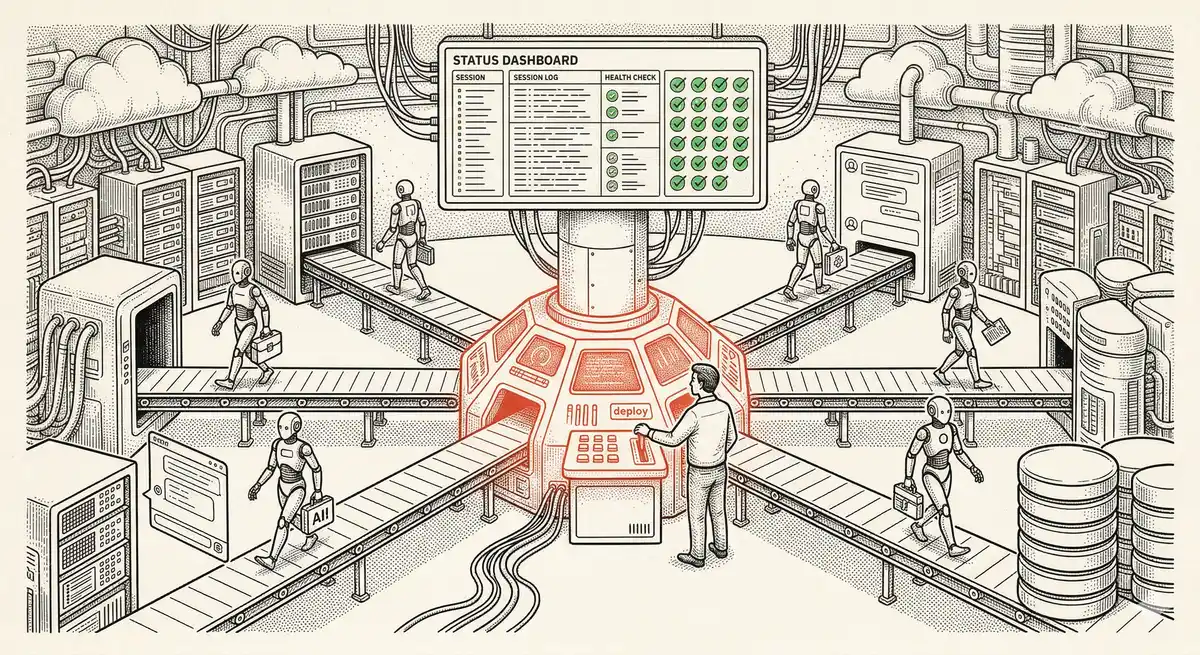
Claude Managed Agents: Anthropic's Platform for Production Agent Deployment
Anthropic launches Managed Agents: a cloud platform for deploying AI agents in production. Secure sandbox, checkpointing, multi-agent, autonomous sessions lasting hours. Notion, Rakuten, Asana and Sentry already use it.

Claude Code Dream & Auto Dream: Automatic Memory Consolidation
After 20 sessions, Auto Memory notes become a mess. Auto Dream solves this by automatically consolidating Claude Code's memory: deduplication, stale entry removal, relative-to-absolute date conversion.

Claude Code Auto Mode: Autonomy Without the Risk
Auto Mode in Claude Code eliminates permission interruptions while keeping a safety net. A classifier analyzes every action before execution and blocks destructive operations. The sweet spot between approving everything and letting everything through.
This topic is covered in Module 6 of our Claude Code training
Useful Commands and Tips
1-day training • 60% hands-on labs • Expert instructors
View full program