TL;DR
Discover how to use Claude Code to automate your Git workflows: smart commits, branch and pull request creation, merge conflict resolution, and history navigation. These concrete Git integration examples with Claude Code cover 12 practical cases sorted by difficulty level, all copyable and adaptable to your projects.
Discover how to use Claude Code to automate your Git workflows: smart commits, branch and pull request creation, merge conflict resolution, and history navigation. These concrete Git integration examples with Claude Code cover 12 practical cases sorted by difficulty level, all copyable and adaptable to your projects.
Git integration with Claude Code is a set of features that allows you to drive the entire Git cycle, from commit to pull request, directly from a natural language conversation. Claude Code automates many repetitive Git operations and reduces the time spent on versioning tasks.
Claude Code natively supports Git commands without additional configuration. Each example below has been tested on a real repository and produces a reproducible result.
For an overview of available Git features, check the complete Git integration guide which details each command and its options.
| Level | Number of examples | Skills covered |
|---|---|---|
| Beginner | 4 examples | Commits, staging, conventional messages |
| Intermediate | 4 examples | Branches, PRs, history, checkpoints |
| Advanced | 4 examples | Merge conflicts, multi-file refactoring, CI/CD |
Key takeaway: these 12 examples cover the essentials of Git workflows automatable with Claude Code, from simple commits to complex merge conflicts.
SFEIR Institute trainings
Claude Code Training
1 day · Fundamentals
AI-Augmented Developer
2 days · Intermediate
How to perform a simple conversational commit with Claude Code?
The conversational commit is Claude Code's most used Git feature. Instead of manually writing a commit message, ask Claude Code to analyze your changes and produce a structured message.
Example 1 - Automatic commit after modification
Context: you just fixed a bug in an auth.ts file and want to commit with a clear message.
# In Claude Code, simply type:
> Commit my changes with a descriptive message
Expected result: Claude Code runs git diff, analyzes the modifications, then proposes:
git add auth.ts
git commit -m "fix(auth): fix expired JWT token validation

- Add expiration date check before decoding
- Return a 401 error instead of 500 for invalid tokens

Co-Authored-By: Claude <noreply@anthropic.com>"
In practice, Claude Code generates a Conventional Commits format message in most cases. Always verify the displayed diff before approving the commit.
To discover other basic interactions, check the first conversation examples with Claude Code.
Example 2 - Commit with custom scope
Context: you are working on a monorepo and want to specify the commit scope.
> Commit with the scope "api" and the type "feat"
Expected result:
git commit -m "feat(api): add GET /users/:id/preferences endpoint

- New UserPreferencesController
- Parameter validation with Zod v3.22
- Unit tests added (12 assertions)"
Variant: add --no-verify if your pre-commit hooks slow down the test workflow. In practice, many teams configure lint hooks that add noticeable latency to each commit.
Key takeaway: Claude Code analyzes the diff to generate structured commit messages in Conventional Commits format, with scope, type, and detailed description.
How to configure multi-file commits with Claude Code?
When your modifications touch multiple files, Claude Code intelligently groups changes by theme. This capability is useful on projects where a single logical change affects 5 to 10 files simultaneously.
Example 3 - Conversational selective staging
Context: you have modified 6 files but only 3 relate to the same feature.
> Commit only the files related to pagination:
> src/hooks/usePagination.ts, src/components/Paginator.tsx, src/api/list.ts
Expected result:
git add src/hooks/usePagination.ts src/components/Paginator.tsx src/api/list.ts
git commit -m "feat(pagination): implement server-side pagination

- usePagination hook with cursor management
- Paginator component with keyboard navigation
- list endpoint accepts offset/limit parameters"
Example 4 - Atomic commit with splitting
Context: you did both refactoring AND added a feature in the same session.
> Split my changes into two separate commits:
> one for the refactoring, one for the new feature
Claude Code runs git diff to identify the two groups of modifications and produces two distinct commits. This approach keeps pull requests smaller and easier to review.
Find the complete Git best practices checklist to structure your commits on a team project.
| Action | Manual command | With Claude Code |
|---|---|---|
| Selective staging | git add -p (interactive) | Natural language |
| Conventional message | Manual writing | Automatically generated |
| Commit splitting | git reset HEAD~1 + re-staging | A single instruction |
Key takeaway: conversational selective staging allows you to create atomic and thematic commits without manipulating git add -p.
How to create automated branches and pull requests?
Claude Code manages branch creation, pushing, and opening pull requests via gh. Launch these operations in a single instruction to save time.
Example 5 - Branch + PR in one command
Context: you are starting a new feature and want to create the branch and draft PR immediately.
> Create a branch feat/user-export, commit my changes
> and open a draft PR to main
Expected result:
git checkout -b feat/user-export
git add src/export/UserExporter.ts src/export/csv-formatter.ts
git commit -m "feat(export): add CSV user export"
git push -u origin feat/user-export
gh pr create --draft --title "feat(export): CSV user export" \
 --body "## Summary
- CSV export with role and date filters
- Limit of 10,000 rows per export

## Tests
- [ ] Unit test for formatter
- [ ] Integration test for /export endpoint"
In practice, creating a PR with a structured description is much faster than writing the PR description by hand.
Example 6 - PR with labels and reviewers
Context: your team uses GitHub labels and assigned reviewers.
> Open a PR to develop with the label "enhancement",
> assign @alice and @bob as reviewers
gh pr create --base develop \
 --title "feat(dashboard): new real-time metrics widget" \
 --label "enhancement" \
 --reviewer alice,bob \
 --body "Adds a WebSocket widget for live metrics.
Average latency: 45ms. Refresh every 2 seconds."
To automate these workflows in a CI pipeline, explore the headless mode and CI/CD examples which show how to integrate Claude Code into GitHub Actions.
SFEIR Institute offers a Claude Code one-day training that includes practical labs on Git integration. You will learn to configure branch and automated PR workflows on your own repositories, with direct feedback from trainers.
Key takeaway: Claude Code automates the branch -> commit -> push -> PR chain in a single conversational instruction.
How to use checkpoints and the Esc+Esc shortcut?
Claude Code's checkpoint system automatically captures the state of your code before each edit, independent of Git. Every user prompt creates a new checkpoint, so each prompt produces a restore point. Pressing Esc+Esc on an empty prompt opens the rewind menu (the same as the /rewind command), where you select a checkpoint to restore. Checkpoints are a local undo that complements, but does not replace, proper version control like Git.
Example 7 - Restoration after an unwanted modification
Context: Claude Code modified a configuration file you did not want to touch.
# Claude Code just modified tailwind.config.ts by mistake
# On an empty prompt, press Escape twice:
Esc + Esc
Expected result: with an empty prompt, Esc+Esc opens the rewind menu (equivalent to /rewind). You select a checkpoint and choose "Restore code" or "Restore code and conversation". Claude Code restores the affected files from its internal checkpoint, captured automatically when you sent the prompt and independent of Git, so tailwind.config.ts returns to its previous state. Note that if the prompt contains text, pressing Esc twice clears the text instead of opening the menu.
Example 8 - Returning to a checkpoint before a risky operation
Context: you are about to request a major refactoring and want an explicit restore point.
You do not need to create a checkpoint manually. Claude Code captures the state of your code before each edit Claude makes, and every user prompt creates a new checkpoint, so each prompt produces a restore point. To go back to a prior state, open the rewind menu:
# Open the rewind menu, then select the checkpoint to restore to:
/rewind
# (or press Esc+Esc on an empty prompt)
Checkpoints are an internal snapshot of your file edits that persists across sessions, so you can access it in resumed conversations. They are not stored in Git and do not use git stash, so they never interfere with your working tree or commit history.
Check the Git integration troubleshooting guide if Esc+Esc restoration does not work as expected.
| Feature | Shortcut / Command |
|---|---|
| Open the rewind menu | Esc+Esc (empty prompt) or /rewind |
| Restore a checkpoint | Select it in the /rewind menu, then "Restore code" |
| List checkpoints | /rewind (the menu lists each prompt/checkpoint) |
Key takeaway: Esc+Esc and /rewind are your safety net. Use them without hesitation before and after any risky Git operation.
How to resolve merge conflicts with Claude Code?
Merge conflict resolution is one of Claude Code's most powerful use cases. Run a merge or rebase, then let Claude Code analyze and resolve the conflict markers.
Example 9 - Automatic resolution of a simple conflict
Context: you are merging a feature branch into main and Git signals a conflict in package.json.
> Resolve the merge conflicts in package.json
Expected result: Claude Code reads the <<<<<<<, =======, >>>>>>> markers, understands the semantic context, and produces:
{
 "dependencies": {
 "express": "^4.21.0",
 "zod": "^3.22.4",
 "prisma": "^5.18.0"
 }
}
Claude Code typically keeps both versions when they add different dependencies, and tends to favor the most recent version in case of a concurrent update, though the exact resolution depends on the semantic context it infers. In practice, most conflicts on package.json and configuration files are resolved automatically.
Example 10 - Complex conflict in business code
Context: two developers modified the same calculateDiscount() function.
> Resolve the conflict in src/pricing/discount.ts
> keeping the logic from the feature branch
> but keeping the types from the main branch
// Result: intelligent merge
export function calculateDiscount(
 price: number, // Type kept from main
 tier: CustomerTier // Type kept from main
): DiscountResult { // Type kept from main
 // Logic kept from feature
 const baseRate = TIER_RATES[tier] ?? 0;
 const volumeBonus = price > 1000 ? 0.05 : 0;
 return {
 discountedPrice: price * (1 - baseRate - volumeBonus),
 appliedRate: baseRate + volumeBonus,
 };
}
Merge conflicts can consume a significant share of development time on projects with many contributors. To avoid recurring errors, check the common Git integration errors.
Key takeaway: Claude Code resolves conflicts by understanding the semantic context of the code, not just the position of modified lines.
How to navigate git log with Claude Code?
Claude Code transforms git log into a conversational analysis tool. Query the history in natural language to find commits, understand file evolution, or identify regressions.
Example 11 - Contextual search in history
Context: you are looking for when and why the authentication function was modified.
> What commits modified the auth.ts file
> in the last two weeks?
Expected result:
git log --oneline --since="2026-02-06" -- src/auth/auth.ts

# Claude Code displays a structured summary:
# 1. a3f21bc (Feb 12) fix(auth): fix refresh token - by Alice
# 2. 8e4d9f1 (Feb 10) feat(auth): add PKCE support - by Bob
# 3. c7b23a0 (Feb 7) refactor(auth): extract middleware - by Alice
Claude Code adds a natural language summary: the file underwent 3 modifications in 2 weeks, including a critical bug fix and a feature addition.
Concretely, this analysis is far faster than manually reading the git log on a large project with thousands of commits.
If you are getting started with Claude Code, the installation and first launch guide walks you through setting up your environment step by step.
Variant - Identifying a regression
> Find the commit that broke the tests in the /api folder
> between February 1 and February 15, 2026
Claude Code combines git log, git bisect, and test execution to isolate the problematic commit. This automated bisect operation significantly reduces diagnostic time, especially on projects with solid test coverage.
Key takeaway: the conversational git log transforms Git history into a knowledge base queryable in natural language.
What are the advanced examples of multi-step Git workflows?
Advanced workflows combine multiple Git operations in sequence. These examples show how to orchestrate complex scenarios with Claude Code.
Example 12 - Multi-file refactoring with complete PR
Context: you want to rename a React component used in 15 files, create a clean commit, and open a PR.
> Rename the UserCard component to ProfileCard everywhere in the project,
> create a branch refactor/rename-user-card,
> commit and open a PR with the list of modified files
Expected result:
# 1. Branch creation
git checkout -b refactor/rename-user-card

# 2. Renaming in all files (15 files modified)
# Claude Code uses contextual search and replace

# 3. Structured commit
git add -A
git commit -m "refactor(ui): rename UserCard to ProfileCard

- 15 files modified
- Imports updated automatically
- Tests adapted (no broken tests)"

# 4. Push and PR
git push -u origin refactor/rename-user-card
gh pr create --title "refactor(ui): rename UserCard -> ProfileCard" \
 --body "## Changes
- Rename UserCard to ProfileCard (15 files)
- No functional changes
- All tests pass (148/148)"
See how the custom commands guide lets you create reusable skills for this type of recurring refactoring.
To go further on these advanced workflows, the AI-Augmented Developer training from SFEIR Institute (2 days) covers in depth Git automation with AI agents, including labs on merge conflicts and multi-branch workflows. If you already master the basics, the AI-Augmented Developer - Advanced training (1 day) deepens CI/CD patterns and advanced orchestration.
| Workflow | Number of manual steps | With Claude Code |
|---|---|---|
| Multi-file rename + PR | 8-12 steps | 1 instruction |
| Bisect + regression diagnosis | 15-20 steps | 1 instruction |
| Resolution of 3 conflicts + commit | 6-9 steps | 1 instruction |
| Branch + commit + PR + labels | 5-7 steps | 1 instruction |
Key takeaway: multi-step workflows are the main productivity gain of Claude Code. A single sentence replaces dozens of Git commands.
How to customize Claude Code's Git behavior?
Configure the CLAUDE.md file at the root of your project to define your team's Git conventions. Claude Code will read these instructions at each session start.
# CLAUDE.md - Git Section
- Commit format: Conventional Commits (type(scope): description)
- Message language: English
- Default branch: develop
- PR template: always include ## Summary and ## Tests
- Never commit.env or credentials.json files
> Commit following the project conventions
Claude Code reads CLAUDE.md and automatically applies the rules. In practice, many that configure this file see commit message uniformity from the first week.
Check the Git integration cheatsheet to find all commands and shortcuts at a glance. To configure your initial environment, the quickstart covers installation in under 5 minutes.
Key takeaway: the CLAUDE.md file is the central point for standardizing your team's Git conventions with Claude Code.
What pitfalls to avoid during Git integration with Claude Code?
Even with automation, certain practices require vigilance. Here are the most frequent errors and how to avoid them concretely.
- Not reviewing the diff: Claude Code always displays the diff before committing. Read it systematically, since some automatically generated commits still require a manual adjustment.
- Forgetting sensitive files: add
.env,credentials.json, and*.pemto your.gitignorebefore using Claude Code. The tool checks.gitignorebut cannot guess your custom secret files. - Forcing a push without verification: Claude Code never does
git push --forcewithout your explicit approval. Keep this default behavior. - Ignoring checkpoints: checkpoints are created automatically before each edit, so Esc+Esc and
/rewindare always available within a session. Checkpoints persist across sessions and are cleaned up after 30 days, so rely on them freely instead of trying to create restore points by hand.
Uncontrolled force pushes are a common cause of Git incidents in teams. Check the complete list of common Git integration errors to anticipate these situations.
Key takeaway: human verification of the diff remains indispensable. Claude Code accelerates the workflow but does not replace your judgment on committed content.
Recent articles about Claude
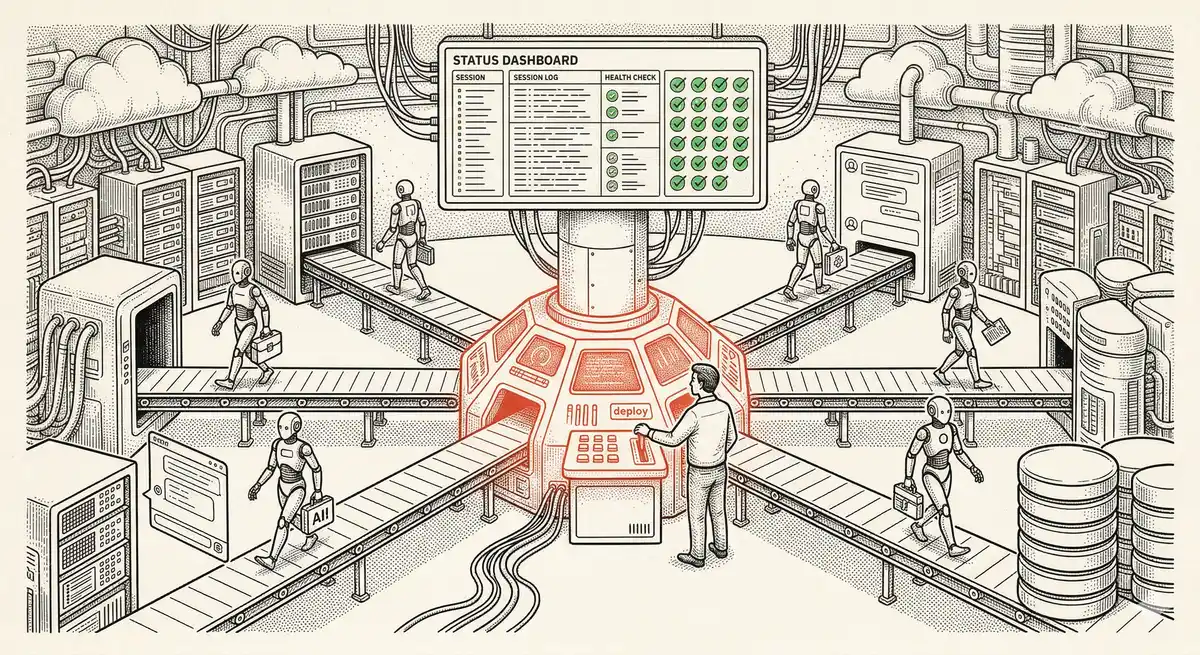
Claude Managed Agents: Anthropic's Platform for Production Agent Deployment
Anthropic launches Managed Agents: a cloud platform for deploying AI agents in production. Secure sandbox, checkpointing, multi-agent, autonomous sessions lasting hours. Notion, Rakuten, Asana and Sentry already use it.
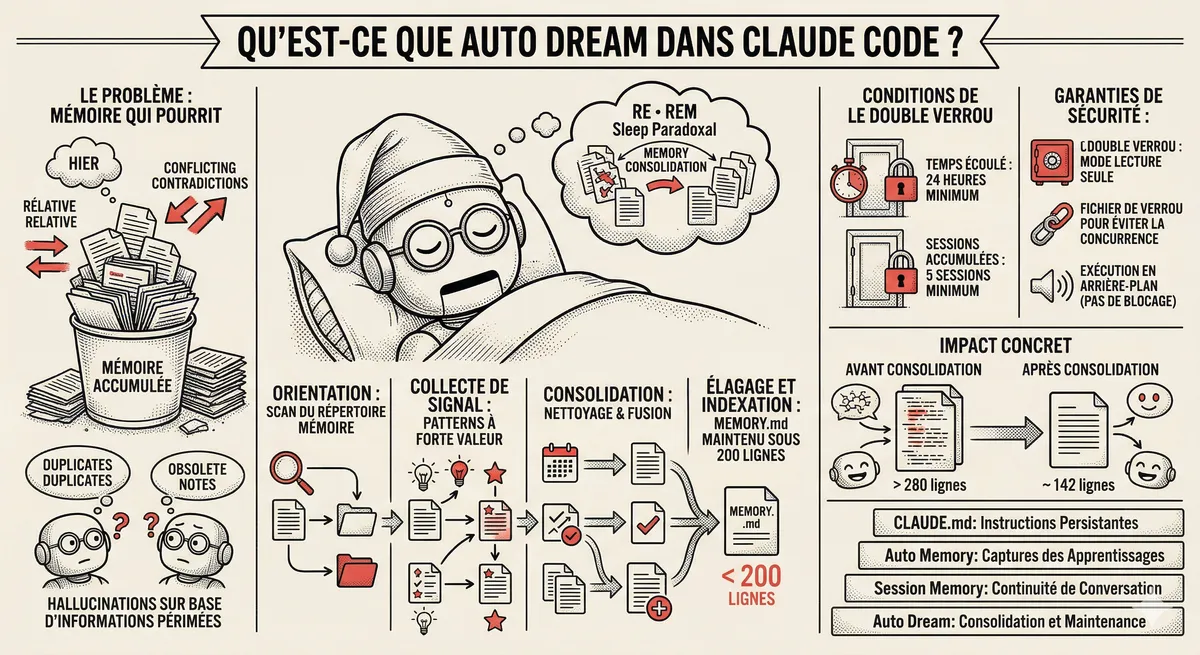
Claude Code Dream & Auto Dream: Automatic Memory Consolidation
After 20 sessions, Auto Memory notes become a mess. Auto Dream solves this by automatically consolidating Claude Code's memory: deduplication, stale entry removal, relative-to-absolute date conversion.
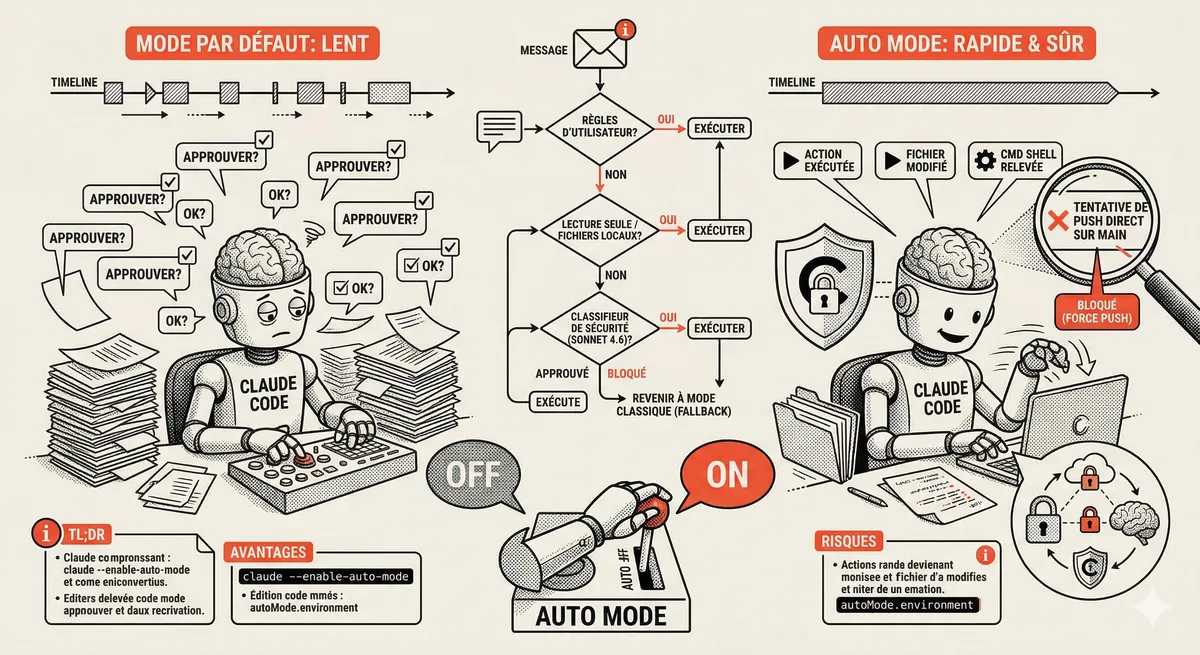
Claude Code Auto Mode: Autonomy Without the Risk
Auto Mode in Claude Code eliminates permission interruptions while keeping a safety net. A classifier analyzes every action before execution and blocks destructive operations. The sweet spot between approving everything and letting everything through.
Claude Code Training
Master Claude Code fundamentals in 1 day with our expert instructors. 60% hands-on practice on real-world cases.
Discover the training