TL;DR
This permissions and security verification checklist for Claude Code guides you point by point to secure your AI-assisted development environment. You will find essential controls, recommended configurations, and commands to execute to ensure that every agent action complies with your security rules.
This permissions and security verification checklist for Claude Code guides you point by point to secure your AI-assisted development environment. You will find essential controls, recommended configurations, and commands to execute to ensure that every agent action complies with your security rules.
Managing permissions and security in Claude Code is a structured process that determines which actions the AI agent can execute without human validation. Claude Code operates with three permission levels: read-only, supervised execution, and autonomous execution. Each level exposes your project to a different scope of actions, and a misconfiguration can lead to unwanted modifications to your source code.
Permission control in Claude Code relies on the settings.json file and CLI launch flags. In practice, most security incidents related to AI agents come from an overly permissive configuration at first launch. This checklist lets you verify each critical point before entrusting sensitive tasks to the agent.
SFEIR Institute trainings
Claude Code Training
1 day · Fundamentals
AI-Augmented Developer
2 days · Intermediate
How to verify Claude Code's basic permissions?
The first step is to audit the active permissions in your session. Open a terminal and run the following command to display the current configuration:
cat ~/.claude/settings.json
This command returns all permissions granted to the agent. Verify that the execution mode matches your expectations. Claude Code offers three distinct permission modes.
| Mode | CLI Flag | Behavior | Use Case |
|---|---|---|---|
default | --permission-mode default | Asks confirmation before every sensitive action | Discovery, sensitive projects |
acceptEdits | --permission-mode acceptEdits | Auto-approves file edits | Everyday development |
plan | --permission-mode plan | Analysis, plan before execution | Code review, architecture |
auto | --permission-mode auto | LLM classifier decides | Research preview; requires v2.1.83+. Available by default on the Anthropic API (Opus 4.6+ or Sonnet 4.6); on Bedrock/Vertex/Foundry it requires Opus 4.7/4.8 and CLAUDE_CODE_ENABLE_AUTO_MODE=1 |
dontAsk | --permission-mode dontAsk | Pre-approved tools only | Restricted execution |
bypassPermissions | --dangerously-skip-permissions | No confirmation required | CI/CD only, never locally |
To switch to the recommended development mode, add the following to ~/.claude/settings.json:
{
 "permissions": {
 "defaultMode": "acceptEdits"
 }
}
If you are new to Claude Code, consult the permissions quickstart guide that details each mode with concrete examples. Specifically, modes that ask for confirmation add a validation step per action but substantially reduce the risk of unwanted modifications.
Key takeaway: always verify the active permission mode before starting a work session with Claude Code.
Which files and directories should you protect first?
Certain files should never be modified by the agent without your explicit agreement. Create an exclusion list in your .claude/settings.json file:
{
 "permissions": {
 "deny": [
 "Read(./.env)",
 "Read(./.env.*)",
 "Read(./secrets/**)",
 "Read(./**/credentials.*)",
 "Write(./.env)",
 "Write(./.env.*)",
 "Bash(rm -rf *)",
 "Bash(git push --force *)"
 ]
 }
}
This configuration blocks both reading and writing of sensitive files, plus destructive commands. The Read() deny rules are what actually prevent secret exposure: a Write() rule only blocks modification, so you need Read() rules to stop the agent from viewing .env contents. In practice, .env files often contain secrets such as API keys, tokens, and passwords, which is why they must be protected against reading.
| File/Pattern | Risk | Recommended Action |
|---|---|---|
.env, .env.local | Secret exposure | Deny Edit + Deny Read |
credentials.json | Credential leak | Deny Edit |
.pem, .key | Certificate theft | Deny Edit + Deny Read |
docker-compose.prod.yml | Production infra modification | Deny Edit |
.git/config | Repository alteration | Deny Edit |
For a complete security approach, the permissions and security tutorial guides you step by step. configuration files are the most frequent attack vector in AI-assisted development environments.
Key takeaway: systematically block access to .env files, private keys, and production configurations in permission rules.
How to configure CLAUDE.md rules to strengthen security?
The CLAUDE.md file at the root of your project defines persistent instructions that the agent follows at every session. Add explicit security rules:
# Security Rules

- NEVER modify .env files or files containing secrets
- Always ask for confirmation before executing git push
- Do not install dependencies without explicit validation
- Limit Bash commands to non-destructive operations
- Verify tests before each commit
CLAUDE.md is a Markdown file that Claude Code automatically loads at the start of each session. It works as persistent memory that guides the agent's behavior. Here is how to structure your rules for a Node.js 22 project:
# Technical Constraints
- Node.js 22 LTS only
- No dependencies with more than 3 known vulnerabilities
- Maximum bundle size: 500 KB
If you encounter errors related to the CLAUDE.md file, consult the common CLAUDE.md memory system errors to resolve them. In practice, a well-configured CLAUDE.md file reduces the number of manual interventions needed during a session.
Key takeaway: the CLAUDE.md file is your first security lever. Write clear, specific, and testable rules.
What checks should you perform before each work session?
Before launching a productive session, execute this 5-point verification sequence. Each point takes less than 30 seconds.
- Verify the active permission mode:
cat ~/.claude/settings.json - Check the
.claude/settings.jsonfile: are deny rules in place? - Validate the
CLAUDE.mdcontent: are security rules up to date? - Confirm the active Git branch:
git branch --show-current - Inspect untracked sensitive files:
git status
# Complete pre-session script
cat ~/.claude/settings.json && \
cat .claude/settings.json | grep -c "deny" && \
git branch --show-current && \
git status --short
This verification routine takes only a moment and prevents many common security incidents. If you encounter issues during your first sessions, the common first conversation errors will help you quickly diagnose the cause.
The installation and first launch checklist complements these checks with initial environment controls.
Key takeaway: automate this 5-point verification at the beginning of each session: specifically, a shell alias is all it takes.
How to audit actions executed by Claude Code?
Claude Code generates an activity log for each session. View the action history by listing the per-project session transcripts:
# Session transcripts are stored under ~/.claude/projects/
ls ~/.claude/projects/
This log contains every executed command, every modified file, and every permission requested. A typical session generates many traceable actions.
| Logged Element | Detail Provided | Security Use |
|---|---|---|
| Bash command | Full command + return code | Detect unauthorized commands |
| File edit | Before/after diff | Verify sensitive modifications |
| Permission requested | Type + user response | Audit approvals |
| Error | Message + stack trace | Identify failed attempts |
| Duration | Start/end timestamp | Detect abnormally long sessions |
For enhanced security, export the logs by copying the JSONL transcript files to a dedicated location:
# Session transcripts are stored as JSONL files under ~/.claude/projects/
cp -r ~/.claude/projects/ ./claude-session-logs/
Session transcripts under ~/.claude/projects/ are available in all current versions of Claude Code. The complete permissions and security guide details advanced logging options.
Key takeaway: export and archive session logs for every sensitive project. Traceability is your safety net.
Can you limit authorized Bash commands?
You can precisely restrict which shell commands Claude Code is allowed to execute. Configure an allowlist in settings.json:
{
 "permissions": {
 "allow": [
 "Bash(npm test *)",
 "Bash(npm run build *)",
 "Bash(git status)",
 "Bash(git diff *)",
 "Bash(git log *)",
 "Bash(ls *)",
 "Bash(cat *)"
 ],
 "deny": [
 "Bash(rm -rf *)",
 "Bash(git push --force *)",
 "Bash(curl *)",
 "Bash(wget *)",
 "Bash(npm publish *)"
 ]
 }
}
This allowlist approach is recommended for production projects. Specifically, it reduces the attack surface compared to the default mode. Network commands (curl, wget) are a common data exfiltration vector in AI agent environments.
If you use Claude Code for Git tasks, the Git integration checklist complements these restrictions with controls specific to versioning workflows. The permissions and security tips offer ready-to-use configurations for different risk profiles.
Key takeaway: favor an allowlist approach over a denylist. Blocking only a few commands always leaves gaps.
What are the most common security pitfalls?
Here are the 7 configuration errors that SFEIR Institute observes most frequently during its Claude Code training sessions:
- Launching Claude Code in
dangerously-skip-permissionsmode outside a CI/CD pipeline - Forgetting to protect
.envfiles in deny rules - Not checking the active Git branch before letting the agent commit
- Granting network permissions (
curl,wget) without domain restriction - Not reviewing generated diffs before validating a push
- Ignoring security warnings in session logs
- Using the same permission profile for development and production
Each pitfall can lead to measurable consequences: an uncontrolled rm -rf command can irreversibly delete large numbers of files in seconds. The common slash command errors cover other pitfalls related to daily usage.
To go further in context management and understand how permissions interact with the context window, consult the common context management errors.
Key takeaway: the number one pitfall remains dangerously-skip-permissions mode used locally. Never enable it outside an isolated environment.
How to automate security verification with a pre-session hook?
Create a shell script that runs automatically before each Claude Code session. This script checks the 5 critical points and blocks launch if a condition is not met.
#!/bin/bash
# pre-session-check.sh

echo "=== Pre-session security verification ==="

# 1. Verify that .env reads are blocked
if ! grep -q "Read(./.env)" .claude/settings.json 2>/dev/null; then
 echo "ERROR: .env not protected in settings.json"
 exit 1
fi

# 2. Verify that CLAUDE.md contains security rules
if ! grep -qi "security\|sécurité" CLAUDE.md 2>/dev/null; then
 echo "WARNING: No security rules in CLAUDE.md"
fi

# 3. Check the active branch
BRANCH=$(git branch --show-current)
if [ "$BRANCH" = "main" ] || [ "$BRANCH" = "master" ]; then
 echo "WARNING: You are on the $BRANCH branch"
fi

echo "=== Verification complete ==="
Make the script executable and add it to your launch alias:
chmod +x pre-session-check.sh
alias claude-safe='./pre-session-check.sh && claude'
SFEIR offers a dedicated one-day Claude Code training that includes hands-on labs on permission configuration, security hook creation, and session auditing. You configure a secure end-to-end environment on your own projects.
For developers wanting to integrate Claude Code into a complete workflow, the 2-day AI-Augmented Developer training covers advanced AI agent security, assisted pair programming, and automated code review strategies. The one-day AI-Augmented Developer - Advanced training dives deeper into multi-project configurations and team-scale security policies.
Key takeaway: automate your security checks with a pre-session script: 15 lines of Bash are enough to prevent the most common incidents.
Is there a summary checklist of security controls?
Here is the complete checklist to follow for each project using Claude Code. Check each point before considering your environment secure:
- [ ] Permission mode configured (
default,acceptEdits,plan,auto, ordontAsk, neverbypassPermissionslocally) - [ ]
.envfiles and secrets protected indenyrules - [ ] Destructive commands blocked (
rm -rf,git push --force) - [ ] Network commands restricted (
curl,wget,npm publish) - [ ]
CLAUDE.mdfile with explicit security rules - [ ] Pre-session verification script in place
- [ ] Session logs exported and archived for sensitive projects
- [ ] Git branch verified before each session
- [ ] Diffs reviewed before each push
- [ ] Permissions adapted to the project risk profile (dev vs. prod)
Claude Code natively supports all of these controls. You now have all the elements to secure your AI-assisted development environment.
Key takeaway: print or pin this checklist: it covers the 10 essential controls for working with Claude Code safely.
Recent articles about Claude
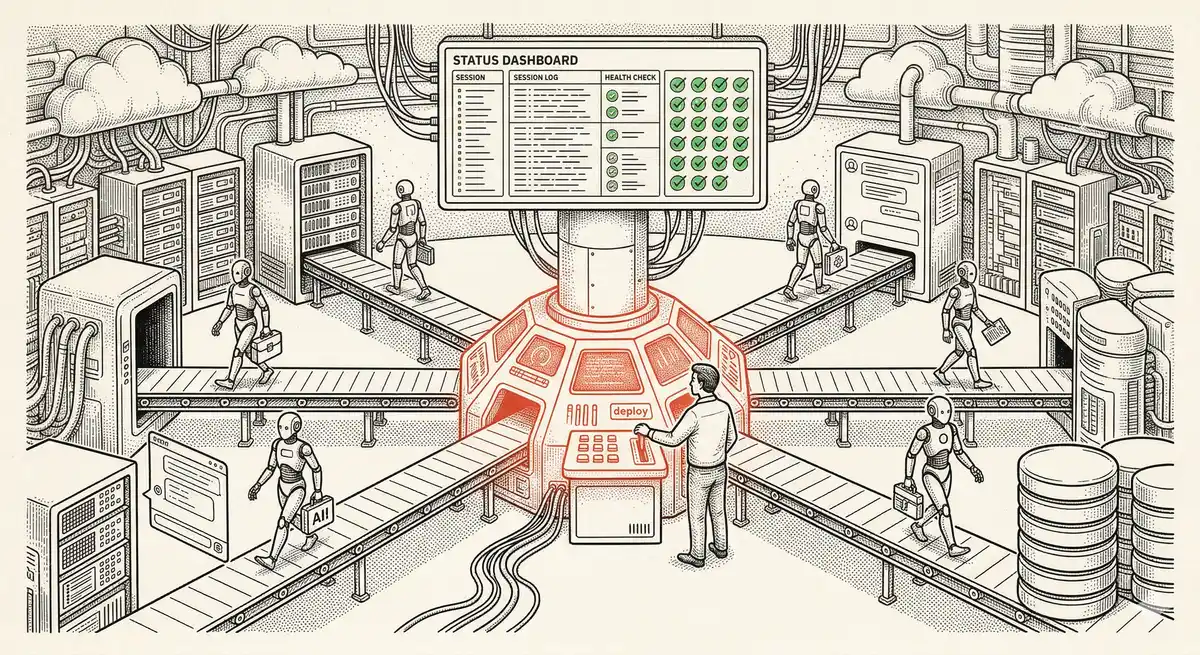
Claude Managed Agents: Anthropic's Platform for Production Agent Deployment
Anthropic launches Managed Agents: a cloud platform for deploying AI agents in production. Secure sandbox, checkpointing, multi-agent, autonomous sessions lasting hours. Notion, Rakuten, Asana and Sentry already use it.
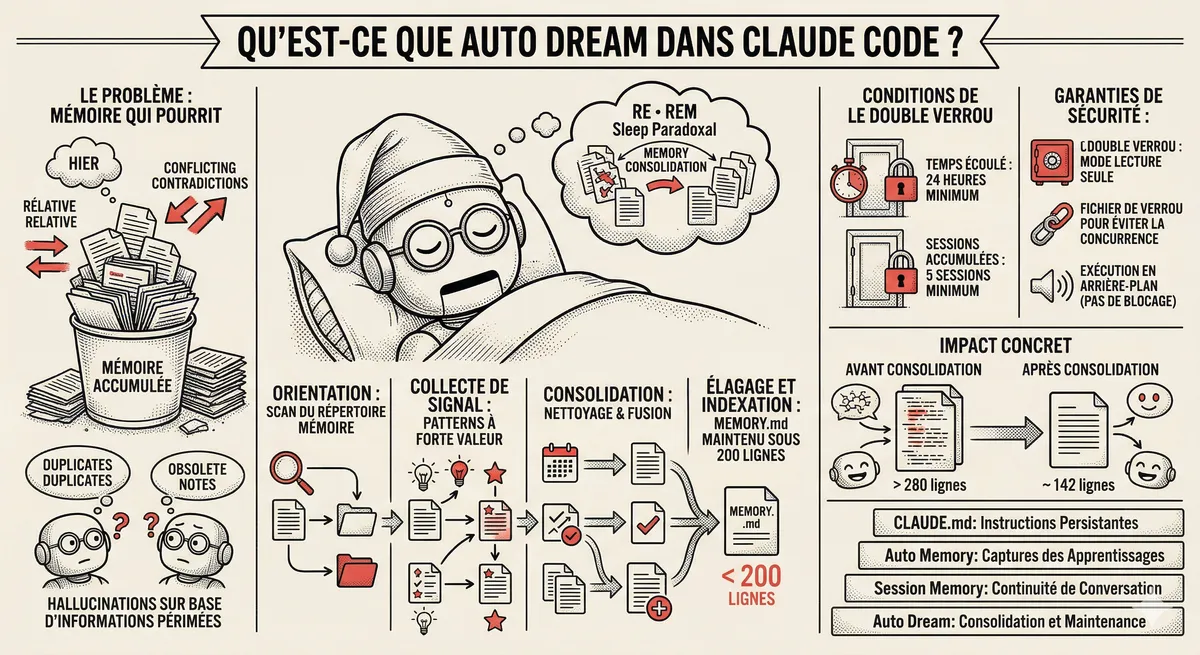
Claude Code Dream & Auto Dream: Automatic Memory Consolidation
After 20 sessions, Auto Memory notes become a mess. Auto Dream solves this by automatically consolidating Claude Code's memory: deduplication, stale entry removal, relative-to-absolute date conversion.
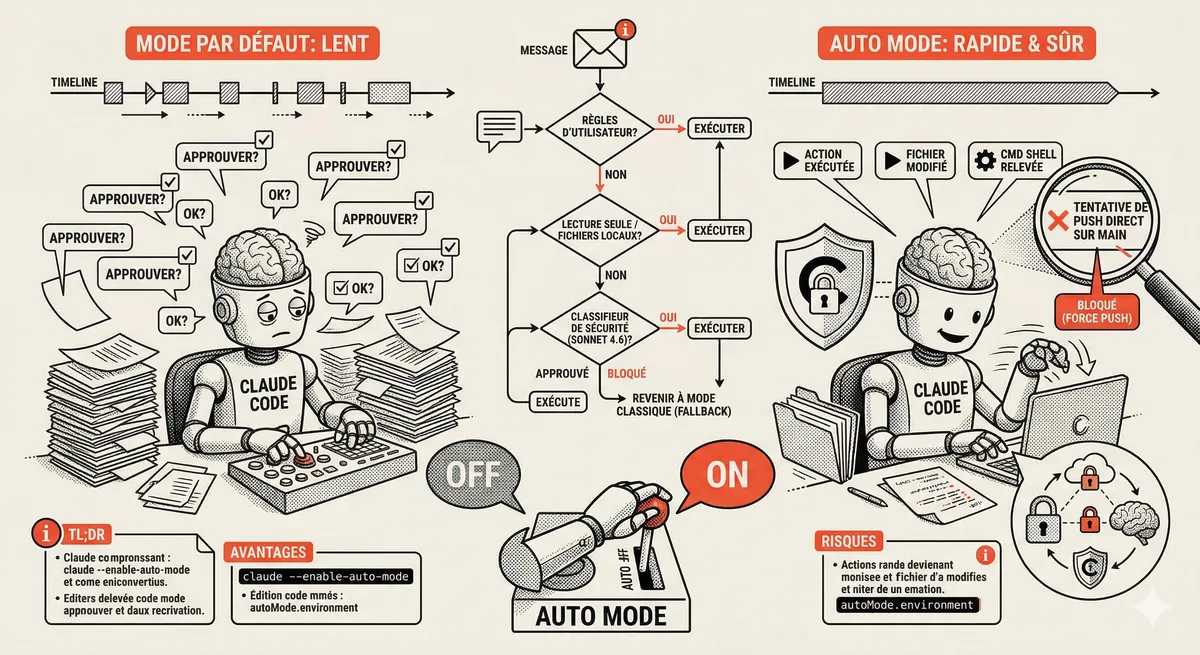
Claude Code Auto Mode: Autonomy Without the Risk
Auto Mode in Claude Code eliminates permission interruptions while keeping a safety net. A classifier analyzes every action before execution and blocks destructive operations. The sweet spot between approving everything and letting everything through.
This topic is covered in Module 4 of our Claude Code training
Documentation, Organization and Prompt Management
1-day training • 60% hands-on labs • Expert instructors
View full program