TL;DR
Mastering context management in Claude Code transforms your productivity: you leverage every useful token, avoid memory loss, and scale your sessions across multiple terminals. Here are 18 actionable tips to optimize your context window, enable smart compaction, and make the most of Plan mode.
Mastering context management in Claude Code transforms your productivity: you leverage every useful token, avoid memory loss, and scale your sessions across multiple terminals. Here are 18 actionable tips to optimize your context window, enable smart compaction, and make the most of Plan mode.
Context management in Claude Code is the set of techniques that maximize the use of the available context window per session. Current models (Opus 4.6 and later, plus Sonnet 4.6) support a 1M-token context window (GA), while the 200K window is the legacy figure and remains the default on the Bedrock, Vertex, and Foundry backends. Claude Code (currently on the 2.1.x release line, running Anthropic's Claude models, with the default depending on your plan, such as Sonnet 4.6 on Pro and Team Standard or Opus 4.8 on Max, Team Premium, and Enterprise) offers one of the widest context windows on the market, but without an optimization strategy, you will fill it surprisingly quickly during intensive work.
SFEIR Institute trainings
Claude Code Training
1 day · Fundamentals
AI-Augmented Developer
2 days · Intermediate
How does the context window work in Claude Code?
The context window is your Claude Code session's working memory. Visualize it as a circular buffer: every message sent, every file read, and every command result consumes tokens.
In practice, a 500-line TypeScript file takes up about 4,000 tokens. A detailed Claude response consumes between 1,500 and 3,000. Even on a 200K window you have a real budget of roughly 50 complete exchanges before saturation, and the 1M window available on current models multiplies that headroom several times over.
The percentages below are computed against a 200K window. On the 1M window available with current models (Opus 4.6+/Sonnet 4.6), each element occupies roughly five times less of the total.
| Element | Average tokens | % of 200K window |
|---|---|---|
| User message | 50-200 | 0.1% |
| File read (300 lines) | 2,500 | 1.25% |
| Full Claude response | 1,500-3,000 | 1.5% |
| Bash command result | 500-5,000 | 2.5% |
| CLAUDE.md loaded at boot | 800-2,000 | 1% |
A 200K window corresponds to approximately 150,000 English words or 120,000 French words, and the 1M window on current models scales that to roughly 750,000 English words. The 1M window is GA on Opus 4.6+ and Sonnet 4.6; on Max, Team, and Enterprise plans, Opus is auto-upgraded to 1M, while Sonnet 1M requires usage credits. The Bedrock, Vertex, and Foundry backends still default to the 200K window. To dive deeper into the full mechanics, consult the context management deep dive that details each component.
Tip 1: Monitor your consumption. The Claude Code status bar displays a fill indicator. When it exceeds 60%, consider compaction or a new session.
Tip 2: Limit reading of large files. Point Claude at a specific symbol or function rather than the whole file (for example, "show me the login function in src/auth.ts"), or use Grep to locate the relevant lines so only those are read into context instead of the entire file. You save significantly on tokens with a 400-line file.
Tip 3: Prefer targeted grep over full reads. Rather than reading a file to search for a function, use Grep. A targeted Grep loads only the matching lines into context, consuming far fewer tokens than reading the entire file.
Key takeaway: every token counts. Measure your consumption and target your reads to maximize the number of productive exchanges.
What context optimization strategies should you apply daily?
Context optimization relies on a simple principle: inject only the information necessary for the current task. You will find complementary techniques in the context optimization guide dedicated to this topic.
Tip 4 - Structure your CLAUDE.md sparingly. This file is loaded every session. Keep it under 100 lines (roughly 800 tokens). Move specific instructions into separate .claude/ files that Claude Code loads on demand.
Tip 5 - Use concise and precise prompts. A well-crafted 20-word prompt produces better results than a 150-word paragraph. In practice, replacing "Could you please look at file X and tell me what's wrong with function Y" with "Fix the bug in X:functionY" can meaningfully reduce token consumption.
# Bad: verbose prompt
claude "I would like you to look at the file src/auth.ts and analyze the login function to find why it doesn't work correctly when the user enters a wrong password"

# Good: targeted prompt
claude "Fix the error handling bug in src/auth.ts:login"
Tip 6: Group related modifications in a single request. Instead of asking for 5 separate modifications on a React component, describe all 5 changes in one message. You save the context tokens accumulated between each exchange.
Tip 7 - Avoid verbose command outputs. Redirect the output of long commands into a file then read only the relevant lines.
# Instead of letting Claude ingest 10,000 lines of logs
npm test 2>&1 | head -50
users who apply these strategies tend to maintain productive sessions for noticeably longer.
| Strategy | Tokens saved | Difficulty |
|---|---|---|
| Concise prompts | Significant | Easy |
| Targeted reads | Substantial | Easy |
| Optimized CLAUDE.md | Modest | Medium |
| Grouped modifications | Noticeable | Medium |
| Filtered results | Substantial | Easy |
Key takeaway: focus each message on the essentials. A surgical prompt is worth more than a lengthy explanation.
How does Plan mode save tokens?
Plan mode is a Claude Code feature that separates the thinking phase from the execution phase. Activate it with the Shift+Tab shortcut (or Alt+M) to toggle between modes. You will find other shortcuts in the essential slash commands tips.
In Plan mode, Claude Code analyzes your request and proposes a strategy without executing any actions. This separation reduces token waste on unnecessary attempts.
Tip 8: Activate Plan mode for complex tasks. Before a refactoring that touches more than 3 files, switch to Plan mode. Claude Code will propose a structured plan that you validate before execution. The result is a substantial token saving compared to a direct exploratory approach.
Tip 9: Use Plan to explore an unfamiliar codebase. When approaching a new project, Plan mode lets you get a map without Claude Code reading every file. Ask: "Plan: which files do I need to modify to add OAuth authentication?"
# Switch to Plan mode from the session
> # Press Shift+Tab to activate Plan mode

# Claude Code analyzes and proposes without executing
# You validate or adjust before any action
Tip 10: Combine Plan with CLAUDE.md instructions. Write your architectural constraints in CLAUDE.md so that Plan mode respects them automatically. In practice, a directive "Never modify files in the core/ directory" prevents Claude Code from proposing plans that touch that directory.
To learn how to formulate your first prompts effectively, consult the tips for your first conversations with Claude Code.
Key takeaway: Plan mode is your best ally for multi-file tasks. Plan first, execute second.
How does automatic compaction work in Claude Code?
Automatic compaction is the mechanism by which Claude Code summarizes old exchanges to free up space in the context window. Trigger it manually with /compact or let it activate automatically as the context window approaches capacity (around 95% full).
The compaction process preserves key decisions, modified files, and persistent instructions, while removing intermediate details. By summarizing older exchanges, compaction can substantially reduce the context footprint and free up room to keep working.
Tip 11: Override the compaction trigger point. By default, compaction triggers when the context window is nearly full (around 95%). There is no settings.json key for this threshold; the trigger point can be overridden only via the CLAUDE_AUTOCOMPACT_PCT_OVERRIDE environment variable. To steer what compaction keeps, use /compact or add a "Compact instructions" section to your CLAUDE.md.
# Trigger compaction earlier (around 70% of the window)
export CLAUDE_AUTOCOMPACT_PCT_OVERRIDE=70
claude
Tip 12: Use PreCompact hooks to save critical context. PreCompact hooks run a script before each compaction. Create a hook that exports the current state into a summary file.
#!/bin/bash
# .claude/hooks/pre-compact.sh
echo "=== Session compacted $(date) ===" >> .claude/session-log.md
echo "Modified files: $(git diff --name-only)" >> .claude/session-log.md
To configure other advanced hooks, explore the headless mode and CI/CD tips that cover complete automation.
Tip 13: Add a summary message before compaction. Before running /compact, write a recap message: "Summary: I modified auth.ts and user.ts to add JWT validation. Next step: unit tests." This message will be preserved and guide Claude Code after compaction.
| Action | Context impact | Preserved |
|---|---|---|
| Standard compaction | Substantially reduces the context footprint | Decisions + files |
| Compaction with summary | Reduces the footprint while retaining a recap | Summary + decisions |
| Compaction with hook | Reduces the footprint and offloads state externally | External log + summary |
You can dive deeper into these mechanisms in the context management tutorial with hands-on exercises.
Key takeaway: compaction is your safety net. Customize its threshold and save critical context via PreCompact hooks.
Can you use multiple Claude Code sessions in parallel?
Multi-sessions is a horizontal scaling strategy where you run multiple Claude Code instances simultaneously on the same project. Each session has its own context window (up to 1M tokens on current models, 200K on older or Bedrock/Vertex/Foundry defaults), multiplying your total capacity.
Tip 14: Dedicate one session per functional domain. Open one terminal for the backend, another for the frontend, and a third for tests. Each session maintains a specialized context without cross-pollution.
# Terminal 1 - Backend
cd /project && claude "Focus on src/api/"

# Terminal 2 - Frontend
cd /project && claude "Focus on src/components/"

# Terminal 3 - Tests
cd /project && claude "Run and fix the tests"
Tip 15: Share context between sessions via files. Create a .claude/shared-context.md file that each session can read. Record architectural decisions made in one session so that others benefit from them.
In practice, 3 parallel sessions on a 50,000-line project allow covering the entire codebase without saturating any window. multi-sessions can considerably cut refactoring time on projects with more than 100 files.
Tip 16: Use Git worktrees to isolate sessions. Create a worktree per working branch. Each Claude Code session operates on a distinct directory, eliminating file conflicts.
# Create worktrees for parallel work
git worktree add ../project-feature-auth feature/auth
git worktree add ../project-feature-ui feature/ui

# Launch Claude Code on each worktree
cd ../project-feature-auth && claude
For advanced workflows with MCP (Model Context Protocol), you can connect your sessions to shared context servers.
Key takeaway: multi-sessions transforms Claude Code into a parallel team. Isolate each domain and share decisions via common files.
What pitfalls should you avoid in context management?
Certain common practices waste your context window without you realizing it. Identify these anti-patterns to eliminate them from your workflow. You will find complementary recommendations in the advanced best practices for Claude Code.
Tip 17: Never start a message with "do you remember..." Claude Code has access to the entire session context. Restating information already present wastes tokens. Reference directly: "Continue the auth.ts refactoring" rather than "Do you remember that we had started refactoring auth.ts with the new architecture..."
Tip 18: Do not paste entire logs into the chat. A 200-line stack trace consumes 1,600 tokens. Copy only the relevant error message (5-10 lines maximum) or redirect the log into a file that Claude Code will read in a targeted manner.
| Anti-pattern | Tokens wasted | Alternative |
|---|---|---|
| "Do you remember..." | 100-300 | Direct reference |
| Pasting a complete log | 1,000-5,000 | Extract the key error |
| Re-reading an already-read file | 2,000-4,000 | Trust the context |
| Prompt of 150+ words | 200-400 | Prompt of 20-30 words |
| Asking for unnecessary explanations | 1,500-3,000 | Ask only for the action |
To go further on custom commands and skills, you can create shortcuts that encapsulate your optimized workflows.
Key takeaway: every wasted token is one fewer productive exchange. Eliminate redundancies and trust the already-loaded context.
How to structure a long session to avoid losing anything?
A long session (over 2 hours) requires a context conservation strategy. Plan your compaction checkpoints and transitions between sessions. The complete context management guide covers all of these strategies in detail.
Tip: Break your work into 30-minute sprints. Each sprint corresponds to a specific feature or fix. Between sprints, run /compact with an explicit summary. This approach maintains significant over 4-hour sessions.
Tip: Export your state before leaving. At the end of a session, ask Claude Code to summarize decisions made, files modified, and remaining tasks. Save this summary in a .claude/session-handoff.md file that the next session can load.
<!-- .claude/session-handoff.md -->
## Session state - February 20, 2026

### Decisions made
- Architecture: JWT with refresh tokens
- Database: PostgreSQL 16 with Drizzle ORM

### Modified files
- src/auth/login.ts (validation added)
- src/middleware/jwt.ts (new file)

### Next steps
- Write tests for login.ts
- Implement the /refresh endpoint
trainers, developers who use handoff files resume their sessions far faster. The Claude Code one-day training teaches you these productivity techniques with hands-on labs.
To go further, the AI-Augmented Developer 2-day training covers complete integration into your development workflow, and the AI-Augmented Developer - Advanced one-day training covers multi-agent strategies and horizontal scaling for teams.
Key takeaway: a long session is managed like a project. Split into sprints, compact regularly, and document the state for resumption.
Recent articles about Claude
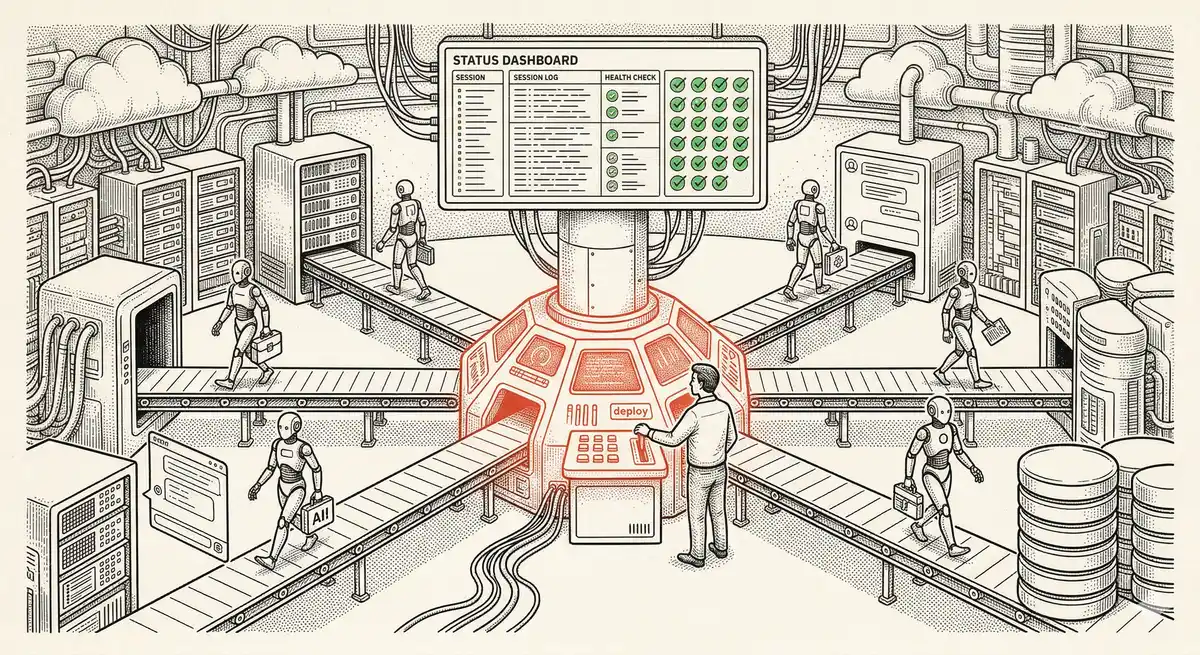
Claude Managed Agents: Anthropic's Platform for Production Agent Deployment
Anthropic launches Managed Agents: a cloud platform for deploying AI agents in production. Secure sandbox, checkpointing, multi-agent, autonomous sessions lasting hours. Notion, Rakuten, Asana and Sentry already use it.
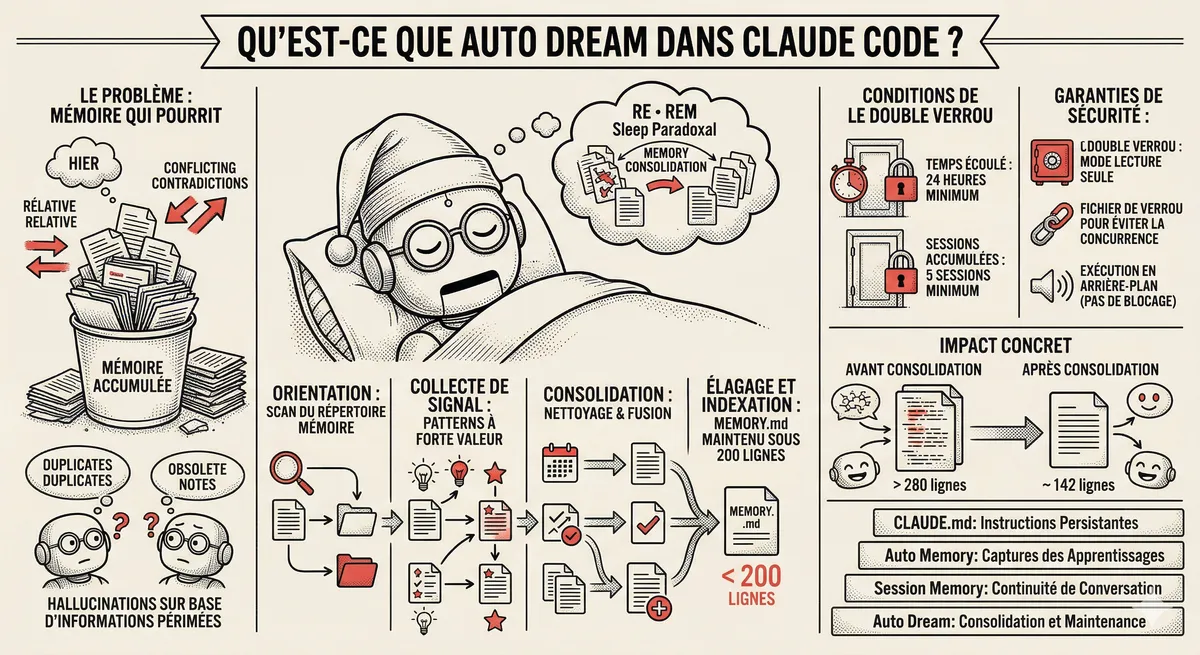
Claude Code Dream & Auto Dream: Automatic Memory Consolidation
After 20 sessions, Auto Memory notes become a mess. Auto Dream solves this by automatically consolidating Claude Code's memory: deduplication, stale entry removal, relative-to-absolute date conversion.
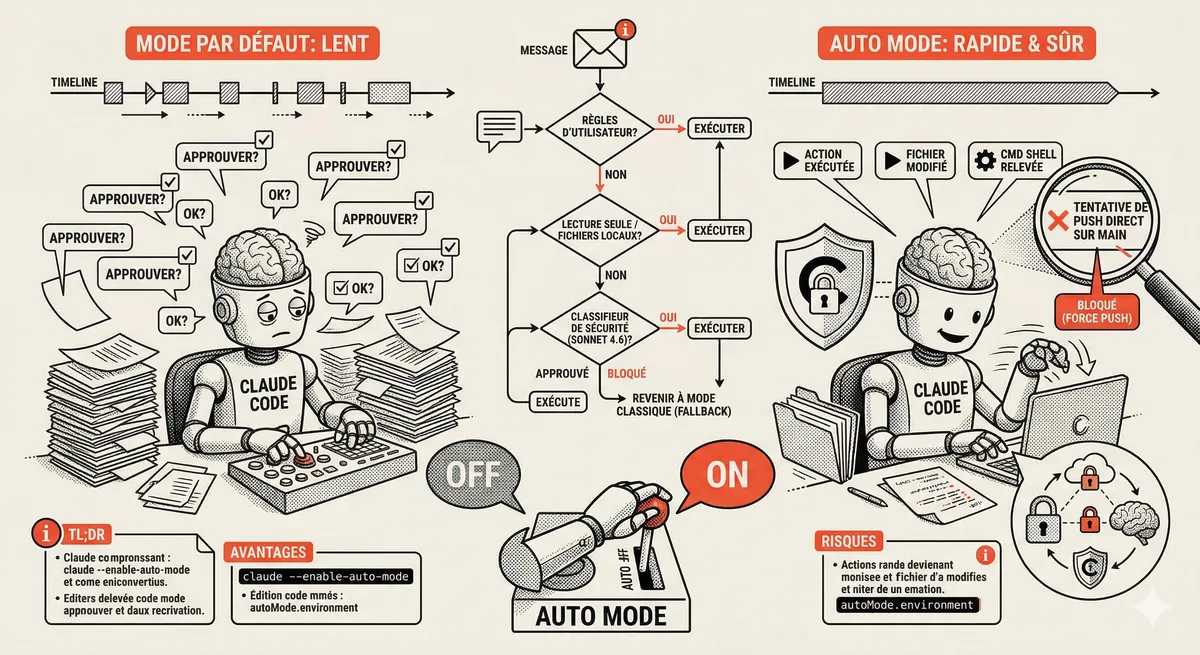
Claude Code Auto Mode: Autonomy Without the Risk
Auto Mode in Claude Code eliminates permission interruptions while keeping a safety net. A classifier analyzes every action before execution and blocks destructive operations. The sweet spot between approving everything and letting everything through.
This topic is covered in Module 4 of our Claude Code training
Documentation, Organization and Prompt Management
1-day training • 60% hands-on labs • Expert instructors
View full program