TL;DR
Three optimizations are enough to transform your Claude Code sessions: use Plan mode to review changes before any edits, configure PreCompact hooks to preserve your critical instructions, and split your tasks into targeted multi-sessions. Result: faster responses and better-utilized context.
Three optimizations are enough to transform your Claude Code sessions: use Plan mode to review changes before any edits, configure PreCompact hooks to preserve your critical instructions, and split your tasks into targeted multi-sessions. Result: faster responses and better-utilized context.
Context management in Claude Code encompasses all context optimization strategies to solve every slowness with a tailored solution, from token window configuration to automatic compaction. Current models (Opus 4.6+ and Sonnet 4.6) support a context window of up to 1 million tokens, while older models and the Bedrock/Vertex/Foundry defaults cap at 200,000 tokens (roughly 150,000 words). Every token consumed unnecessarily slows down responses and degrades model relevance.
This guide shows you, in practice, how to measure, diagnose, and optimize your context usage for smooth and productive sessions.
SFEIR Institute trainings
Claude Code Training
1 day · Fundamentals
AI-Augmented Developer
2 days · Intermediate
How does the context window work?
The context window is Claude Code's working memory. It contains everything the model "sees" at a given moment: your prompt, files read, conversation history, and generated responses.
A token is a text unit of approximately 4 characters in English and 3 characters in French. On current models the window can reach up to 1 million tokens (with 200,000 the limit on older models and on the Bedrock/Vertex/Foundry defaults). Even with a large window, a saturated context still slows responses and dilutes relevance, so the optimization strategies below matter regardless of the ceiling.
The table below gives illustrative estimates (not official figures) of how the window typically fills up:
| Component | Typical share of the window |
|---|---|
| System prompt + CLAUDE.md | Small |
| Automatically read files | Variable, often moderate |
| Conversation history | Often the largest share |
| Current response | Small to moderate |
Processing cost grows with the number of input tokens. In practice, a session near the context limit responds noticeably slower than a lightly loaded one.
Check how the window is being used by typing /context in the session. This command shows a per-component breakdown of the tokens consumed. Use /cost (alias /usage) to see session cost and plan limits.
To dive deeper into the fundamentals, consult the complete context management guide that details each mechanism.
Key takeaway: the context window fills up faster than you think, even at 1M tokens on current models. Monitor its usage with /context after every major task.
What context optimization strategies provide a solution for every slowness?
Here are 10 techniques ranked by decreasing impact. Apply the first three for immediate gains.
| # | Technique | Expected impact | Difficulty |
|---|---|---|---|
| 1 | Plan mode | Fewer edit-and-retry cycles | Low |
| 2 | PreCompact hooks | Preserves critical instructions | Medium |
| 3 | Multi-sessions | Smaller, focused contexts | Low |
| 4 | Optimized CLAUDE.md file | Leaner system context | Medium |
| 5 | Targeted slash commands | Fewer files read | Low |
| 6 | File exclusion (.gitignore) | Fewer tokens from file reading | Low |
| 7 | Prompt splitting | Smaller inputs | Low |
| 8 | Manual compaction (/compact) | Recovers context room | Low |
| 9 | Selective reset (/clear) | Starts the context fresh | Low |
| 10 | Sub-agents (Agent tool) | Keeps the main context light | High |
In practice, combining techniques 1, 2, and 3 can significantly reduce overall consumption across a workday. You will find concrete optimization examples for each technique in the dedicated documentation.
Key takeaway: target Plan mode, PreCompact hooks, and multi-sessions first. These three levers cover most of the available gains.
How does Plan mode help you spend tokens more efficiently?
Plan mode is a permission mode in which Claude Code reads files and proposes a plan without making any edits until you approve. Because it explores read-only and stops before executing changes, it can reduce the tokens spent on unnecessary edit-and-retry cycles.
Activate Plan mode with the Shift+Tab shortcut in the terminal.
# Activate Plan mode for an analysis
> # Press Shift+Tab to activate Plan mode
> "Analyze the project structure and propose a refactoring plan"

# Switch back to normal mode to implement
> # Press Shift+Tab to return to normal mode
Plan mode is particularly useful for exploration tasks. Use it systematically when asking Claude Code to analyze, compare, or plan, so you can review the proposed plan before any edits.
In practice, Plan mode is well suited to exploration tasks where you want a reviewed plan before any changes are applied, which avoids the wasted tokens of edits that have to be undone. To understand how agentic coding leverages this mechanism, consult the dedicated guide.
If you are getting started with Claude Code, the SFEIR Institute Claude Code training teaches you in one day to master Plan mode, hooks, and context management techniques through hands-on labs.
Key takeaway: activate Plan mode by default for any task that does not require file modification, so you review the plan before spending tokens on edits.
How to configure automatic compaction and PreCompact hooks?
Automatic compaction is the mechanism by which Claude Code summarizes conversation history when the context window approaches saturation. By default, it triggers when the context approaches its limit.
The problem: standard compaction can lose critical information. PreCompact hooks allow you to save data before each compaction. Automatic compaction is not tuned through a threshold setting; your levers are manual /compact and PreCompact hooks (which can also block a compaction).
PreCompact hooks are scripts that execute before each compaction. Create a hook to save critical instructions. The hook receives a JSON payload on stdin with fields such as session_id, transcript_path, and cwd:
#!/bin/bash
#.claude/hooks/pre-compact.sh
# Save critical context before compaction

INPUT=$(cat)
SESSION=$(echo "$INPUT" | jq -r .session_id)

echo "=== PRESERVED CONTEXT ===" > /tmp/claude-context-backup.md
echo "Date: $(date)" >> /tmp/claude-context-backup.md
echo "Session: $SESSION" >> /tmp/claude-context-backup.md
Register this hook in your ~/.claude/settings.json. Each PreCompact entry holds a hooks array of handlers, and timeout is expressed in seconds:
{
 "hooks": {
 "PreCompact": [
 {
 "matcher": "auto",
 "hooks": [
 {
 "type": "command",
 "command": ".claude/hooks/pre-compact.sh",
 "timeout": 5
 }
 ]
 }
 ]
 }
}
PreCompact hooks let you persist critical context before compaction, reducing the risk of losing important instructions. You can also trigger manual compaction with the /compact command. Consult the Claude Code best practices for a complete guide on hook configuration.
Key takeaway: create a PreCompact hook to persist your critical instructions, and use /compact when you want to summarize the context on demand.
How do multi-sessions and horizontal scaling improve performance?
Multi-sessions involves launching several Claude Code instances in parallel, each with its own context window. Instead of one session saturated at 180,000 tokens, you work with three targeted sessions of 40,000 tokens each.
Open multiple terminals and launch Claude Code in each with a defined scope:
# Terminal 1: Backend
$ cd backend && claude "Fix the authentication bug in auth.ts"

# Terminal 2: Frontend
$ cd frontend && claude "Add login form validation"

# Terminal 3: Tests
$ cd tests && claude "Write unit tests for auth.service.ts"
| Approach | Total tokens | Context per session |
|---|---|---|
| Single saturated session | 180,000 | One large, noisy context |
| 3 targeted sessions | 3 x 40,000 | Three smaller, focused contexts |
| Sessions + Plan mode | 3 x 20,000 | Smallest, reviewed before edits |
Horizontal scaling is the strategy of distributing work across several specialized sessions. Each session maintains a focused context and produces more relevant responses.
In practice, smaller and more focused contexts respond faster and stay more on-topic than a single saturated session, because there is less unrelated history for the model to sift through.
To get the most out of this approach, configure an optimized CLAUDE.md file in each subdirectory of your project. Each session will load only the relevant instructions.
The SFEIR Institute AI-Augmented Developer training dedicates an entire day to multi-session strategies and horizontal scaling, with exercises on real projects over 2 days of training.
Key takeaway: three targeted sessions at 40,000 tokens consistently outperform a single session bloated to 180,000 tokens, in both speed and relevance.
How to diagnose and measure current context performance?
Run these checks to establish a complete diagnosis of your context usage. The first two are slash commands you type inside a running Claude Code session, while the timing check runs from your shell:
# Inside a Claude Code session:
/context   # per-component breakdown of the context window
/cost      # session cost and plan limits (alias /usage)
/compact   # summarize the context on demand
# From your shell, time a one-shot non-interactive query with -p (print mode)
$ time claude -p "Reply OK"
A noticeably long response time on a simple command is a practical sign of an overloaded context. Aim for snappy responses on short commands, and treat a clear slowdown as a cue to compact or split the session.
The heuristics below are rules of thumb (not documented thresholds) to read your situation at a glance:
| Metric | Healthy | Watch out |
|---|---|---|
| Tokens used | Well below the window limit | Approaching the window limit |
| Simple response time | Fast | Noticeably slow |
| Frequent automatic compactions | Rare | Repeated within a session |
| Files in context | Only what you need | Many unrelated files |
To inspect usage during a session, type /context for the token breakdown and /cost for cost and plan limits. These are in-session slash commands, so there is no shell-level equivalent to alias.
For advanced diagnostic techniques, consult the context management cheatsheet that consolidates all useful commands. If you encounter specific cases, the context management FAQ answers the most common questions.
Key takeaway: measure before optimizing. A /context after every major task gives you the visibility needed to take action.
What advanced settings maximize efficiency for experienced users?
The following techniques are for developers who use Claude Code daily and want to leverage every available token.
How to use the .gitignore file?
Claude Code respects your project's .gitignore by default (the respectGitignore setting, default true), so ignored files and folders are excluded from automatic reading. Create it at the root of your project:
#.gitignore - Claude Code respects.gitignore exclusions
node_modules/
dist/
build/
*.min.js
*.map
coverage/
.next/
vendor/
In practice, a well-configured .gitignore keeps generated and vendored files out of context, which can noticeably reduce the tokens consumed by file reading on a standard Node.js project.
How to leverage Agent sub-agents?
Sub-agents (the Agent tool, formerly named Task, which still works as an alias) allow you to delegate searches to secondary agents that have their own context window. The main context stays lightweight.
Launch a sub-agent for exploratory tasks instead of loading all files into your main session. Claude Code supports sub-agents for exploratory tasks.
How to structure your prompts to minimize tokens?
In practice, a structured prompt often consumes fewer tokens than a narrative prompt covering the same request. Prefer lists and direct instructions:
# Verbose: narrative prompt
"I'd like you to look at the auth.ts file and find
why authentication doesn't work when..."

# Concise: structured prompt
"File: auth.ts
Bug: auth failure with expired tokens
Action: fix refresh token validation"
Concise, structured prompts also tend to survive compaction better than long narrative ones, because the key facts are easier to summarize.
To master these advanced techniques, the SFEIR AI-Augmented Developer - Advanced training offers a full day dedicated to optimization patterns and multi-agent architectures.
You will find reusable patterns in the best practices for structuring your projects. For your first experiments, the your first conversations guide lays the essential foundations.
Key takeaway: .gitignore, sub-agents, and structured prompts form the advanced trio. Combine them to leverage every token efficiently.
How to validate that your optimizations are working?
Use this checklist after each configuration session. Each validated item contributes to optimal management of your context window.
- Verify that
/contextshows comfortable headroom below the window limit for a standard task - Confirm that Plan mode is activated for analysis tasks (Shift+Tab)
- Set up a PreCompact hook, and use
/compactwhen you want to summarize the context on demand - Validate the presence of a functional PreCompact hook
- Ensure that
.gitignoreexcludesnode_modules/,dist/, andbuild/ - Test response time on a simple command (target: a fast, snappy reply)
- Verify that your CLAUDE.md weighs less than 3,000 tokens
- Confirm use of separate sessions for frontend, backend, and tests
In practice, a developer applying these 8 points can significantly reduce token consumption and shorten response times over a work week. The context management examples illustrate each point with real cases.
To dive deeper into Git integration with Claude Code, consult the dedicated guide explaining how to combine context management and Git workflow. Also consult the installation and first launch guide if you are setting up a new environment.
Key takeaway: measure, configure, validate. This three-step loop ensures that every optimization produces a measurable gain.
Recent articles about Claude
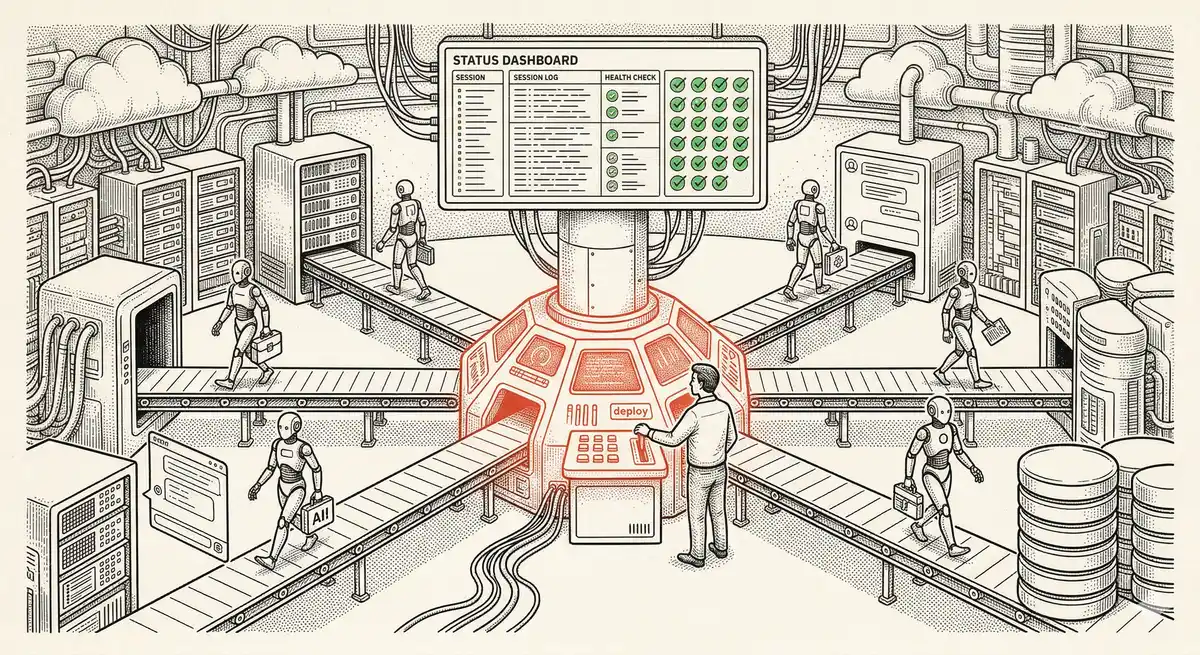
Claude Managed Agents: Anthropic's Platform for Production Agent Deployment
Anthropic launches Managed Agents: a cloud platform for deploying AI agents in production. Secure sandbox, checkpointing, multi-agent, autonomous sessions lasting hours. Notion, Rakuten, Asana and Sentry already use it.
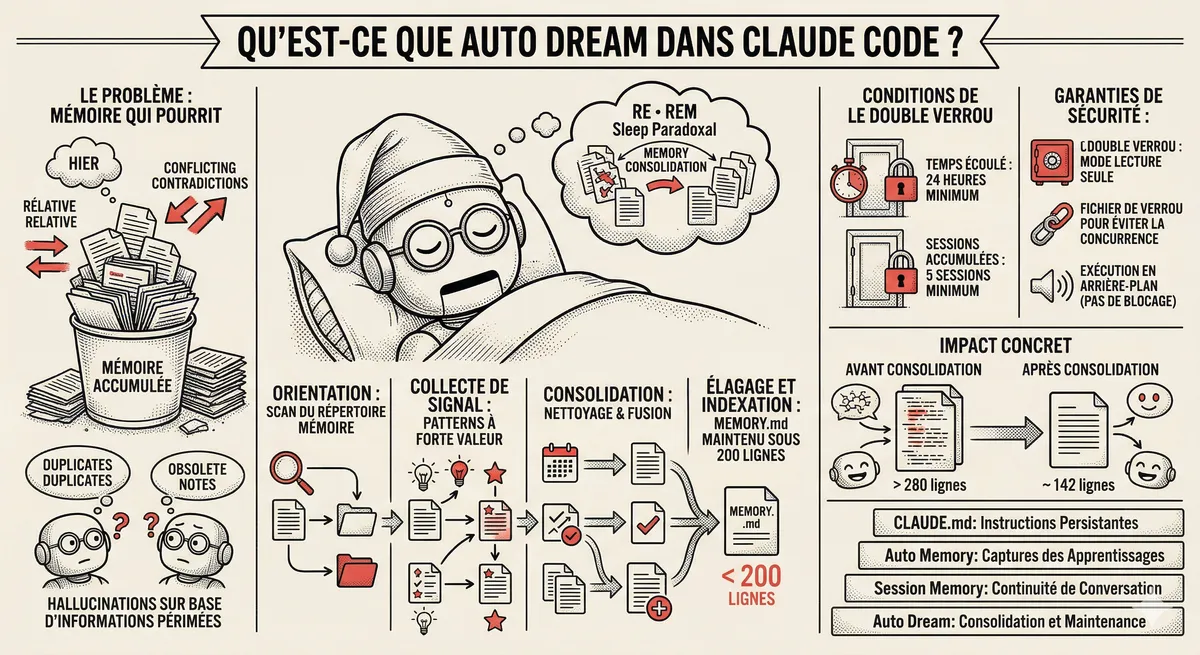
Claude Code Dream & Auto Dream: Automatic Memory Consolidation
After 20 sessions, Auto Memory notes become a mess. Auto Dream solves this by automatically consolidating Claude Code's memory: deduplication, stale entry removal, relative-to-absolute date conversion.
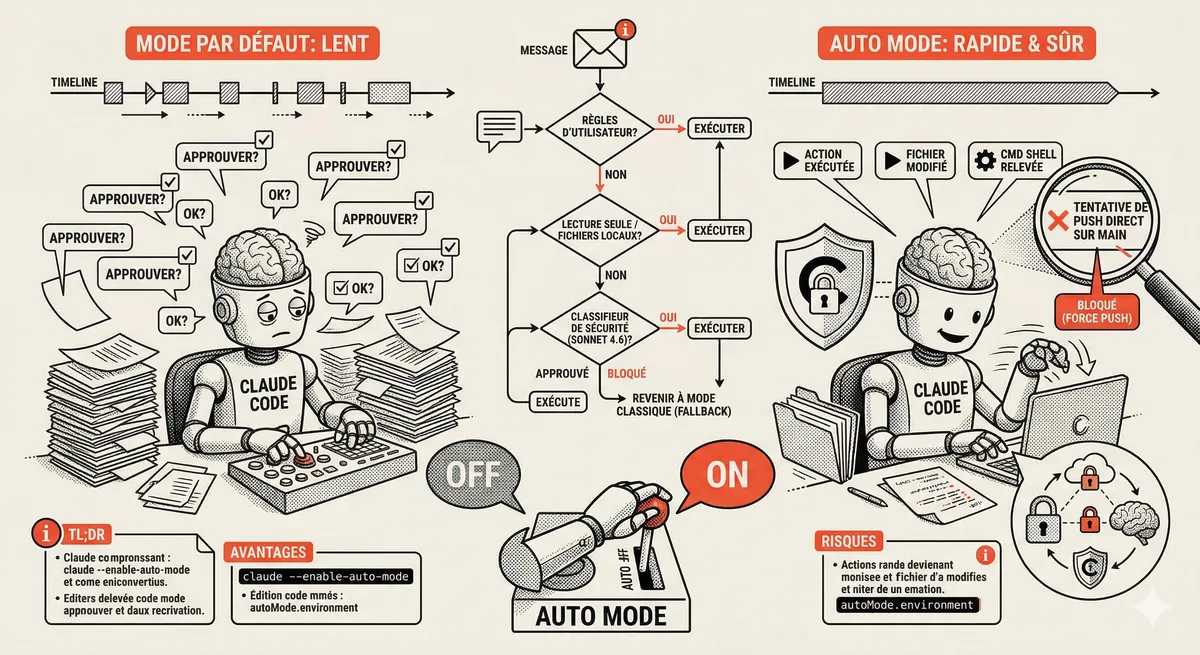
Claude Code Auto Mode: Autonomy Without the Risk
Auto Mode in Claude Code eliminates permission interruptions while keeping a safety net. A classifier analyzes every action before execution and blocks destructive operations. The sweet spot between approving everything and letting everything through.
This topic is covered in Module 4 of our Claude Code training
Documentation, Organization and Prompt Management
1-day training • 60% hands-on labs • Expert instructors
View full program