TL;DR
Context management in Claude Code determines the quality of every generated response. Mastering the context window (up to 1M tokens on current models), automatic compaction, and Plan mode lets you maintain productive sessions on complex projects. Here is how to optimize every token for efficient horizontal scaling via multi-sessions.
Context management in Claude Code determines the quality of every generated response. Mastering the context window (up to 1M tokens on current models), automatic compaction, and Plan mode lets you maintain productive sessions on complex projects. Here is how to optimize every token for efficient horizontal scaling via multi-sessions.
Context management in Claude Code is the mechanism that controls which information the agent retains, compresses, or discards throughout a work session. Current models (Opus 4.6 and later, Sonnet 4.6) support a 1M-token context window, while the legacy 200,000-token window remains the default on older models and on the Bedrock, Vertex, and Foundry providers. Claude Code uses this window to analyze your codebase, generate code, and maintain response coherence.
Claude's context window represents one of the largest workspaces available among current language models, reaching up to 1M tokens on current models. This capacity directly impacts the depth of analysis possible on a project.
SFEIR Institute trainings
Claude Code Training
1 day · Fundamentals
AI-Augmented Developer
2 days · Intermediate
How does the context window work in Claude Code?
The context window is Claude Code's active working memory during a session. Every element consumed (system prompt, files read, responses generated) occupies a measurable portion of the available tokens, up to 1M on current models or 200,000 on older and Bedrock/Vertex/Foundry defaults.
Break down this window into four distinct zones: the system prompt and CLAUDE.md instructions, the files read, the conversation history, and the responses generated. The exact distribution depends entirely on your configuration and what you load during the session, regardless of whether your model exposes a 1M or a 200,000-token window.
For a concrete breakdown, consult the complete context management guide that details each component of the window.
The table below gives rough, illustrative proportions only; they will vary widely from one session to the next.
| Context zone | Typical share (approximate, will vary) |
|---|---|
| System prompt + CLAUDE.md | Small, fixed overhead |
| Files read (source code) | Often the largest share |
| Conversation history | Grows over the session |
| Generated responses | Moderate, grows with output |
A token corresponds to approximately 0.75 words in English and 0.5 words in French. The number of files you can load simultaneously depends on their size and on whether your model exposes the 1M or the 200,000-token window; rather than relying on fixed estimates, use /context to see the real, measured per-component breakdown for your session.
Check your consumption during a session with the /context command, which shows a per-component breakdown of context usage. The /cost command reports the total cost and duration of the session, not a token-out-of-window figure.
# Inspect context/token usage in session
$ claude # in the project directory
> /context
# Displays a per-component breakdown of context usage
Key takeaway: the context window (up to 1M tokens on current models, 200,000 on older and Bedrock/Vertex/Foundry defaults) breaks down into four zones whose distribution varies according to your usage. Monitor your consumption with /context (or /usage) to avoid premature compactions.
What context optimization strategies should you apply?
Context optimization consists of maximizing the amount of useful information per token consumed. Adopt three complementary strategies to achieve this.
First strategy: the CLAUDE.md file. This file provides persistent instructions without repeating them in every message. Create a CLAUDE.md file at the root of your project with your code conventions, architectural patterns, and naming rules.
# CLAUDE.md
## Conventions
- TypeScript strict, no `any`
- Tests with Vitest, coverage > 80%
- Conventional commits (feat:, fix:, chore:)
## Architecture
- Clean architecture with ports/adapters
- Services injected via constructor
the CLAUDE.md file noticeably reduces token consumption on long sessions by eliminating repeated instructions. To dive deeper into configuration best practices, consult the Claude Code best practices guide.
Second strategy: targeted instructions. Formulate your prompts with precision by indicating the exact file, the relevant function, and the expected result. A precise prompt consumes meaningfully fewer tokens than a vague one, because Claude Code does not need to explore broadly to understand your intention.
| Prompt type | Relative token cost | Effectiveness |
|---|---|---|
| Vague: "fix the bug" | High (broad exploration) | Low |
Targeted: "fix the null check in parseConfig() of src/config.ts" | Moderate | High |
Ultra-targeted with context: "in src/config.ts:42, add ?? {} after JSON.parse()" | Low | Maximum |
Third strategy: task segmentation. Divide complex modifications into independent sub-tasks. A 20-file refactoring consumes less context when split into 4 sessions of 5 files than in one massive session.
Discover concrete context optimization examples to apply these strategies on your real projects.
Key takeaway: combine CLAUDE.md, targeted prompts, and task segmentation to substantially reduce your token consumption.
How does Plan mode save context?
Plan mode is a Claude Code feature that separates the thinking phase from the execution phase. Activate it with the Shift+Tab key or by typing the dedicated command in your session.
In Plan mode, Claude Code analyzes your request, explores the code, and proposes a strategy without executing modifications. In practice, this separation can save a meaningful amount of tokens on complex tasks.
# Activate Plan mode in Claude Code
$ claude
> [Shift+Tab] # Switch to Plan mode
> Refactor the authentication module to use JWT
# Claude Code analyzes and proposes a plan without modifying files
Plan mode is a permission mode: Claude researches the code and proposes a plan without editing any files. By validating the approach before execution, you reduce wasted exploration and re-work. Note that extended thinking tokens are billed as output tokens and do consume the context window; Plan mode does not give you a separate, exempt pool of thinking tokens.
| Mode | Exploration cost | Execution cost | Overall token footprint |
|---|---|---|---|
| Normal (without Plan) | Higher (broad exploration) | Higher (more re-work) | Larger |
| With Plan mode | Lower (focused exploration) | Lower (validated approach) | Smaller |
Use Plan mode systematically for tasks involving more than 3 files. Before any refactoring, launch a Plan mode analysis to identify affected files and dependencies, then validate the plan before execution.
The context optimization guide from SFEIR Institute details advanced workflows combining Plan mode and segmented sessions.
The decision tree is simple. If your task touches 1 to 2 files -> normal mode. If it touches 3 files or more -> Plan mode. If it involves a transverse refactoring -> Plan mode + multi-sessions.
Key takeaway: Plan mode can meaningfully reduce token usage on complex tasks by separating thinking and execution.
How does automatic compaction work in Claude Code?
Automatic compaction is the mechanism by which Claude Code compresses conversation history when the context window approaches its limit. The process triggers automatically as the conversation nears the context-window limit, summarizing older history to free space; the amount reclaimed varies with the session.
Understand the process in three steps. First, Claude Code identifies the oldest messages in the conversation. Then, it summarizes these exchanges while preserving key decisions, modified files, and errors encountered. Finally, it replaces the original messages with this compressed summary.
The auto-compaction threshold is not exposed as a JSON config object. The mechanism triggers automatically as the conversation approaches the context-window limit. There is no documented user-facing setting to change that threshold: use the /compact command for manual control. The illustration below is conceptual: it shows what compaction conceptually preserves, not a settings file.
# Conceptual illustration (not a configuration file)
Auto-compaction trigger: automatic, as context approaches the window limit
Manual control: /compact (optionally with focus instructions)
Typically preserved across a compaction:
  - file modifications
  - error messages
  - user decisions
  - current task context
In practice, a compaction noticeably reduces the context footprint while retaining most relevant information, with limited quality loss for standard coding tasks.
The PreCompact hook gives you additional control. Configure this hook in your .claude/settings.json file to execute actions before each compaction, for example saving the project state or logging decisions.
// .claude/settings.json
{
  "hooks": {
    "PreCompact": [
      {
        "matcher": "auto",
        "hooks": [
          { "type": "command", "command": "echo \"Compaction triggered at $(date)\" >> .claude/compaction.log", "timeout": 5 }
        ]
      }
    ]
  }
}
To master manual compaction, consult the context management cheatsheet that lists all available commands.
The /compact command triggers a manual compaction with free-text instructions. Execute /compact focus on the auth module to orient the compression toward information relevant to your current task. You can also use /context to visualize context usage as a colored grid, or /rewind (or Esc+Esc) to rewind the conversation.
# Targeted manual compaction
> /compact preserve architectural decisions and TypeScript errors
# Frees context while keeping the specified information
Key takeaway: automatic compaction triggers as context approaches the window limit and summarizes older history to free space. Use the PreCompact hook and /compact command to stay in control.
How to configure PreCompact hooks for advanced control?
PreCompact hooks are shell scripts executed automatically before each compaction operation. Configure them in the .claude/settings.json file at project level or in ~/.claude/settings.json at global level.
A PreCompact hook receives a JSON object on stdin with the common hook fields: session_id, transcript_path, cwd, hook_event_name, plus a trigger value of manual or auto. Leverage these fields to automate your workflows.
#!/bin/bash
# .claude/hooks/pre-compact.sh
# Automatic backup before compaction

# Read compaction data from stdin
COMPACTION_DATA=$(cat)
TRIGGER=$(echo "$COMPACTION_DATA" | jq -r '.trigger')

# Snapshot the whole working tree before compaction
git stash push -m "pre-compact-$(date +%s)"

echo "Snapshot created (trigger: $TRIGGER)"
Here is a concrete use case: you are working on a database migration with 15 migration files. Configure a PreCompact hook that saves the progress state for restoration after compaction.
To go further on automated workflows, the guide on agentic coding deep dive explores advanced orchestration patterns with Claude Code.
| Hook | Trigger | Use case |
|---|---|---|
| PreCompact | Before compaction | State saving, logging |
| PostCompact | After compaction | Consistency verification |
| PreToolUse | Before a tool | Security validation |
| PostToolUse | After a tool | Modification auditing |
In practice, PreCompact hooks let you snapshot state before each compaction, which helps avoid losing work during long sessions.
Key takeaway: PreCompact hooks automate state saving before compaction. Configure them to never lose track during a long session.
How to set up multi-sessions and horizontal scaling?
Horizontal scaling with Claude Code involves distributing work across multiple parallel sessions rather than overloading a single context window. Launch multiple Claude Code instances, each focused on a subset of your project.
The multi-session architecture relies on the --continue (or -c, to resume the last conversation), --resume (or -r, to resume a specific session by ID or name), and --session-id (to use a specific UUID) flags. Create dedicated sessions per functional domain to maintain a specialized and reduced context.
# Launch 3 specialized parallel sessions
$ # Launch separate claude instances in different directories
$ cd ../api-routes && claude &
$ cd ../frontend && claude &
The shared data model between sessions goes through the CLAUDE.md file and the file system. Document decisions made in each session via code comments or a shared decision file. Consult the Git integration best practices to coordinate commits between parallel sessions.
| Approach | Context per session | Files managed | Conflict risk |
|---|---|---|---|
| Single session | Full window (up to 1M, or 200,000 on older defaults) | All | None |
| 2 sessions | Half the window each | Split by module | Low |
| 4+ sessions | A quarter of the window each | By business domain | Moderate |
| Sessions + Git worktrees | A quarter of the window each | Physically isolated | Minimal |
For complete isolation, combine multi-sessions with Git worktrees. Each session operates on its own working copy, eliminating file conflicts.
# Create isolated worktrees for each session
$ git worktree add ../project-auth feature/auth
$ git worktree add ../project-api feature/api

# Launch Claude Code in each worktree
$ cd ../project-auth && claude   # Launch claude in the auth directory
$ cd ../project-api && claude   # Launch claude in the api directory
In practice, distributing work across a few parallel sessions can increase throughput and reduce the frequency of compactions, since each session keeps a smaller, more focused context. The benefit grows with the size of the codebase.
Key takeaway: distribute work across 2 to 4 parallel sessions with Git worktrees to maximize throughput without sacrificing context coherence.
When should you not use aggressive context optimization?
Not all situations justify a complex context management strategy. Identify cases where simplicity wins over optimization.
For short tasks (under 10,000 tokens) the overhead of setting up Plan mode or multiple sessions exceeds the benefit. Stay in normal mode for one-off bug fixes, 1-to-2 file modifications, or exploratory questions.
Rapid prototyping does not benefit from horizontal scaling. When exploring ideas, automatic compaction is sufficient. Let Claude Code manage context automatically during experimentation phases. Consult the recommendations for your first conversations before adding complexity to your workflow.
Here is the complete decision tree:
- If your task touches 1 to 3 files and lasts less than 30 minutes -> normal mode, no optimization
- If your task touches 4 to 10 files -> activate Plan mode, use
/compactmanually - If your task touches more than 10 files or lasts more than 2 hours -> multi-sessions with worktrees
- If you are working as a team on the same project -> multi-sessions + shared CLAUDE.md + PreCompact hooks
- If your codebase exceeds 100,000 lines -> consider agentic coding with orchestration
| Situation | Recommended strategy | Setup complexity |
|---|---|---|
| One-off bug fix | Normal mode | None |
| Feature < 5 files | Plan mode | 1 minute |
| Transverse refactoring | Multi-sessions | 5 minutes |
| Codebase migration | Sessions + worktrees + hooks | 15 minutes |
In practice, most of a developer's daily tasks are solved in normal mode without context optimization. Optimization brings its gains on the remaining minority of work, namely long, complex, or multi-file tasks.
SFEIR Institute offers the Claude Code one-day training to master these context management techniques in real conditions with hands-on labs. To go further, the AI-Augmented Developer 2-day training covers the full agentic workflow, including horizontal scaling on enterprise projects. Experienced profiles can take the AI-Augmented Developer - Advanced one-day training to deepen hooks, compaction, and multi-agent architectures.
Key takeaway: do not optimize by default. Reserve advanced strategies for the minority of tasks that exceed 4 files or 30 minutes of work.
What tools to compare for context management across AI agents?
Claude Code is not the only AI agent offering context management. Compare approaches to choose the right tool for your needs. Before getting started, consult the installation and first launch guide to verify your prerequisites.
| Criterion | Claude Code | GitHub Copilot Workspace | Cursor | Aider |
|---|---|---|---|---|
| Context window | Up to 1M tokens (200,000 on older defaults) | Varies by model | Varies by model | Varies by model |
| Automatic compaction | Yes | No | Varies | Varies |
| Plan mode | Yes (Shift+Tab) | No | Varies | No |
| Multi-sessions | Yes (--continue, --resume, --session-id) | No | No | No |
| Custom hooks | Yes (Pre/Post) | No | No | No |
| Pricing model | Pay-per-use (cost depends on usage) | Included in subscription | Included in subscription | Varies by model/provider |
Context windows for Cursor and Aider depend on the underlying model you select rather than a fixed value.
Claude Code stands out with three advantages: a large context window (up to 1M tokens on current models), customizable hooks, and native Plan mode. Its main tradeoff is the pay-per-use pricing model, which incentivizes optimizing every token consumed. Per-developer daily usage varies widely with the model and the workload, so see the official pricing for current rates.
In practice, throughput varies with the chosen model, prompt caching, and the size of your codebase, and these factors directly impact response time on loaded sessions.
Key takeaway: Claude Code offers one of the largest context windows (up to 1M tokens on current models) and the best control via hooks; choose it for projects requiring long sessions and fine-grained control.
How to measure and monitor context performance?
Monitoring context consumption is an essential practice for maintaining productive sessions. Measure three key metrics: fill rate, compaction frequency, and useful-to-total token ratio. For live tracking inside a session, use /context, /usage, or the status line. For machine-readable output, use print mode with JSON output and parse the documented fields.
# Get machine-readable output with print mode + JSON
$ claude -p --output-format json "summarize the current task" > result.json
# Then parse the documented fields from result.json
$ jq '.' result.json
A fill rate above 80% for more than 10 minutes indicates an imminent compaction will interrupt your workflow. Anticipate by triggering /compact manually with a targeted prompt.
To consolidate your knowledge on these metrics, the context optimization guide from SFEIR provides ready-to-use dashboards.
Session health indicators boil down to:
- Fill rate < 70% -> healthy session, continue normally
- Rate between 70 and 85% -> plan a manual compaction or task splitting
- Rate > 85% -> trigger
/compactimmediately or start a new session - More than 3 compactions in 1 hour -> your task requires horizontal scaling
In practice, training helps developers keep a higher ratio of useful tokens during long sessions, which translates into fewer interruptions and steadier progress.
Key takeaway: monitor the fill rate and trigger /compact before 85%. Aim for a useful token ratio above 80%.
Recent articles about Claude
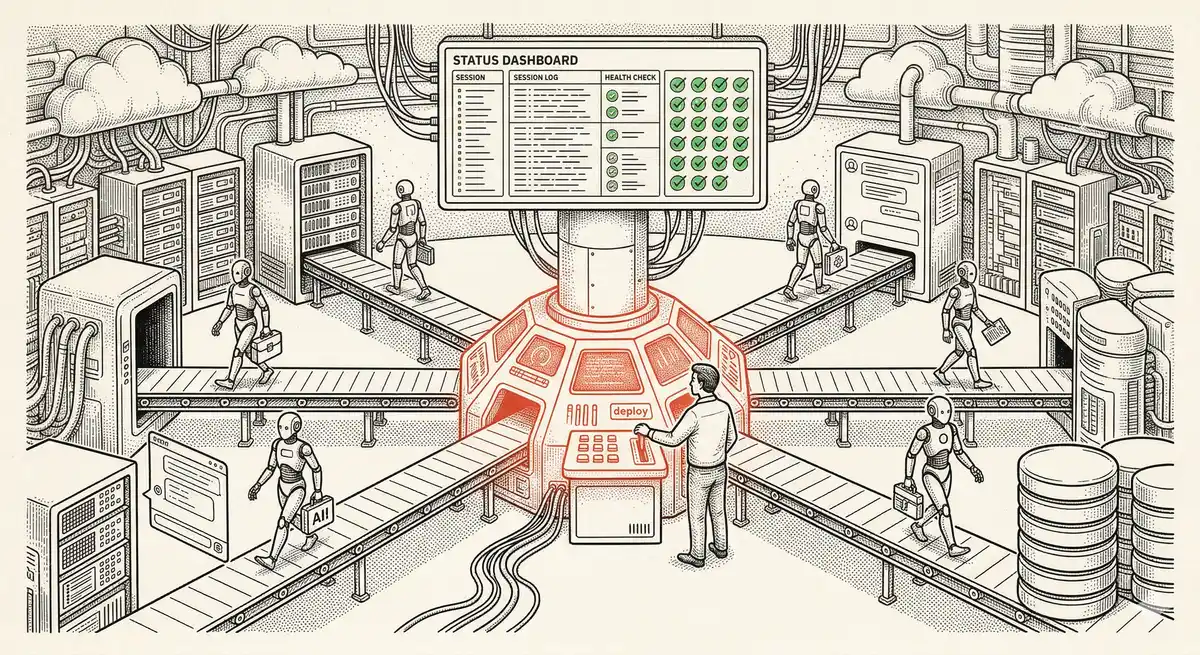
Claude Managed Agents: Anthropic's Platform for Production Agent Deployment
Anthropic launches Managed Agents: a cloud platform for deploying AI agents in production. Secure sandbox, checkpointing, multi-agent, autonomous sessions lasting hours. Notion, Rakuten, Asana and Sentry already use it.
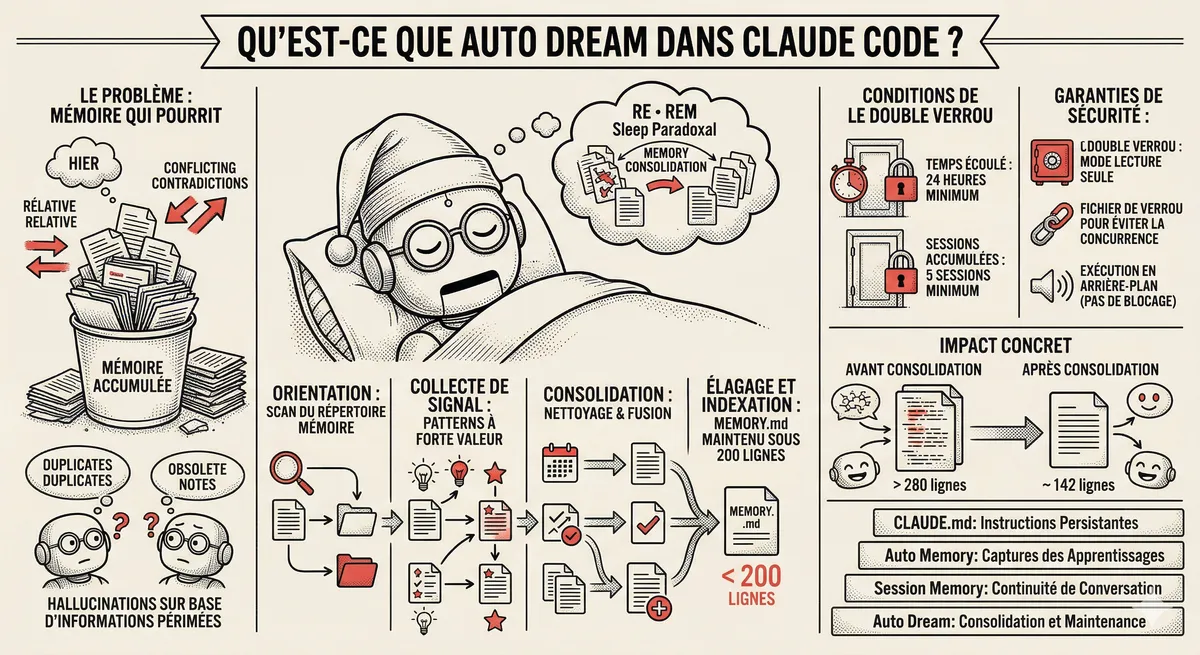
Claude Code Dream & Auto Dream: Automatic Memory Consolidation
After 20 sessions, Auto Memory notes become a mess. Auto Dream solves this by automatically consolidating Claude Code's memory: deduplication, stale entry removal, relative-to-absolute date conversion.
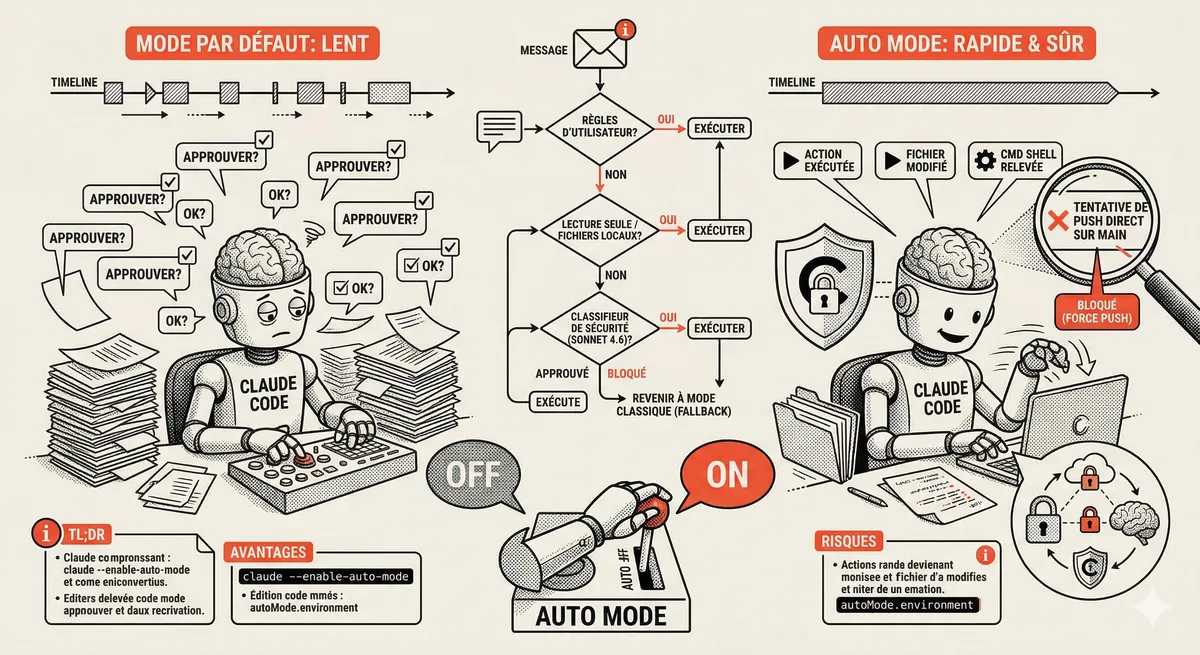
Claude Code Auto Mode: Autonomy Without the Risk
Auto Mode in Claude Code eliminates permission interruptions while keeping a safety net. A classifier analyzes every action before execution and blocks destructive operations. The sweet spot between approving everything and letting everything through.
This topic is covered in Module 4 of our Claude Code training
Documentation, Organization and Prompt Management
1-day training • 60% hands-on labs • Expert instructors
View full program