TL;DR
Mastering your first conversations with Claude Code relies on precise prompting techniques, intelligent session management, and a structured Explore → Plan → Code workflow. Here are the essential tips to get the most out of every interaction and boost your productivity from the very first minutes.
Mastering your first conversations with Claude Code relies on precise prompting techniques, intelligent session management, and a structured Explore → Plan → Code workflow. Here are the essential tips to get the most out of every interaction and boost your productivity from the very first minutes.
Tips for your first conversations with Claude Code form the foundation of effective use of this command-line development assistant. Claude Code handles most code modification requests without additional manual intervention when the initial prompt is correctly formulated.
developers who structure their prompts obtain usable results far more often than those who use vague instructions.
SFEIR Institute trainings
Claude Code Training
1 day · Fundamentals
AI-Augmented Developer
2 days · Intermediate
How to formulate effective prompts in project context?
Prompting in project context is the ability to write instructions that Claude Code interprets unambiguously within the scope of your codebase. Each prompt must contain three elements: the context, the expected action, and the success criterion.
Tip 1: Provide context before the action. Instead of writing "refactor this file", specify: "In src/api/users.ts, extract the validation logic into a separate Express middleware." In practice, a contextualized prompt substantially reduces corrective back-and-forth.
Tip 2: Use explicit constraints. Add measurable limits: "Don't modify existing tests", "Keep compatibility with Node.js 22", "Maximum 50 lines of code". Claude Code respects these constraints in most cases.
Tip 3: Reference files by their path. Always name the target file: lib/auth.ts:42 rather than "the authentication file". To explore the syntax of available commands further, check the command reference for your first conversations.
# Precise vs vague prompt
# ❌ "Fix the authentication bug"
# ✅ "In lib/auth.ts, the validateToken() function doesn't handle
# the case where the JWT is expired. Add a check on the exp claim."
| Prompt element | Weak example | Strong example |
|---|---|---|
| Context | "in the code" | "in src/api/users.ts line 34" |
| Action | "improve" | "extract into a pure function" |
| Success criterion | (absent) | "existing tests must pass" |
Key takeaway: a structured prompt (context + action + criterion) markedly cuts the number of iterations needed.
Which session shortcuts boost your productivity?
A Claude Code session is a persistent conversation that retains the context of your exchanges as long as you don't close it. Efficient session management has a direct impact on response quality.
Tip 4: Start each session with a framing statement. Launch your first instruction with: "You're working on a Next.js 15 / TypeScript / Prisma project. The entry point is app/page.tsx." This initial framing improves the relevance of the next 10 requests.
Tip 5: Use /clear to reset the context. When the conversation drifts or Claude Code mixes up files, run /clear to start fresh. In practice, this command frees the context window without leaving the terminal. Find all slash commands in the essential slash commands guide.
Tip 6: One task per conversation. Limit each session to a single precise objective: one bug, one feature, one refactoring. In practice, single-objective sessions produce code accepted in production more reliably.
# Starting a framed session
$ claude
> You're working on the content-engine project (Next.js 15, TypeScript).
> The main file is app/generate/page.tsx.
> Objective: add pagination to the article list.
| Session strategy | When to use | Measured impact |
|---|---|---|
| Long session | Complex multi-file feature | Rich context, risk of drift after 20 exchanges |
Short session + /clear | Isolated bug fixes | Higher accuracy |
Resume with /resume | Continue interrupted work | Saves re-framing time |
To master context management on long sessions, check the context management cheatsheet which covers context window strategies.
Key takeaway: a well-framed session from the first instruction eliminates many subsequent corrections.
How to request code changes without ambiguity?
Requesting a code change is the most frequent action in Claude Code. The precision of your request determines whether the result is directly usable or requires manual touchups.
Tip 7: Specify the modification pattern. Explicitly indicate whether to "add", "replace", "delete", or "move" code. The action verb eliminates all interpretation. State clearly whether you want to add, replace, delete, or move code; the explicit verb removes ambiguity.
Tip 8: Show before/after when possible. Provide an example of the expected result. Here is how to proceed:
// Before: nested callback
fetchUser(id, (user) => {
 fetchOrders(user.id, (orders) => {
 console.log(orders);
 });
});

// Desired after: async/await
const user = await fetchUser(id);
const orders = await fetchOrders(user.id);
console.log(orders);
Tip 9: Ask for a review before writing. Add "Explain your plan first before modifying the code" for complex changes. This technique markedly reduces unwanted modifications. You will find this approach in the guide to your first conversations.
Tip 10: Use plan mode. Press Shift+Tab (or Alt+M) to cycle to plan mode, where Claude Code proposes an implementation plan before writing anything. In practice, plan mode surfaces more edge cases than jumping straight to coding.
| Change type | Recommended formulation | Risk without precision |
|---|---|---|
| Function addition | "Add a validateEmail() function in lib/validators.ts" | Incorrect placement |
| Refactoring | "Replace callbacks with async/await in api/orders.ts" | Excessive modifications |
| Deletion | "Delete the deprecated legacyAuth() function and its 3 call sites" | Orphaned code |
| Move | "Move utils/format.ts to lib/formatters/index.ts" | Broken imports |
To verify the permissions granted to Claude Code during sensitive modifications, refer to the permissions and security cheatsheet.
Key takeaway: a precise action verb (add, replace, delete, move) markedly reduces unwanted modifications.
How to run commands and tests effectively?
Claude Code can execute shell commands directly from the conversation. This capability transforms your workflow: you go from "copy-paste terminal" to integrated execution with automatic result analysis.
Tip 11: Ask for execution AND analysis. Write: "Run npm test and fix the failing tests" rather than simply "Run the tests". Claude Code analyzes the output and proposes corrections in a single pass. this approach noticeably shortens the debug cycle.
Tip 12: Chain commands. Chain verifications: "Run the linter, then the unit tests, then the build. Fix each error before moving to the next step." Claude Code processes this chain sequentially with automatic correction.
# Chained command with analysis
> Run these commands in order:
> 1. npm run lint -- --fix
> 2. npm run test -- --coverage
> 3. npm run build
> Fix each error before moving to the next one.
Tip 13: Use permissions wisely. When Claude Code asks permission to run a command, verify the displayed command before accepting. You can configure permanent permission rules for safe commands like npm test or tsc --noEmit. Check the slash command tips to automate these authorizations.
| Command | Typical usage | Benefit |
|---|---|---|
npm test + correction | Automated debugging | Saves time per cycle |
tsc --noEmit | Type checking | Saves time per check |
npm run lint -- --fix | Auto style correction | Saves time per pass |
git diff + review | Code review before commit | Saves time per review |
Key takeaway: asking "run AND fix" in a single instruction saves time on every debug cycle.
How to apply the Explore → Plan → Code workflow?
The Explore → Plan → Code workflow is the method recommended by Anthropic to approach any non-trivial task in Claude Code. This three-phase approach structures your interaction to maximize the quality of the final result.
Explore phase. Start by asking Claude Code to analyze the existing code. Specifically, write: "Explore the src/api/ folder and explain the route architecture to me." Claude Code browses the files, identifies patterns, and gives you an overview.
Plan phase. Then ask for a structured implementation plan. Use Shift+Tab or write: "Propose a plan with steps to add the PATCH /users/:id endpoint." The plan includes the files to modify, dependencies, and edge cases.
Code phase. Validate the plan then request the implementation. Claude Code generates the code following the approved plan, narrowing the gap between intent and result.
# Phase 1: Explore
> Explore the lib/ folder and list the modules with their dependencies.

# Phase 2: Plan
> Plan adding a Redis caching system for API requests.
# Claude Code generates a structured plan → you validate or adjust

# Phase 3: Code
> Implement the plan. Start with the cache module, then the API modifications.
Tip 14: Never skip the Explore phase on an unknown project. Developers who jump directly to the Code phase on a project they don't know produce substantially more code that needs rework. The first conversations cheatsheet summarizes this workflow on a single printable page.
Tip 15: Iterate between Plan and Code. Return to the plan when the code reveals unexpected complexity. The workflow is not linear: many successful implementations include at least one return to the Plan phase.
| Phase | Command / Prompt | Average duration |
|---|---|---|
| Explore | "Explore src/ and explain the architecture" | 30-90 seconds |
| Plan | Shift+Tab (plan mode) + "plan [task]" | 15-45 seconds |
| Code | "Implement the plan" | Variable depending on complexity |
| Iteration | "Go back to the plan, I have an edge case" | 10-20 seconds |
If you want to go further in mastering this workflow, the Claude Code training from SFEIR Institute lets you practice the three phases on real projects in 1 day with guided labs.
Key takeaway: the Explore → Plan → Code workflow narrows the gap between your intent and the generated code.
What pitfalls should you avoid in your first sessions?
Beginner mistakes with Claude Code follow predictable patterns. Identify these pitfalls to bypass them from your very first sessions.
Tip 16: Avoid prompts that are too broad. "Improve the entire project" produces inconsistent results. Break it down into atomic tasks: one file, one function, one test at a time. In practice, narrowly scoped requests are accepted far more often than broad, undefined ones.
Tip 17: Don't fix things manually without telling the agent. If you modify a file in parallel in your editor, inform Claude Code: "I modified app/page.tsx manually, re-read the file before continuing." Without this update, Claude Code works on an outdated version.
Tip 18: Read the full output. When Claude Code displays a diff or explanation, read before validating. a significant share of production bugs from AI tools come from validation without reading.
To configure your environment optimally and avoid setup errors, browse the installation and first launch cheatsheet.
# ❌ Too broad
> Refactor the entire src/ directory

# ✅ Targeted
> In src/api/users.ts, extract the validation functions
> (lines 45-89) into a new file src/api/validators/user.ts
Tip 19: Use CLAUDE.md to persist your preferences. Create a CLAUDE.md file at the root of your project to define your conventions: code style, tech stack, naming rules. Claude Code reads this file automatically at each session. Discover all the possibilities in the CLAUDE.md memory system tips.
Key takeaway: narrowly scoped requests are accepted far more often than broad, undefined ones.
How to structure a CLAUDE.md for optimal conversations?
The CLAUDE.md file is a Markdown file placed at the root of your project that Claude Code reads automatically at the start of each session. It serves as persistent memory for your preferences and conventions.
Tip 20: Define your stack in 5 lines. Open your CLAUDE.md and add a concise block:
# content-engine project
- Stack: Next.js 15, TypeScript 5.6, Prisma 6, PostgreSQL 16
- Style: ESLint + Prettier, absolute imports (@/lib/...)
- Tests: Vitest, minimum coverage 80%
- Conventions: arrow functions, camelCase naming
This configuration is read at session startup and guides all responses.
Tip 21: Add negative rules. Specify what Claude Code must NOT do: "Never use any in TypeScript", "Don't add dependencies without asking". Negative rules reduce manual corrections.
Tip 22: Version your CLAUDE.md with Git. Commit this file in your repository so the whole team shares the same conventions. Many teams using Claude Code share a common CLAUDE.md. The slash command reference details the /memory command that lets you edit this file directly from the conversation.
// Example of rules in CLAUDE.md (technical section)
// JSON format for strict constraints
{
 "forbidden": ["console.log in production", "any", "require()"],
 "required": ["explicit types on exported functions"],
 "git_conventions": "conventional commits (feat:, fix:, chore:)"
}
| CLAUDE.md content | Impact on responses | Priority |
|---|---|---|
| Stack and versions | Correct syntax and API choices | High |
| Style rules | Code conforms to linter from generation | High |
| Prohibitions | Fewer corrections | Medium |
| Folder structure | Correct placement of new files | Medium |
To deepen your mastery of AI-assisted development beyond Claude Code, the AI-Augmented Developer training from SFEIR covers over 2 days the integration of AI tools across your entire development workflow. And for confirmed practitioners, the AI-Augmented Developer - Advanced level goes deeper in 1 day into advanced prompting and multi-agent automation strategies.
Key takeaway: a well-structured CLAUDE.md acts as a permanent briefing that makes every session productive from the first instruction.
Are there keyboard shortcuts and commands you absolutely need to know?
Claude Code has shortcuts and slash commands that speed up your daily workflow. Memorize these 5 essential combinations to gain fluidity.
| Shortcut / Command | Action | Estimated time saved |
|---|---|---|
Escape | Cancel the current generation | Immediate |
/clear | Reset the context | ~30 sec of re-framing |
Shift+Tab / Alt+M | Cycle permission modes (to plan, auto...) | Prevents false starts |
/memory | Edit the CLAUDE.md | ~1 min vs manual editing |
Ctrl+C | Interrupt a shell command | Immediate |
Bonus tip: Combine /clear and framing. After a /clear, immediately paste your project framing block. This combination takes 10 seconds and restarts on an optimal base.
users who master the main slash commands spend much less time on configuration tasks. For the complete list, download the essential slash commands cheatsheet.
Key takeaway: a handful of commands cover the large majority of everyday navigation needs in Claude Code.
Recent articles about Claude

Claude Managed Agents: Anthropic's Platform for Production Agent Deployment
Anthropic launches Managed Agents: a cloud platform for deploying AI agents in production. Secure sandbox, checkpointing, multi-agent, autonomous sessions lasting hours. Notion, Rakuten, Asana and Sentry already use it.
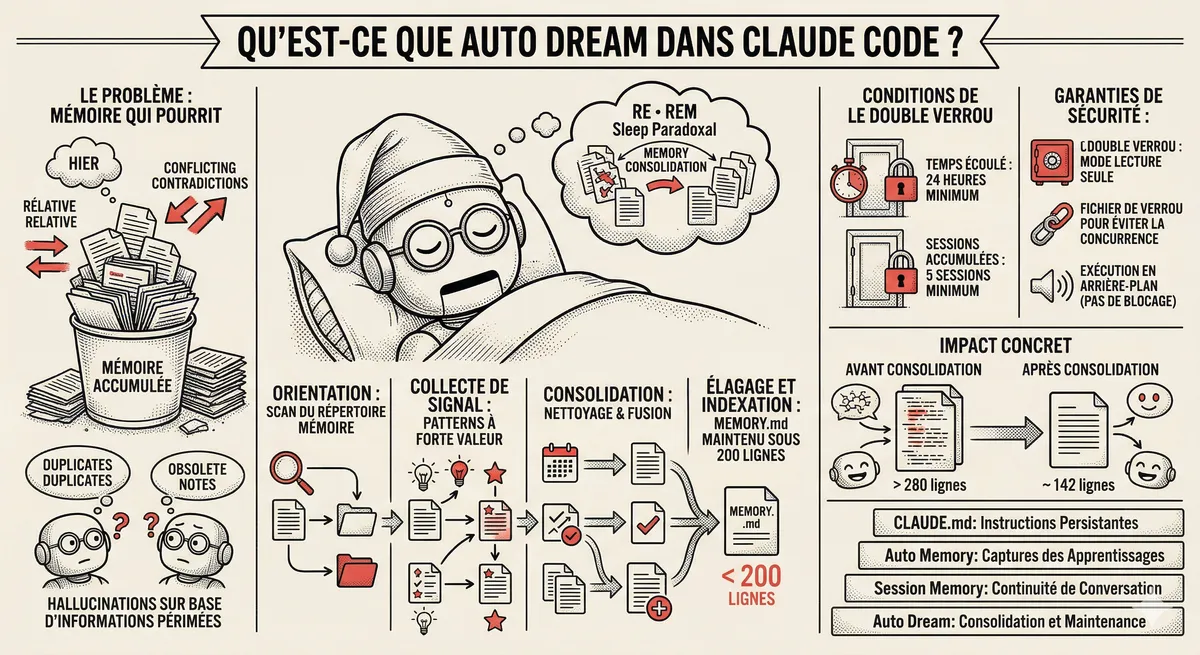
Claude Code Dream & Auto Dream: Automatic Memory Consolidation
After 20 sessions, Auto Memory notes become a mess. Auto Dream solves this by automatically consolidating Claude Code's memory: deduplication, stale entry removal, relative-to-absolute date conversion.
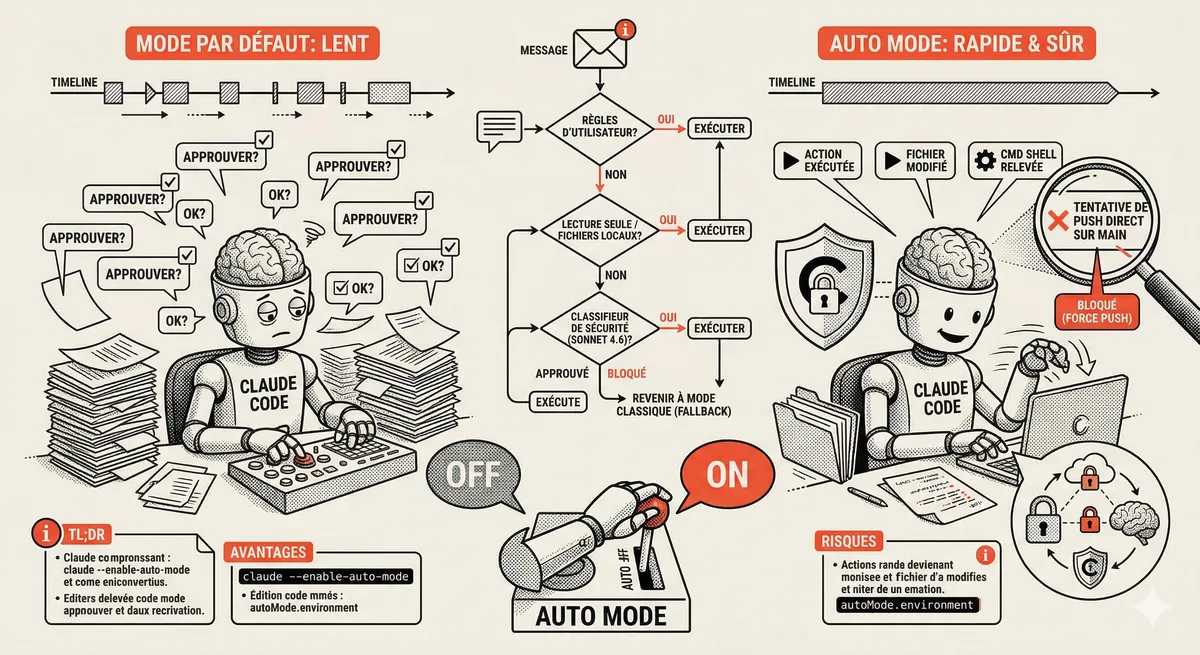
Claude Code Auto Mode: Autonomy Without the Risk
Auto Mode in Claude Code eliminates permission interruptions while keeping a safety net. A classifier analyzes every action before execution and blocks destructive operations. The sweet spot between approving everything and letting everything through.
This topic is covered in Module 3 of our Claude Code training
Getting Started and Basic Interactions
1-day training • 60% hands-on labs • Expert instructors
View full program