TL;DR
This tutorial guides you step by step through configuring the Model Context Protocol in Claude Code, connecting external MCP servers (GitHub, Brave Search, Playwright), and securing your integrations. You will learn to add, test, and use MCP tools in under 30 minutes.
This tutorial guides you step by step through configuring the Model Context Protocol in Claude Code, connecting external MCP servers (GitHub, Brave Search, Playwright), and securing your integrations. You will learn to add, test, and use MCP tools in under 30 minutes.
The Model Context Protocol (MCP) is an open standard created by Anthropic that allows Claude Code to communicate with external services via standardized tool servers. MCP supports three transports: stdio, SSE (deprecated), and HTTP streamable, all configurable via the claude mcp add --transport flag.
MCP was designed to standardize the way language models access external data and actions. The same MCP server works across any MCP-compatible client, so you no longer write bespoke glue code for each integration.
For an overview of the protocol before diving into practice, check the MCP: Model Context Protocol reference page which covers the architecture and fundamental concepts.
SFEIR Institute trainings
Claude Code Training
1 day · Fundamentals
AI-Augmented Developer
2 days · Intermediate
What are the prerequisites before starting?
Verify that your environment meets these conditions before launching MCP configuration.
| Prerequisite | Minimum version | Verification command |
|---|---|---|
| Node.js | 18.0+ (recommended: 22 LTS) | node --version |
| Claude Code CLI | 2.x (recent version) | claude --version |
| npm | 9.0+ | npm --version |
| Terminal access | zsh or bash | echo $SHELL |
Run these commands to validate your environment:
node --version # v22.x expected
claude --version # v2.x expected
npm --version # v9.x+ expected
If you are new to Claude Code, first follow the installation and first launch tutorial to set up your complete environment.
Estimated duration for the entire tutorial: approximately 25 minutes.
Key takeaway: Node.js 22 LTS, a recent version of Claude Code (2.x), and npm 9+ are the three essential prerequisites for working with MCP.
How to install your first MCP server? (~3 min)
Step 1: Add an MCP filesystem server via the CLI
Run the following command to register the filesystem server:
claude mcp add filesystem -- npx -y @modelcontextprotocol/server-filesystem /path/to/your/project
Step 2: Verify the server is registered
List the configured MCP servers to confirm the addition:
claude mcp list
Step 3: Inspect the server connection
Run the per-server command to see the filesystem server's connection details:
claude mcp get filesystem
Verification: the output should display the filesystem server with its status, transport, and command. If you see it reported as connected, your first MCP server is operational.
If you see "spawn npx ENOENT", verify that Node.js is in your PATH. Run which npx to locate the binary. On macOS, restart your terminal after installing Node.js.
MCP filesystem is a server that exposes file read/write operations to Claude Code.
Key takeaway: the claude mcp add command is sufficient to register any stdio-compatible MCP server in a single line.
How do the three MCP transport modes work?
MCP defines three transport protocols for communication between Claude Code and tool servers. Each mode suits a specific use case.
| Mode | Use case | Latency profile | Configuration |
|---|---|---|---|
| stdio | Local servers, child processes | Lowest latency (local process) | claude mcp add name -- command args |
| SSE (deprecated) | Remote servers, real-time streaming | Adds network round-trips | claude mcp add --transport sse name url |
| HTTP streamable | REST APIs, cloud deployments | Adds network round-trips | claude mcp add --transport http name url |
stdio transport: the default mode
The stdio transport is the standard mode for local servers. Claude Code launches the server process and communicates via stdin/stdout. Because everything runs locally, it is the lowest-latency mode.
claude mcp add my-server -- npx -y @my-org/my-mcp-server
SSE transport: deprecated, prefer HTTP
The SSE (Server-Sent Events) transport connects remote hosted MCP servers. Note that the SSE transport is deprecated: use HTTP (--transport http) instead wherever the server supports it. The example below is kept only for legacy servers that still expose an SSE endpoint.
claude mcp add --transport sse my-remote-server https://my-server.example.com/mcp/sse
HTTP streamable transport: for cloud APIs
The HTTP streamable transport is the recommended mode for production cloud deployments. this mode is gradually replacing SSE for server-to-server integrations.
To better understand how to manage different connection contexts, the context management tutorial gives you complementary strategies.
Key takeaway: choose stdio for local servers and HTTP streamable for remote and cloud production deployments. SSE is deprecated, so reach for HTTP whenever the remote server supports it.
How to configure the GitHub MCP server? (~5 min)
The GitHub MCP server is a connector that exposes GitHub APIs (issues, pull requests, repositories) directly in Claude Code. In practice, it lets Claude read and act on your repositories without you copy-pasting information back and forth between GitHub and your terminal.
Step 4: Create a personal GitHub token
Open GitHub > Settings > Developer settings > Personal access tokens > Fine-grained tokens. Generate a token with the repo, issues, and pull_requests permissions.
Step 5: Add the GitHub MCP server
Run the following command, replacing YOUR_GITHUB_PAT with your token. GitHub now ships its MCP server as a remote HTTP server, so add it with the --transport http flag and an Authorization header:
claude mcp add --transport http github https://api.githubcopilot.com/mcp/ --header "Authorization: Bearer YOUR_GITHUB_PAT"
Verification: runclaude mcp listand confirm thatgithubappears with the statusconnected.
If you see "Authentication failed", your token is expired or does not have the right permissions. Regenerate a token with therepoandissuesscopes checked.
To learn more about permission and token management, check the Permissions and security tutorial which details authentication best practices.
Step 6: Test GitHub tools in session
Open a Claude Code session and ask Claude to use the GitHub tools:
claude
# In session, type:
> List the last 5 open issues on my repo
Claude Code automatically detects available MCP tools and uses them when your request requires it. The GitHub server exposes a set of tools for working with issues, pull requests, and repositories.
Key takeaway: the GitHub MCP server requires a fine-grained token with repo and issues permissions to work correctly.
How to add Brave Search and Playwright as MCP servers? (~5 min)
Step 7: Configure Brave Search for web searching
The Brave Search MCP server is a connector that gives Claude Code access to web search via the Brave API. In practice, you get search results directly in your development session.
Obtain an API key at brave.com/search/api (a free tier is available, see the official pricing for current quotas), then run:
claude mcp add --env BRAVE_API_KEY=YOUR_KEY brave-search -- npx -y @brave/brave-search-mcp-server
Step 8: Configure Playwright for browser testing
The Playwright MCP server is a connector that allows Claude Code to control a browser: navigate, click, capture screenshots, and extract content. Each browser instance it spawns adds to the memory footprint, so close sessions you no longer need.
claude mcp add playwright -- npx -y @playwright/mcp@latest
| MCP Server | Exposed tools | Requests/month (free) |
|---|---|---|
| GitHub | Issues, PRs, repos | Unlimited (with token) |
| Brave Search | web_search, local_search | Subject to your Brave API plan |
| Playwright | navigate, click, screenshot | Unlimited (local) |
| Filesystem | read, write, list | Unlimited (local) |
Verification: runclaude mcp list. You should see at minimumgithub,brave-search, andplaywrightwith the statusconnected.
For optimization tips on using your MCP servers daily, explore the MCP tips compiled by the community.
Key takeaway: Brave Search and Playwright each install with a single command and extend Claude Code with web search and browser control.
How to use MCP tools in a Claude Code session? (~5 min)
Once your servers are configured, Claude Code detects and automatically uses the available MCP tools. Here is how to interact with them in practice.
Automatic invocation
Claude Code analyzes your request and selects the right MCP tool. You do not need to specify which server to use; the model chooses the appropriate tool based on context.
claude
# Example requests that trigger MCP tools:
> Search for recent articles about MCP # → Brave Search
> Create an issue "Fix login bug" on my repo # → GitHub
> Take a screenshot of localhost:3000 # → Playwright
Checking available tools
List the tools exposed by each server with the /mcp command in a Claude Code session:
# In a Claude Code session:
> /mcp
This command displays all connected servers and their tools. Depending on its scope, a server can expose anywhere from a couple of tools to dozens.
If you are new to Claude Code interactive sessions, the guide on your first conversations will help you master the basic commands.
Managing tool permissions
When Claude Code wants to use an MCP tool, it asks for your authorization. You can accept for the current request, for the entire session, or configure permanent authorization.
The Claude Code memory system, documented in the CLAUDE.md tutorial, allows you to store persistent permission rules for your favorite MCP tools.
Key takeaway: Claude Code automatically selects the MCP tool suited to your request. You interact in natural language, without special syntax.
How to configure and secure your MCP servers? (~5 min)
Configuration scopes: local, project, and user
MCP offers three configuration scopes, selected with the --scope flag:
- local (default): available only in the current project for your user. Stored under the project path in
~/.claude.json. - project: shared with your team via version control. Stored in a
.mcp.jsonfile at the project root. - user: available across all your projects. Stored in
~/.claude.json.
# Local configuration (default, current project only)
claude mcp add my-server -- npx -y @my-org/server

# Project configuration (shared via version control)
claude mcp add --scope project my-server -- npx -y @my-org/server

# User configuration (all your projects)
claude mcp add --scope user my-server -- npx -y @my-org/server
Securing tokens and API keys
Never store your tokens hardcoded in versioned configuration files. Use environment variables or a secret manager.
# Recommended method: read the token from your secret manager
export GITHUB_TOKEN=$(security find-generic-password -s "github-mcp" -w)
claude mcp add --transport http github https://api.githubcopilot.com/mcp/ --header "Authorization: Bearer $GITHUB_TOKEN"
| Storage method | Security | Convenience | Recommendation |
|---|---|---|---|
| Hardcoded in command | Low | High | Avoid |
| Environment variable | Medium | Medium | Acceptable in dev |
| Keychain / Secret Manager | High | Low | Recommended in prod |
.env file (not versioned) | Medium | High | Acceptable in dev |
SFEIR Institute recommends always using a secret manager for production environments. Rotate your tokens regularly and revoke immediately any token that may have been exposed.
To go further on securing your Claude Code environment, the Permissions and security tutorial covers granular authorizations and sandboxing.
If you accidentally version a token, revoke it immediately on the relevant platform and rungit filter-branchorgit-filter-repoto purge the history.
Key takeaway: use the project scope to share servers with your team, the user scope for servers you reuse everywhere, and the default local scope for project-specific setups. Never version your secrets.
What are the most popular MCP servers?
The MCP ecosystem has hundreds of community servers. Here are the most popular ones sorted by category.
| Category | Server | Maintainer | Use case |
|---|---|---|---|
| DevOps | GitHub | GitHub | Issues, PRs, repos |
| Search | Brave Search | Brave | Web search |
| Testing | Playwright | Microsoft | E2E tests, screenshots |
| Files | Filesystem | Anthropic | Local read/write |
| Database | PostgreSQL | Community | SQL queries |
| Monitoring | Sentry | Sentry | Error tracking |
The GitHub and Brave Search servers are among the most widely adopted in the community.
To find answers to frequent questions about the protocol, the MCP FAQ covers the most common compatibility and troubleshooting issues.
The essential slash commands of Claude Code include /mcp to diagnose your servers directly in session.
Want to master MCP and all Claude Code features in a structured setting? The one-day Claude Code training from SFEIR Institute has you practice adding and configuring MCP servers through hands-on labs.
For a broader skill-up on AI-assisted development, the two-day AI-Augmented Developer training covers MCP, prompt engineering, and CI/CD integration. Developers already comfortable will find the one-day AI-Augmented Developer - Advanced training focused on multi-server MCP architectures and advanced patterns.
Key takeaway: GitHub, Brave Search, and Playwright are the three must-have MCP servers covering DevOps, search, and testing.
How to debug an MCP server that is not responding?
MCP debugging follows a systematic procedure. Here is how to diagnose and resolve the most frequent issues.
Step 9: Diagnose with the list command
Run the diagnostic command to inspect server states:
claude mcp list
This command displays the connection status of all configured servers and any errors. In practice, most MCP problems come from an incorrect binary path or a missing environment variable.
Step 10: Reset a server in error state
If the server is in a disconnected state, remove it and re-add it:
claude mcp remove server-name
claude mcp add server-name -- npx -y @org/mcp-server
If you see a startup TIMEOUT, the server is taking too long to start. The startup timeout is configurable via theMCP_TIMEOUTenvironment variable, so raise it for slow servers (for exampleMCP_TIMEOUT=20000 claudefor 20 seconds) or check your network connection for HTTP/SSE servers.
The MCP quickstart guide provides a condensed checklist to quickly validate your configuration.
In practice, the most frequent errors are:
- ENOENT: the
npxornodebinary is not found -> check your PATH - EACCES: insufficient permissions -> run
chmod +xon the binary - TIMEOUT: the server did not start within the
MCP_TIMEOUTwindow (set it in milliseconds, for exampleMCP_TIMEOUT=20000 claude) -> check npm dependencies or raiseMCP_TIMEOUT - AUTH_FAILED: invalid or expired token -> regenerate your token
- CONNECTION_REFUSED: the SSE/HTTP port is blocked -> check your firewall
Key takeaway: claude mcp list is your primary diagnostic tool. Most problems are resolved by checking the PATH and environment variables.
How to go further with MCP?
You now master the basics of the Model Context Protocol. Here are paths to deepen your practice.
Create your own MCP server
The MCP SDK, available in TypeScript and Python, lets you create custom servers with a small amount of code. A minimal MCP server only requires defining a transport handler and declaring its tools via the JSON-RPC 2.0 protocol.
To scaffold a server from inside Claude Code, install the official plugin and run its build command:
# In a Claude Code session:
> /plugin install mcp-server-dev@claude-plugins-official
> /mcp-server-dev:build-mcp-server
You can also follow the MCP SDK quickstart on modelcontextprotocol.io to bootstrap a project manually.
Integrate MCP into your CI/CD workflow
MCP works in headless mode within CI/CD pipelines. Configure your servers in the .mcp.json file at the repository root (committed to version control) so that every developer on the team has access to the same tools automatically.
The MCP ecosystem evolves quickly: new servers are published every week on the official registry. Monitor Anthropic and community announcements to stay current.
Key takeaway: the MCP SDK lets you create custom servers and CI/CD integration makes your MCP tools available to the entire team.
Recent articles about Claude
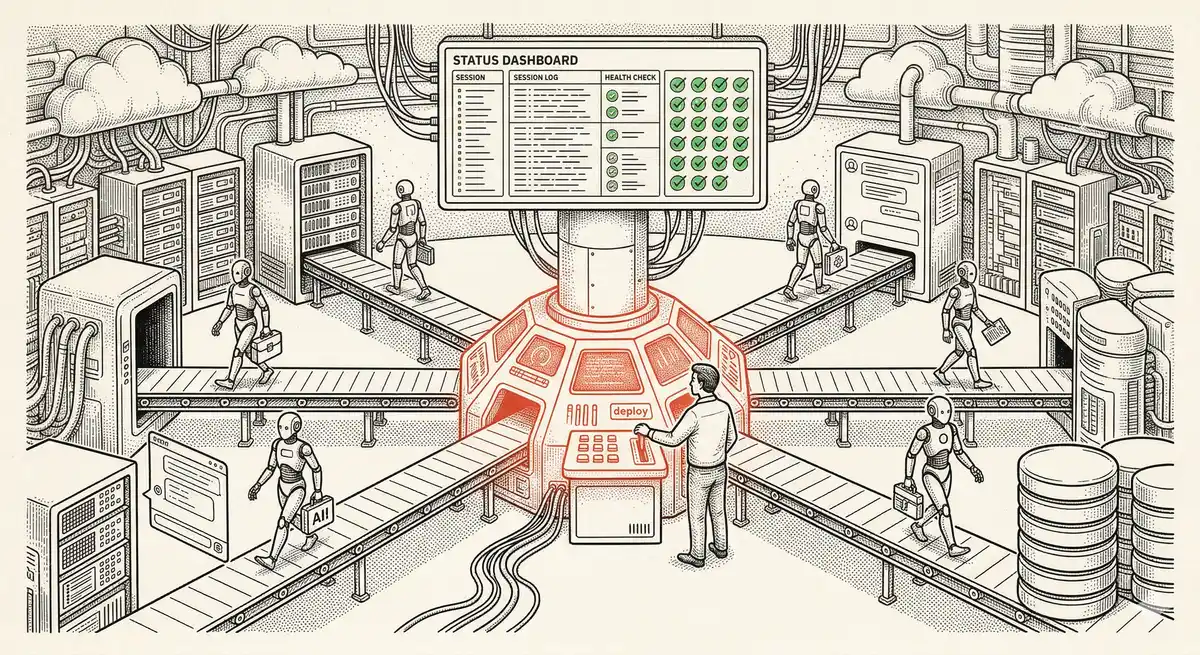
Claude Managed Agents: Anthropic's Platform for Production Agent Deployment
Anthropic launches Managed Agents: a cloud platform for deploying AI agents in production. Secure sandbox, checkpointing, multi-agent, autonomous sessions lasting hours. Notion, Rakuten, Asana and Sentry already use it.
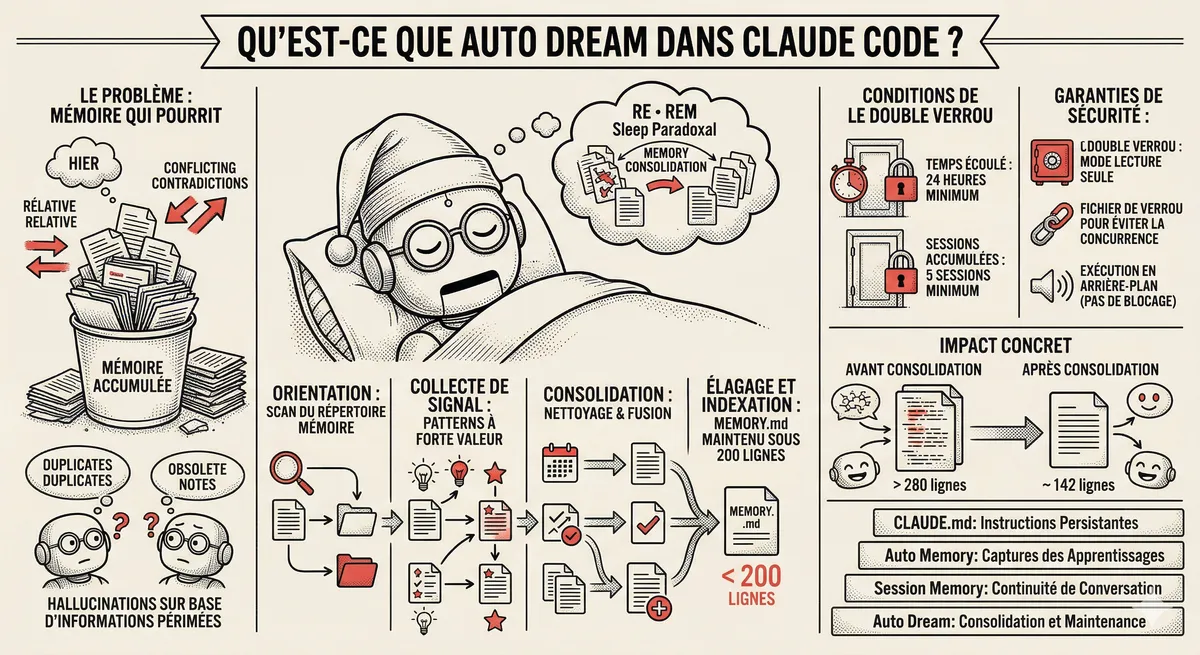
Claude Code Dream & Auto Dream: Automatic Memory Consolidation
After 20 sessions, Auto Memory notes become a mess. Auto Dream solves this by automatically consolidating Claude Code's memory: deduplication, stale entry removal, relative-to-absolute date conversion.
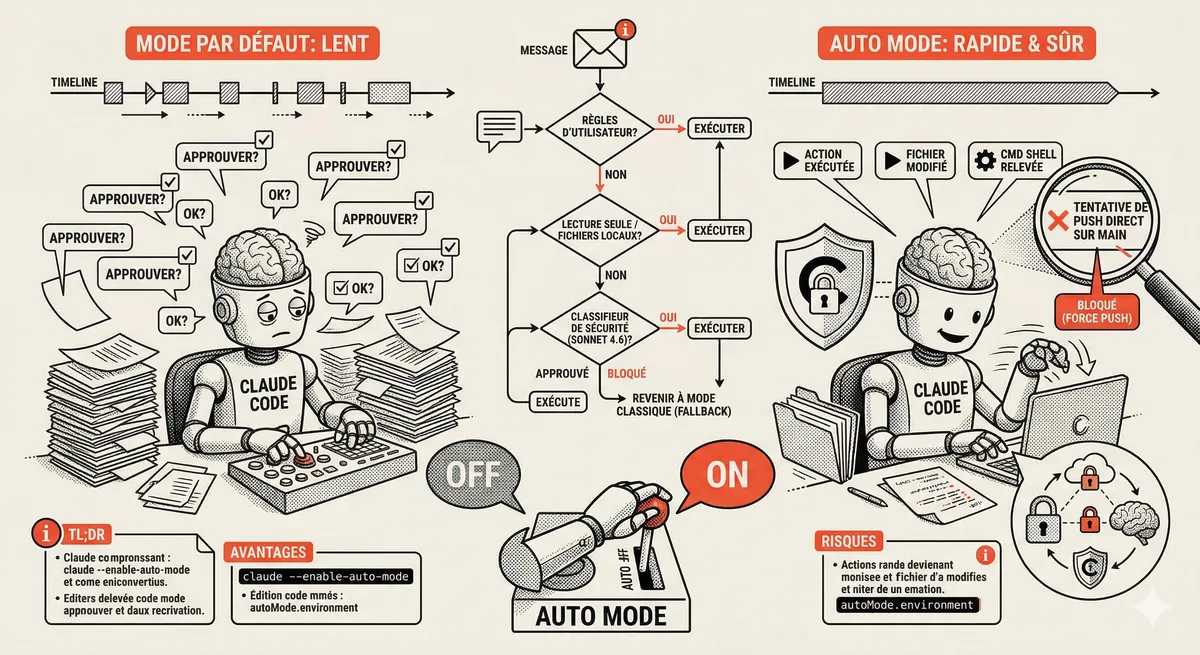
Claude Code Auto Mode: Autonomy Without the Risk
Auto Mode in Claude Code eliminates permission interruptions while keeping a safety net. A classifier analyzes every action before execution and blocks destructive operations. The sweet spot between approving everything and letting everything through.
Claude Code Training
Master Claude Code fundamentals in 1 day with our expert instructors. 60% hands-on practice on real-world cases.
Discover the training