TL;DR
This MCP (Model Context Protocol) checklist covers every step to verify, configure, and secure your MCP servers in Claude Code. Follow these checkpoints to ensure a reliable and performant integration. You will find concrete commands, validation tables, and measurable criteria for each verification.
This MCP (Model Context Protocol) checklist covers every step to verify, configure, and secure your MCP servers in Claude Code. Follow these checkpoints to ensure a reliable and performant integration. You will find concrete commands, validation tables, and measurable criteria for each verification.
The Model Context Protocol (MCP) is an open standard developed by Anthropic that allows AI assistants like Claude Code to connect to external tools, databases, and APIs via dedicated servers. MCP is establishing itself as the reference protocol for extending the capabilities of code agents. Many advanced Claude Code users rely on at least one MCP server in their daily workflow.
To understand the protocol fundamentals before using this checklist, check the complete MCP: Model Context Protocol guide which details the architecture and key concepts.
SFEIR Institute trainings
Claude Code Training
1 day · Fundamentals
AI-Augmented Developer
2 days · Intermediate
How to verify prerequisites before configuring MCP?
Verify that your environment meets each condition before launching MCP configuration. A missing prerequisite is a common cause of installation failures.
Run this command to validate your Node.js version:
node --version
# Expected: v18.0.0 or higher
Check the installed Claude Code version next:
claude --version
# Verify that Claude Code is installed and up to date
| Prerequisite | Minimum version | Verification command | Status |
|---|---|---|---|
| Node.js | 18.0.0 | node --version | ☐ |
| Claude Code | Latest 2.x (claude update) | claude --version | ☐ |
| npm | Bundled with Node.js 18+ | npm --version | ☐ |
| Git (optional) | Any recent version | git --version | ☐ |
| Network connection | - | curl -I https://api.anthropic.com | ☐ |
An outdated Node.js version is a frequent cause of MCP startup errors. The installation and first launch guide helps you update your environment step by step.
Key takeaway: Validate each prerequisite individually before moving to configuration: a single missing dependency blocks the entire protocol.
Which MCP configuration files need to be checked?
MCP uses a three-scope configuration system. Each scope has a different reach and priority. Identify the file suited to your use case. MCP servers are defined in .mcp.json (project scope, committed to Git) and in ~/.claude.json (user and local scopes, private), and you add them with claude mcp add --scope project|user|local.
// .mcp.json (project root) - shared, versioned MCP servers
{
 "mcpServers": {
 "my-server": {
 "command": "npx",
 "args": ["-y", "@modelcontextprotocol/server-filesystem", "/path/folder"]
 }
 }
}
| Scope | File | Reach | Shared with team |
|---|---|---|---|
| Project | .mcp.json (project root) | Current project | Yes (versioned) |
| User | ~/.claude.json | All projects | No (private) |
| Local | ~/.claude.json (under the project path) | Current project | No (private) |
Open each file and verify the JSON syntax with a validator:
cat .mcp.json | python3 -m json.tool
The project scope (.mcp.json) is the most common for team work. Servers declared at the project scope are automatically available to all team members upon cloning the repository.
In practice, you can combine all three scopes: user servers remain available everywhere, while project servers activate only in the relevant directory. To avoid common memory configuration errors, separate secrets (local scope) from shared tools (project scope).
Key takeaway: Use the project scope for shared team tools and the local scope for personal secrets and tokens.
How to validate that an MCP server works correctly?
Launch Claude Code and verify that your MCP servers are detected and operational. A misconfigured server appears with an error status in the interface.
claude mcp list
# Lists all configured MCP servers and their status
You can also launch claude and type /mcp inside the interactive session to view each server's connection status.
Here is how to interpret the results:
| Status | Meaning | Required action |
|---|---|---|
connected | Server operational | None |
connecting | Startup in progress | Wait 5-10 seconds |
error | Connection failure | Check configuration |
not found | Command not found | Install the package |
Test each tool exposed by the server using the dedicated slash command. To master all the essential slash commands and avoid common pitfalls, refer to the dedicated guide.
In practice, a correctly configured MCP server responds quickly on the first call. If a server feels noticeably slow to respond, check your network connectivity or server logs.
# Check MCP server status
claude mcp list
Key takeaway: Run /mcp systematically after each configuration change to confirm the status of each server.
What security controls should be applied to MCP servers?
MCP security rests on three pillars: permission control, secret isolation, and validation of exposed tools. Apply each verification in this section before deploying a server to production.
Verify that Claude Code permissions are correctly configured to limit MCP server access:
{
 "permissions": {
 "allow": [
 "mcp__my-server__read_file",
 "mcp__my-server__search"
 ],
 "deny": [
 "mcp__my-server__delete",
 "mcp__my-server__write"
 ]
 }
}
The MCP permission format follows the convention mcp__[server-name]__[tool-name]. In practice, you grant access tool by tool, never globally. The permissions and security guide details each available control level.
| Security check | Command / Action | Criticality |
|---|---|---|
| Explicit permissions | Check allow/deny in settings | High |
| Secrets out of Git | Use env + private ~/.claude.json, keep .mcp.json token-free | High |
| Environment variables | Use env instead of hardcoded values | Medium |
| Audit exposed tools | /mcp -> list each tool | Medium |
| Update servers | Regular npm update | Low |
Store tokens and API keys in environment variables, never hardcoded in versioned configuration files. This mcpServers block goes in .mcp.json (project scope) or ~/.claude.json (user/local scope), never in settings.json. Environment-variable expansion ${GITHUB_TOKEN} is supported in the env values of .mcp.json:
{
 "mcpServers": {
 "github": {
 "command": "npx",
 "args": ["-y", "@modelcontextprotocol/server-github"],
 "env": {
 "GITHUB_TOKEN": "${GITHUB_TOKEN}"
 }
 }
 }
}
Accidentally versioned configuration files are a frequent source of credential leaks. To avoid common permission errors, audit your .gitignore before each commit.
Key takeaway: Apply the principle of least privilege: only authorize the tools strictly necessary for each MCP server.
How to test MCP tools one by one?
Proceed with a unit test of each tool exposed by your MCP servers. A failing tool can block the entire processing chain.
Here is how to test a filesystem server step by step:
- Launch Claude Code in the target project
- Run
/mcpto confirm theconnectedstatus - Ask Claude to use a specific tool: "Read the content of the README.md file via MCP"
- Verify that the response contains the expected data
- Test edge cases: nonexistent file, empty folder, large file (>10 MB)
# Example test with the filesystem server
claude "Use MCP to list the files in /src"
In practice, an MCP filesystem server reads small files quickly, while very large files take noticeably longer to process.
To structure your first tests methodically, the MCP quickstart offers a progressive path with concrete examples. The common errors during first conversations will help you diagnose interaction problems.
| Tested tool | Test input | Expected result |
|---|---|---|
read_file | 1 KB file | Complete content |
list_directory | Folder with 100 files | Complete list |
search_files | Pattern *.ts | Matching files |
write_file | Test file | Write confirmation |
Key takeaway: Test each tool individually with varied inputs before combining them in complex workflows.
How many MCP servers can be configured simultaneously?
Claude Code does not impose a strict limit on the number of simultaneous MCP servers. In practice, keeping only a handful of active servers in parallel keeps performance comfortable. As you add more servers, startup time and memory usage grow accordingly.
Evaluate your actual needs to avoid overload:
| Number of servers | Startup time | Memory impact | Recommendation |
|---|---|---|---|
| A few (1-3) | Fast | Low | Optimal |
| Several (4-7) | Moderate | Moderate | Acceptable |
| Many (8-10) | Slower | Higher | Monitor closely |
| 10+ | Slowest | Highest | Reduce if possible |
Disable unused servers rather than leaving them running. Each MCP server consumes memory even when idle, so trimming the list keeps startup fast.
In practice, for a standard SFEIR Institute project, the recommended configuration includes 3 servers: filesystem for file access, GitHub for issue and PR management, and a specialized server for the database or business API. The complete MCP tutorial presents multi-server architectures proven in production.
Key takeaway: Limit your active MCP servers to 5-7 to maintain optimal performance: prioritize quality over quantity.
How to diagnose an MCP server failure?
Follow this 5-step diagnostic procedure when an MCP server stops responding. Each step eliminates a category of problems.
- Check the status with
/mcp- a server in error displays an explicit message - Verify that the package is installed:
npx -y @modelcontextprotocol/server-xxx --version - Validate the JSON syntax of the configuration file:
python3 -m json.tool <.mcp.json - Test the server command manually in a separate terminal
- Launch Claude Code with
--verbosefor detailed logs
# Quick diagnosis: list MCP servers
claude mcp list
The most frequent error categories we see, based on SFEIR experience feedback:
ENOENT: package not installedTIMEOUT: server does not respond in timeJSON_PARSE_ERROR: invalid syntax in configurationPERMISSION_DENIED: insufficient rights on file or folderCONNECTION_REFUSED: port already in use or remote server unreachable
To dig deeper into resolving these errors, the guide on common slash command errors covers cases related to /mcp interactions.
To restart an MCP server, remove it then add it back:
claude mcp remove my-server
claude mcp add --transport stdio my-server -- npx -y @modelcontextprotocol/server-filesystem /path
Key takeaway: Diagnose methodically following the 5-step order: most failures are resolved at steps 1 or 2.
What criteria validate a successful MCP integration?
Use this final checklist to confirm that your MCP integration is complete and ready for team use.
Functional criteria
- ☐ All servers show the
connectedstatus via/mcp - ☐ Each exposed tool returns a consistent result on a test input
- ☐ Response time for each tool stays under 5,000 ms
- ☐ Errors are handled gracefully (explicit message, no crash)
Security criteria
- ☐
allow/denypermissions are explicitly declared - ☐ No secret is versioned in Git
- ☐ Environment variables are documented in a
.env.example - ☐
.gitignoreincludes.claude/settings.local.json
Maintainability criteria
- ☐ Configuration is documented in the project's
CLAUDE.md - ☐ MCP server versions are pinned (no
@latestin production) - ☐ An update procedure is defined
To integrate MCP into your Git workflow reliably, the Git integration checklist complements the verifications listed here.
If you want to deepen MCP and the entire Claude Code ecosystem, the one-day Claude Code training from SFEIR Institute lets you master configuration, security, and advanced protocol use cases through hands-on labs.
To go further, the two-day AI-Augmented Developer training covers MCP integration in complete development pipelines, and the one-day AI-Augmented Developer - Advanced training covers multi-server architectures and tool orchestration in production.
Key takeaway: Validate all three categories (functional, security, maintainability) before considering your MCP integration complete.
Recent articles about Claude
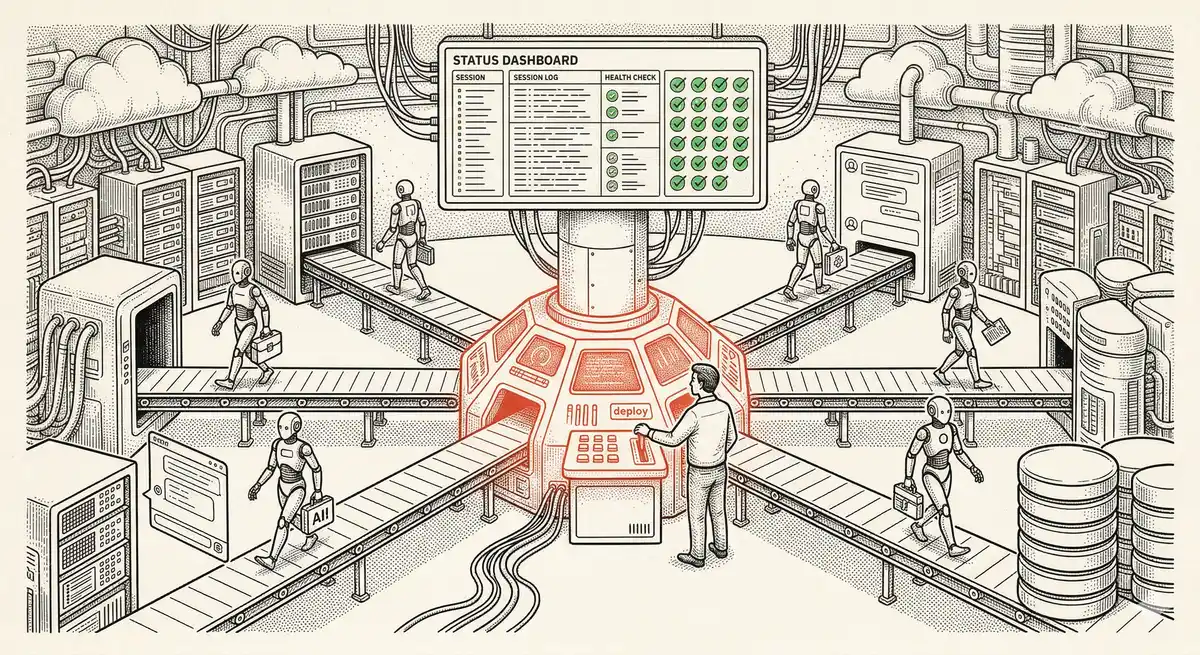
Claude Managed Agents: Anthropic's Platform for Production Agent Deployment
Anthropic launches Managed Agents: a cloud platform for deploying AI agents in production. Secure sandbox, checkpointing, multi-agent, autonomous sessions lasting hours. Notion, Rakuten, Asana and Sentry already use it.

Claude Code Dream & Auto Dream: Automatic Memory Consolidation
After 20 sessions, Auto Memory notes become a mess. Auto Dream solves this by automatically consolidating Claude Code's memory: deduplication, stale entry removal, relative-to-absolute date conversion.
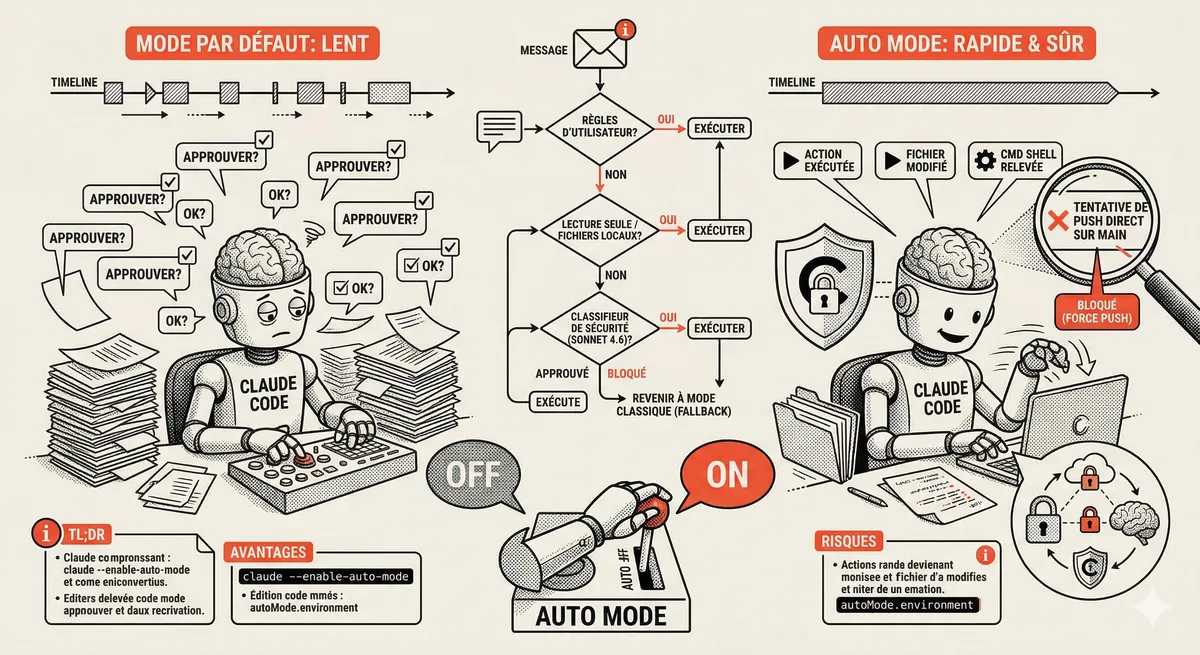
Claude Code Auto Mode: Autonomy Without the Risk
Auto Mode in Claude Code eliminates permission interruptions while keeping a safety net. A classifier analyzes every action before execution and blocks destructive operations. The sweet spot between approving everything and letting everything through.
Claude Code Training
Master Claude Code fundamentals in 1 day with our expert instructors. 60% hands-on practice on real-world cases.
Discover the training