TL;DR
Claude Code transforms your Git workflow by automating commits, branches, pull requests, and conflict resolution directly from the terminal. This guide details how to configure and leverage each Git integration feature of Claude Code to significantly reduce the time spent on your daily versioning operations.
Claude Code transforms your Git workflow by automating commits, branches, pull requests, and conflict resolution directly from the terminal. This guide details how to configure and leverage each Git integration feature of Claude Code to significantly reduce the time spent on your daily versioning operations.
Git integration in Claude Code is a set of native features that allow you to drive the entire Git lifecycle (from commit to pull request) through natural language instructions. Claude Code works with your existing Git installation and, when present, the GitHub CLI (gh) and other installed tools such as the GitLab CLI (glab), without additional configuration.
Git operations are among the most common tasks developers delegate to Claude Code. To master the basics before going further, check the installation and first launch tutorial which covers the complete setup.
SFEIR Institute trainings
Claude Code Training
1 day · Fundamentals
AI-Augmented Developer
2 days · Intermediate
How does the Git integration architecture of Claude Code work?
Claude Code acts as an intelligent layer between you and Git. It analyzes the staging diff, commit history, and your conversation context to generate appropriate Git commands.
+--------------------------------------------------+
| User Terminal |
| |
| NL Prompt --> Claude Code Engine |
| | |
| +---------+---------+ |
| v v v |
| Git CLI GitHub CLI GitLab CLI |
| (commit) (PR/Issues) (MR/Issues) |
| | | | |
| +---------+---------+ |
| v |
| Remote Repository |
+--------------------------------------------------+
The engine interprets your natural language instructions, then executes the corresponding Git commands. Each operation goes through a validation step that you can approve or reject before execution.
To discover how to formulate your instructions effectively, explore the first conversation examples which illustrate the most common dialogue patterns.
Key takeaway: Claude Code does not replace Git, it orchestrates it intelligently by translating your intentions into precise commands.
What are the prerequisites and compatible versions?
Before you begin, verify that your environment meets the following conditions. A single missing component can block the integration.
| Component | Requirement | Verification |
|---|---|---|
| Node.js | 18.0.0+ (for the npm install method) | node --version |
| Git | Any recent installation | git --version |
| GitHub CLI | Recommended for reliable PR creation | gh --version |
| Claude Code | Latest release | claude --version |
Claude Code works with your existing Git installation. A recent gh CLI version is recommended for reliable PR creation.
Install any missing dependencies before proceeding:
# Quick check of all prerequisites
node --version && git --version && gh --version && claude --version
If you encounter errors at this step, the common Git integration errors guide lists solutions for the most frequent problems.
Key takeaway: a current Node.js LTS, a recent Git installation, and an up-to-date gh CLI make for the most stable combination for Claude Code Git integration.
How to configure Git integration step by step?
Open your terminal in your Git project directory. Configuration is done in three distinct steps.
Step 1: GitHub CLI Authentication
Run the authentication command and follow the interactive instructions:
gh auth login --web --scopes repo,read:org,workflow
This command grants gh the necessary permissions to create branches, open PRs, and trigger workflows. The workflow scope is essential for GitHub Actions.
Step 2: CLAUDE.md File Configuration
Create or edit the CLAUDE.md file at the root of your project to customize Claude Code's Git behavior:
# Git Integration Rules

## Commit Convention
- Format: type(scope): description
- Types: feat, fix, docs, refactor, test, chore
- Scope: module or component name
- Description: imperative, max 72 characters

## Branch Naming
- Feature: feat/TICKET-123-short-description
- Bugfix: fix/TICKET-456-short-description
- Always prefix with ticket number

## PR Template
- Include a "Changes" section with bullet points
- Link the Jira/Linear ticket in the description
- Add appropriate labels
In practice, this CLAUDE.md file is automatically read by Claude Code at each session start. It influences the writing of commit messages and the structure of PRs.
Step 3: Integration Validation
Test everything by asking Claude Code to analyze your history:
claude "Summarize the last 5 commits of this project"
The first conversations tutorial guides you in formulating increasingly precise Git requests.
Key takeaway: the CLAUDE.md file is the main lever for customizing Claude Code's Git behavior on each project.
How to create smart conversational commits?
Conversational commits allow you to describe your changes in natural language. Claude Code analyzes the diff, identifies modified files, and generates a structured commit message.
Ask Claude Code to commit your changes in natural language:
claude "Commit my changes with a descriptive message"
Claude Code performs the following operations in sequence:
- Analyzes the
git diff --stagedto identify modifications - Classifies the type of change (feat, fix, refactor, etc.)
- Generates the message according to the convention defined in
CLAUDE.md - Displays the message for validation before execution
- Executes the
git commitafter your approval
| Scenario | Natural command | Generated commit |
|---|---|---|
| New component | "Commit the button addition" | feat(ui): add submit button component |
| Bug fix | "Commit the form fix" | fix(form): resolve validation error on submit |
| Refactoring | "Commit the refactoring" | refactor(auth): extract token refresh logic |
In practice, messages generated by Claude Code follow the Conventional Commits convention in the vast majority of cases without manual modification.
To explore more examples of automated commits, check the Git integration code snippets which cover advanced scenarios.
The essential slash commands detail the commands available in Claude Code.
Key takeaway: Claude Code generates ready-to-use Conventional Commits messages by automatically analyzing your diff when you ask it to commit.
How to automate branches and pull requests with Claude Code?
Automated branch and pull request creation is one of the most measurable productivity gains of Claude Code. In a single instruction, you can create a branch, commit, and open a PR.
Run this complete sequence in natural language:
claude "Create a branch feat/user-avatar, commit the changes and open a PR"
Claude Code then orchestrates the following steps:
git checkout -b feat/user-avatargit addof relevant filesgit commitwith a structured messagegit push -u origin feat/user-avatargh pr createwith title, description, and labels
Advanced PR Configuration
Customize the PR template in your CLAUDE.md:
## PR Defaults
- Base branch: develop
- Auto-assign: true
- Draft mode: false
- Labels: auto-detect from commit type
- Reviewers: @team-lead
| Action | Claude Code command | Manual equivalent |
|---|---|---|
| Create branch + PR | Single instruction | 5 separate commands |
| Update existing PR | "Update the PR" | several manual commands |
Automating PRs via Claude Code replaces several manual commands with a single natural language instruction.
To see concrete use cases of automated branches and pull requests, the Git integration examples present complete workflows with GitHub and GitLab.
Key takeaway: a single natural language instruction is enough for Claude Code to create a branch, commit, push, and open a PR.
How to resolve merge conflicts with Claude Code?
Merge conflict resolution is often the most dreaded part of a Git workflow. Claude Code simplifies this process by analyzing the context of both branches to propose a coherent resolution.
Trigger the resolution after a conflicting merge or rebase:
# After a git merge or git rebase that generates conflicts
claude "Resolve the merge conflicts in the marked files"
Claude Code proceeds in three phases:
- Identification of conflicting files via
git diff --name-only --diff-filter=U - Analysis of the context of both versions (ours/theirs) and the history
- Proposal of a resolution with explanation for each conflict
Available Resolution Strategies
| Strategy | Use case | Command |
|---|---|---|
| Contextual | Functional code | "Resolve keeping the logic of both" |
| Branch priority | Priority feature | "Resolve favoring my branch" |
| Assisted manual | Complex conflict | "Show me the conflicts one by one" |
Concretely, Claude Code can resolve many straightforward merge conflicts automatically, while conflicts involving business logic still require human validation.
Verify the result always after resolution:
claude "Show me the diff of resolved conflicts before I validate"
The Git integration guide covers advanced resolution strategies for monorepos and multi-team projects in detail.
Key takeaway: Claude Code automatically resolves the majority of merge conflicts by analyzing the context of both branches, but always asks for your validation.
How to use checkpoints and the Esc+Esc shortcut?
Claude Code maintains internal checkpoints of your code and conversation as it works. The rewind feature lets you revert to an earlier state if a change goes wrong.
A checkpoint is a restore point that Claude Code tracks internally. It is not a Git commit on a dedicated branch: you revert to it through the rewind menu rather than through Git commands.
How Checkpoints Work
As Claude Code modifies your files, it keeps internal checkpoints of the conversation and code. You can return to a previous state at any time with /rewind (aliases /checkpoint, /undo).
# Open the rewind menu to revert to an earlier state
# Press Esc twice, or run:
/rewind
The Esc+Esc Shortcut
Press the Esc key twice to open the rewind menu and revert to an earlier checkpoint. From this menu you can:
- Select an earlier checkpoint of the code and conversation
- Restore the selected state
- Review what will be reverted before confirming
In practice, pressing Esc twice (or running /rewind) lets you quickly revert the last change and pick the state you want to return to.
| Action | How to trigger |
|---|---|
| Open the rewind menu | Esc+Esc |
| Revert to an earlier checkpoint | /rewind (aliases /checkpoint, /undo) |
To effectively manage your working context with these mechanisms, the context management guide explains how checkpoints interact with Claude Code's conversational memory.
Key takeaway: Esc+Esc (or /rewind) is your safety net. It opens the rewind menu so you can revert to an earlier internal checkpoint of your code and conversation.
How to leverage git log and conversational history?
Claude Code enriches git log by combining Git history with the context of your past conversations. You get a unified view of what changed and why.
Query your history in natural language:
claude "What files were modified this week and why?"
claude "Summarize the authentication-related changes since Monday"
Because sessions are persisted, you can ask Claude Code to recall the reasoning behind recent changes by combining your Git history with your prior conversation context. You can thus find the reasoning behind each modification without it being tied to a dedicated commit-linking feature.
Advanced History Queries
Claude Code can cross-reference data from git log, git blame, and git diff to answer complex questions:
- "Who introduced this bug and in what context?"
- "How many commits related to the auth module this month?"
- "Show me the evolution of this file over the last 30 days"
Concretely, Claude Code combines your Git history with the context of past conversations to answer these questions in natural language.
To deepen conversation techniques with Claude Code, the slash command examples show how to combine Git queries and slash instructions.
Key takeaway: Claude Code transforms git log into an intelligent history assistant by combining your Git history with the context of your persisted conversations.
How to resolve common integration errors?
Here are the most frequent problems encountered during Claude Code Git integration, with their tested solutions.
Error: "fatal: not a git repository"
Verify that you are in an initialized Git repository:
git rev-parse --is-inside-work-tree
# If false: git init
Error: "gh: authentication required"
Relaunch the GitHub CLI authentication:
gh auth status
gh auth login --web
Error: "Permission denied" on push
This problem occurs in most cases during initial setup. Configure the credential helper:
gh auth setup-git
git config --global credential.helper store
| Error | Cause | Solution |
|---|---|---|
not a git repository | Uninitialized directory | git init |
authentication required | Expired token | gh auth login |
permission denied | SSH/HTTPS misconfigured | gh auth setup-git |
merge conflict not detected | Binary files | Manual resolution |
branch already exists | Branch not deleted | git branch -d name |
For a comprehensive list of errors and solutions, check the common Git integration errors reference updated monthly.
Key takeaway: most Git integration errors are resolved by re-authenticating with gh auth login or verifying the repository state.
How to go further with advanced integration?
Advanced integration relies on Git hooks, GitHub Actions events, dedicated slash commands, and CLI flags to create custom workflows.
Git Slash Commands and Flags
Claude Code provides dedicated slash commands and skills for Git:
/diff: interactive viewer for pending changes- Natural language: ask "commit my changes" for a commit with conventional message
- To view PR comments, ask Claude directly (e.g. "show me the review comments on this PR"); the dedicated
/pr-commentscommand was removed in v2.1.91 /security-review: analyzes pending changes to detect vulnerabilities/review [PR]: review a pull request locally in your current session (for a deeper cloud-based review, use/code-review ultra)
The --worktree (or -w) flag lets you run Claude Code in an isolated git worktree, useful for working on multiple branches in parallel without conflicts. The --from-pr flag resumes a session linked to a GitHub PR. And the /install-github-app slash command sets up the GitHub Actions integration from inside a session.
For permissions, you can allow Git commands with "Bash(git )" in permissions.allow and block dangerous operations with "Bash(git push --force)" in permissions.deny. PreToolUse hooks with matcher: "Bash" and if: "Bash(git )" allow adding custom validations before Git operations (exit code 2 blocks the action).
Git Hooks with Claude Code
Configure a pre-commit hook that invokes Claude Code to validate code quality before each commit:
#!/bin/bash
#.git/hooks/pre-commit
claude -p "Verify that staged files respect our conventions"
if [ $? -ne 0 ]; then
 echo "Claude Code detected issues. Fix them before committing."
 exit 1
fi
GitHub Actions Integration
Add Claude Code to your CI pipeline to automate code review:
#.github/workflows/claude-review.yml
name: Claude Code Review
on: [pull_request]
jobs:
 review:
 runs-on: ubuntu-latest
 steps:
 - uses: actions/checkout@v4
 - name: Claude Code Review
 run: |
 npm install -g @anthropic-ai/claude-code
 REVIEW=$(claude -p "Review this PR and comment on points of attention" --output-format json)
 echo "$REVIEW" | jq -r '.result' | gh pr comment ${{ github.event.pull_request.number }} --body-file -
GitLab CI Integration
#.gitlab-ci.yml
claude-review:
 stage: review
 script:
 - npx @anthropic-ai/claude-code "Analyze this merge request"
 only:
 - merge_requests
SFEIR Institute offers the Claude Code one-day training to master these advanced Git integrations, with practical labs on hooks, CI/CD pipelines, and PR automation. For those who want to go further, the AI-Augmented Developer two-day training covers all AI-assisted workflows, including Git integration in a real project context.
Developers already familiar with the basics can directly access the AI-Augmented Developer - Advanced level to optimize their pipelines and automate complex Git workflows in one intensive day.
Key takeaway: Git hooks and CI/CD pipelines transform Claude Code from a terminal tool into a full-fledged DevOps infrastructure component.
Recent articles about Claude
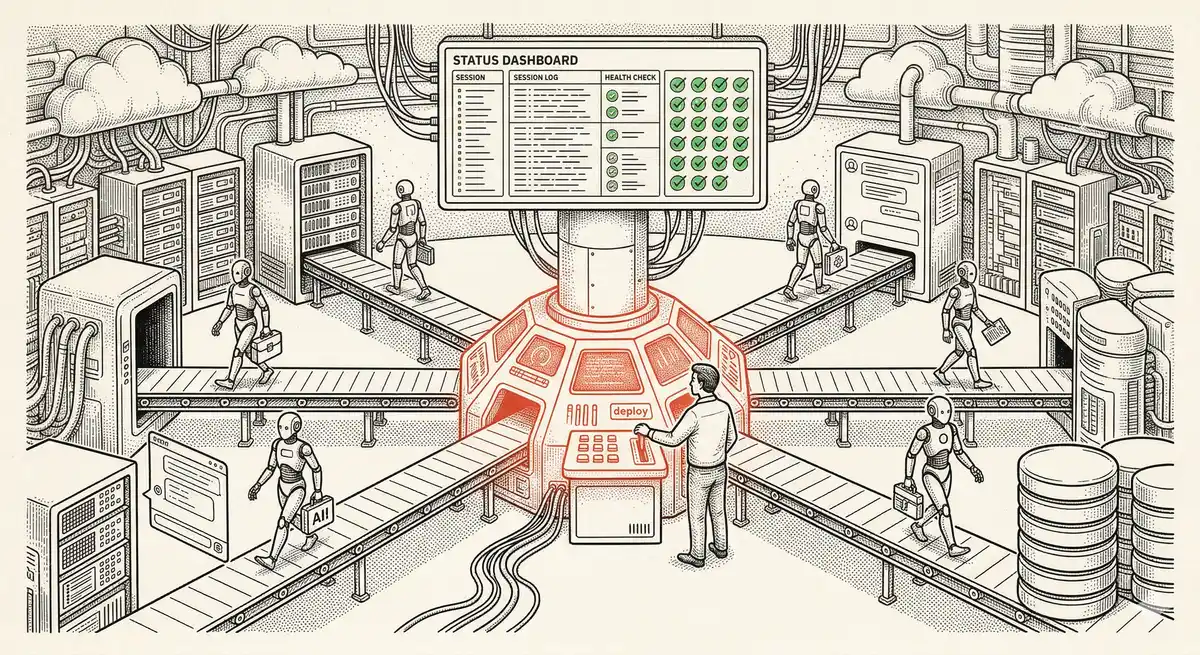
Claude Managed Agents: Anthropic's Platform for Production Agent Deployment
Anthropic launches Managed Agents: a cloud platform for deploying AI agents in production. Secure sandbox, checkpointing, multi-agent, autonomous sessions lasting hours. Notion, Rakuten, Asana and Sentry already use it.
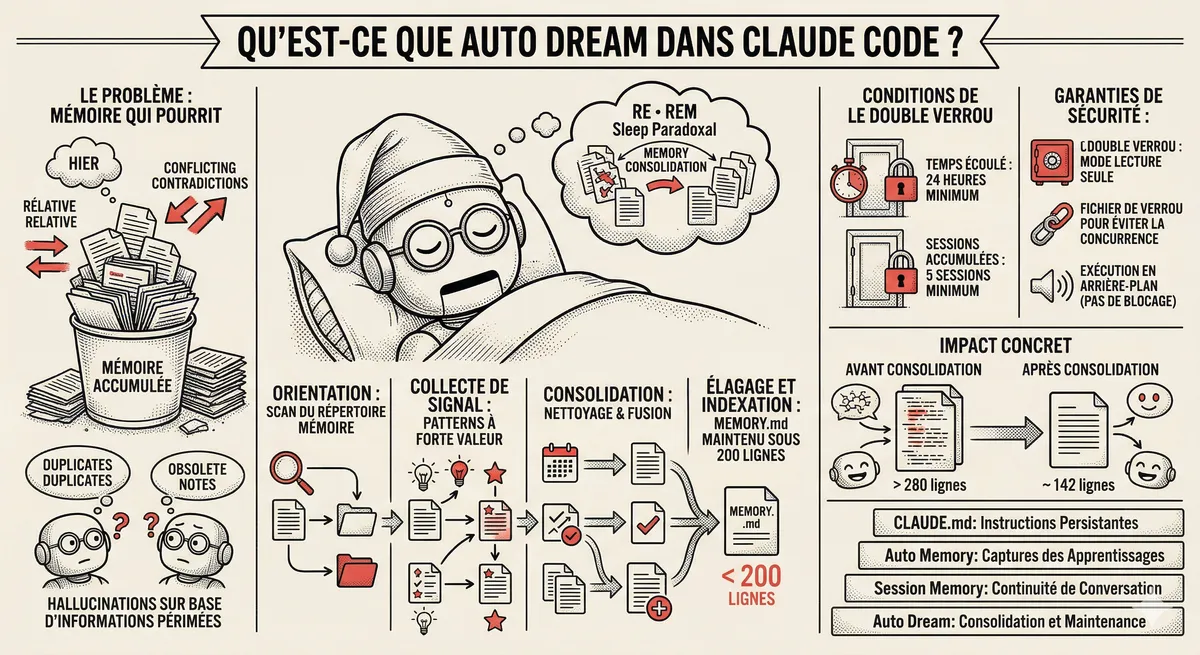
Claude Code Dream & Auto Dream: Automatic Memory Consolidation
After 20 sessions, Auto Memory notes become a mess. Auto Dream solves this by automatically consolidating Claude Code's memory: deduplication, stale entry removal, relative-to-absolute date conversion.
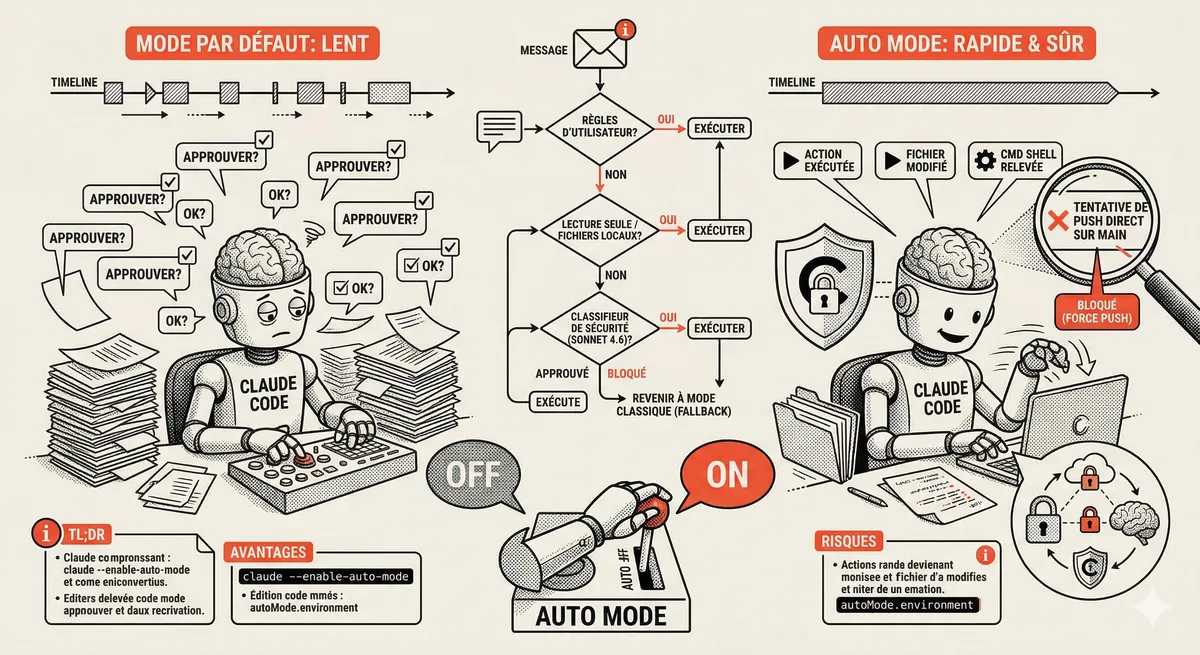
Claude Code Auto Mode: Autonomy Without the Risk
Auto Mode in Claude Code eliminates permission interruptions while keeping a safety net. A classifier analyzes every action before execution and blocks destructive operations. The sweet spot between approving everything and letting everything through.
Claude Code Training
Master Claude Code fundamentals in 1 day with our expert instructors. 60% hands-on practice on real-world cases.
Discover the training