TL;DR
Custom commands, skills and hooks in Claude Code generate considerable productivity gains, but their configuration errors cause silent malfunctions. This guide lists the 10 most frequent pitfalls when setting up custom slash commands, subagents and automations, with concrete fixes for each case.
Custom commands, skills and hooks in Claude Code generate considerable productivity gains, but their configuration errors cause silent malfunctions. This guide lists the 10 most frequent pitfalls when setting up custom slash commands, subagents and automations, with concrete fixes for each case.
Errors related to custom commands and skills in Claude Code represent the leading cause of frustration among developers who automate their workflows. Claude Code offers a complete ecosystem (slash commands, skills, hooks and subagents), but each component has its own configuration constraints.
Configuration syntax and structure errors in customization files are a common source of silent failures. These problems are avoidable if you know the documented pitfalls below.
SFEIR Institute trainings
Claude Code Training
1 day · Fundamentals
AI-Augmented Developer
2 days · Intermediate
What are the most frequent errors with custom commands?
Here is an overview of the 10 errors ranked by frequency and severity. Each error is reproducible and fixable in under 5 minutes.
| Rank | Error | Severity | Component |
|---|---|---|---|
| 1 | Wrong folder structure for slash commands | Critical | Commands |
| 2 | Overly vague prompt in a skill | Critical | Skills |
| 3 | Hook without error handling | Critical | Hooks |
| 4 | Subagent launched without sufficient context | Warning | Subagents |
| 5 | Name conflict between local and global commands | Warning | Commands |
| 6 | Forgetting the description field in a skill | Warning | Skills |
| 7 | Hook blocking on an infinite timeout | Critical | Hooks |
| 8 | Subagent with overly broad permissions | Warning | Subagents |
| 9 | Slash command without argument validation | Minor | Commands |
| 10 | Skill that duplicates native behavior | Minor | Skills |
For an overview of the features before diving into the errors, see the complete custom commands and skills guide which details each component.
Key takeaway: Rank your fixes by severity: critical errors cause silent failures, warnings degrade result quality.
How to avoid the folder structure error for slash commands?
Error 1. Severity: Critical. Placing command files in the wrong location prevents Claude Code from detecting them.
Claude Code expects your slash commands in the .claude/commands/ directory at the project root. A misplaced file (for example in .claude/slash/ or commands/) is ignored without an error message. In practice, many create the folder at the wrong level.
Legacy .claude/commands/*.md files still work: each Markdown file becomes a command invocable by /file-name. The recommended approach today is a skill defined at .claude/skills/, where the directory name becomes the command name.
Incorrect:
# Incorrect structure - commands not detected
mkdir -p commands/
echo "My prompt" > commands/review.md
# Or worse: JSON file instead of Markdown
echo '{"prompt": "review"}' >.claude/commands/review.json
Correct:
# Correct structure for project commands
mkdir -p.claude/commands/
echo "Analyze this file and suggest improvements" >.claude/commands/review.md

# Correct structure for global commands (user)
mkdir -p ~/.claude/commands/
echo "Summarize this code in 3 points" > ~/.claude/commands/summarize.md
Concretely, commands in .claude/commands/ are project-specific and shared via Git, while those in ~/.claude/commands/ are global to your machine. You will find details on similar errors in the essential slash commands - common errors guide.
Key takeaway: Always verify that your commands are in .claude/commands/ (project) or ~/.claude/commands/ (global), in Markdown format exclusively.
Why does an overly vague prompt make a skill unusable?
Error 2. Severity: Critical. A skill is a reusable prompt file that encodes your work patterns. A vague prompt produces inconsistent results.
A skill allows Claude Code to learn your conventions. But if the prompt lacks constraints, the AI interprets freely and produces different results with each invocation. An effective skill adds explicit constraints and at least one expected output example to anchor the result.
Incorrect:
#.claude/commands/test.md
Write tests for this code.
Correct:
#.claude/commands/test.md
Write unit tests for the file $ARGUMENTS following these rules:
- Framework: Vitest
- Minimum coverage: 80% of branches
- Name tests with the pattern "should [action] when [condition]"
- Mock external dependencies with vi.mock()
- Include at least 1 error case test

Expected output example:
describe('myFunction', () => { it('should return true when input is valid', () => { expect(myFunction('valid')).toBe(true); }); });
The $ARGUMENTS variable lets you pass dynamic parameters to your command. You type /test src/utils.ts and Claude Code replaces $ARGUMENTS with src/utils.ts. In practice, a well-constrained skill substantially reduces the manual corrections you have to make afterward.
To explore writing effective prompts further, see the custom commands tutorial which offers ready-to-use templates.
Key takeaway: Specify the framework, naming conventions, target coverage, and a concrete example in each skill.
How to fix a hook without error handling?
Error 3. Severity: Critical. A hook is a shell command triggered automatically by a Claude Code event. Without error handling, a failing hook blocks the entire session.
Hooks are deterministic automations. Unlike AI-based skills, they execute predictable shell code. A hook configured in .claude/settings.json that fails silently can corrupt your workflow without you noticing.
Incorrect:
{
 "hooks": {
 "PostToolUse": [
 {
 "matcher": "Write",
 "hooks": [
 {
 "type": "command",
 "command": "npx prettier --write \"$(jq -r '.tool_input.file_path')\""
 }
 ]
 }
 ]
 }
}
This hook formats every file written by Claude Code, but if Prettier is not installed the failure goes unnoticed.
Correct:
{
 "hooks": {
 "PostToolUse": [
 {
 "matcher": "Write",
 "hooks": [
 {
 "type": "command",
 "command": "FILE=$(jq -r '.tool_input.file_path'); if command -v npx >/dev/null 2>&1; then npx prettier --write \"$FILE\" || echo 'Prettier failed' >&2; fi"
 }
 ]
 }
 ]
 }
}
Concretely, the corrected hook reads the file path from the hook's stdin JSON (tool_input.file_path) with jq, checks that npx exists, wraps the path in quotes, and captures the error. Hooks support events such as PreToolUse, PostToolUse, Notification, and Stop, among others. Hook errors share similar patterns with permissions and security errors: a poorly secured command can expose your system.
| Hook event | Trigger | Use case |
|---|---|---|
| PreToolUse | Before each tool | Validation, conditional blocking |
| PostToolUse | After each tool | Formatting, linting, logging |
| Notification | System message | Slack alerts, notifications |
| Stop | End of session | Cleanup, automatic commit |
Key takeaway: Wrap each hook with a dependency check, quotes on paths, and an || echo 'error' >&2 to capture failures.
Why does launching a subagent without sufficient context produce poor results?
Error 4. Severity: Warning. A subagent is a Claude instance launched from Claude Code to process a subtask. Without context, it works blindly.
The subagent system (or "Task") allows parallelizing work by launching specialized agents. But each subagent starts with a blank context: it does not see your current conversation. A poorly configured subagent wastes tokens exploring the codebase and still produces weaker results.
Incorrect:
# Overly vague subagent prompt
Fix the bugs in the project.
Correct:
# Contextualized subagent prompt
Analyze the file src/api/auth.ts and fix the TypeScript error TS2345
at line 42. The project uses:
- TypeScript 5.4 with strict mode
- Express 4.18
- The expected type is `AuthRequest` defined in src/types/auth.ts
Return only the diff of modifications.
You must provide the subagent with: the target file, the language, the involved types, and the expected output format. A well-framed subagent consumes far fewer tokens than one left to discover the context on its own, and returns a more focused result.
If you also encounter issues with an overly broad context in your main conversations, the context management errors guide details solutions for optimizing the context window.
Key takeaway: Provide the subagent with the target file, tech stack, error type, and output format in each invocation.
How to resolve name conflicts between local and global commands?
Error 5. Severity: Warning. When a project command and a global command share the same name, the global (personal) command overrides the project one without warning. The official precedence is: enterprise > personal > project.
You have a personal /review command in ~/.claude/commands/review.md. A colleague then adds a /review command to the repository in .claude/commands/review.md to standardize the team workflow. But your personal command stays in effect: the shared project command is silently ignored for you. In practice, this collision is a common surprise in teams that share commands via Git.
Incorrect:
# Global command
~/.claude/commands/review.md -> "Review with my personal conventions"

# Project command (same name)
.claude/commands/review.md -> "Review per team standards"

# Result: the global (personal) command stays in effect, the project command is ignored, WITHOUT warning
Correct:
# Naming convention to avoid collisions
~/.claude/commands/my-review.md -> Personal prefix "my-"
.claude/commands/team-review.md -> Team prefix "team-"

# Or use subfolders
.claude/commands/team/review.md -> Invoked by /team/review
~/.claude/commands/perso/review.md -> Invoked by /perso/review
Adopt a prefixing convention from day one. Subfolders create natural namespaces. See the custom commands tips to discover other proven naming conventions.
Key takeaway: Prefix your global commands with my- or perso- and your project commands with team- to eliminate name collisions.
Should the description field always be filled in a skill?
Error 6. Severity: Warning. Omitting the description prevents Claude Code from automatically suggesting the relevant skill.
The description field in the YAML frontmatter (between the --- markers) helps Claude Code understand when to suggest your skill. Without a description, Claude falls back to the first paragraph of the body, and the skill is harder to surface in contextual suggestions. The combined description and when_to_use text is truncated at 1,536 characters in the skill listing, so put the key use case first.
Incorrect:
#.claude/commands/migrate.md

Analyze the Prisma schema and generate a PostgreSQL-compatible SQL migration.
Check foreign key constraints.
Correct:
#.claude/commands/migrate.md
---
description: Generate a Prisma/PostgreSQL migration from the modified schema
---

Analyze the Prisma schema and generate a PostgreSQL-compatible SQL migration.
Check foreign key constraints.
Use `prisma migrate dev --name $ARGUMENTS` to apply.
Here is how to verify that your skills are properly detected: Run / in Claude Code and browse the list. Each command with a description shows a preview in the menu. Commands without a description appear with a generic label, making them much harder for a colleague to discover. The custom commands FAQ answers frequent questions about skill metadata.
Key takeaway: Add a description field in the YAML frontmatter of each skill to enable contextual suggestions.
How to prevent a hook from blocking Claude Code indefinitely?
Error 7. Severity: Critical. A hook without a timeout can freeze your Claude Code session for several minutes.
A hook triggered on PostToolUse that calls a remote server or runs a long build blocks Claude Code as long as the process runs. Concretely, an npm run build hook on a 200,000-line monorepo can take 45 seconds, during which Claude Code is unusable.
Incorrect:
{
 "hooks": {
 "PostToolUse": [
 {
 "matcher": "Write",
 "hooks": [
 {
 "type": "command",
 "command": "npm run build && npm run test"
 }
 ]
 }
 ]
 }
}
Correct:
{
 "hooks": {
 "PostToolUse": [
 {
 "matcher": "Write",
 "hooks": [
 {
 "type": "command",
 "command": "timeout 10 npx eslint --fix \"$(jq -r '.tool_input.file_path')\" 2>/dev/null || true"
 }
 ]
 }
 ]
 }
}
| Approach | Average time | Blocking risk |
|---|---|---|
| Full build in hook | 45s | High |
| Lint only with timeout | 2s | None |
| Targeted unit test | 5s | Low |
| No post-write hook | 0s | None |
Limit hooks to fast operations (lint, formatting) and reserve builds and tests for explicit commands. If you also automate your Git workflows with hooks, the Git integration errors guide covers similar pitfalls on the pre-commit side.
Key takeaway: Wrap each hook with timeout N (in seconds) and redirect stderr to /dev/null to avoid blocking.
Why does a subagent with overly broad permissions cause problems?
Error 8. Severity: Warning. A subagent that inherits all permissions can modify critical files or execute destructive commands.
By default, a subagent inherits the permission mode of the parent session. If you are working in bypassPermissions mode, the subagent can delete files, modify .env, or execute rm -rf without confirmation. each subagent should receive the minimum necessary permissions.
Incorrect:
# Subagent frontmatter with permissions inherited from a bypass session
---
permissionMode: bypassPermissions
---
Analyze the source code.
Correct:
# Subagent frontmatter that restricts permissions to the task
---
permissionMode: plan
---
Analyze the source code and propose changes for approval before any edit.
For day-to-day work, delegate by asking Claude to use the right built-in subagent: the Explore subagent for read-only search, the Plan subagent for read-only planning, and reserve general-purpose for tasks that actually modify code. In a subagent's frontmatter, the permissionMode field controls how permissions are handled; its valid values are default, acceptEdits, auto, dontAsk, bypassPermissions, and plan. An Explore subagent can neither write nor edit files, so it is the safe choice for code search. In practice, accidental deletions often trace back to subagents granted more permissions than the task required. To master the complete permissions model, refer to the permissions and security errors.
| Subagent type | Read | Write | Bash | Use case |
|---|---|---|---|---|
| Explore | Yes | No | No | Code search |
| Plan | Yes | No | No | Planning |
| general-purpose | Yes | Yes | Yes | Implementation |
Key takeaway: Choose the most restrictive subagent possible: Explore to read, Plan to plan, general-purpose only to modify code.
How to prevent a slash command from ignoring its arguments?
Error 9. Severity: Minor. Forgetting the $ARGUMENTS variable in your command prompt makes user parameters inaccessible.
When you type /deploy staging, the word staging is captured in $ARGUMENTS. If your command file never references this variable, the argument is lost. The prompt executes without considering what you typed after the command name.
Incorrect:
#.claude/commands/deploy.md
Deploy the application to the appropriate environment.
Check environment variables and launch the build.
Correct:
#.claude/commands/deploy.md
---
description: Deploy the application to the specified environment
---

Deploy the application to the $ARGUMENTS environment.
Steps:
1. Verify that the.env.$ARGUMENTS file exists
2. Run `npm run build -- --mode $ARGUMENTS`
3. Execute `npm run deploy:$ARGUMENTS`
If $ARGUMENTS is empty, ask the user to specify: staging or production.
$ARGUMENTS is one of several substitution variables; others include $ARGUMENTS[N], $N, $name (named arguments), ${CLAUDE_SESSION_ID}, ${CLAUDE_EFFORT}, and ${CLAUDE_SKILL_DIR}. Test each command with and without arguments to validate both paths. The common errors in first conversations cover other cases where user inputs are misinterpreted.
Key takeaway: Include $ARGUMENTS in the prompt and handle the case where the variable is empty with an explicit fallback instruction.
Can you create a skill that duplicates a native Claude Code feature?
Error 10. Severity: Minor. Recreating a native command generates behavior conflicts and complicates maintenance.
Claude Code natively includes built-in commands like /init, /compact, /review, /memory. Creating a custom /compact.md skill conflicts with the native command. The resulting behavior is unpredictable: sometimes your version runs, sometimes the native one.
Incorrect:
# Create a command that shares the same name as a native command
echo "Summarize the conversation" >.claude/commands/compact.md
echo "Initialize the project" >.claude/commands/init.md
Correct:
# Extend native commands with a distinct name
echo "Summarize the conversation AND update CLAUDE.md" >.claude/commands/compact-plus.md
echo "Initialize the project with SFEIR standards" >.claude/commands/init-sfeir.md
Here is how to check existing native commands: Type / in Claude Code and scroll through the complete list. Any native command takes priority over a custom command of the same name in certain contexts. The CLAUDE.md memory guide - common errors explains how to avoid similar conflicts with the memory system.
| Native command | Function | Suggested custom alternative |
|---|---|---|
| /init | Creates CLAUDE.md | /init-custom |
| /compact | Compresses context | /compact-plus |
| /review | Code review | /team-review |
| /memory | Manages memory | /memory-export |
Key takeaway: List native commands with / before creating a skill, and choose a distinct name to avoid conflicts.
How to structure a project with commands, skills and hooks without confusion?
Here is the architecture recommended by SFEIR Institute for organizing your Claude Code customizations. This structure separates responsibilities and facilitates team sharing.
my-project/
├──.claude/
│ ├── commands/ # Project slash commands
│ │ ├── team/ # Team namespace
│ │ │ ├── review.md
│ │ │ └── deploy.md
│ │ └── ci/ # CI/CD namespace
│ │ └── validate.md
│ ├── settings.json # Hooks and permissions
│ └── CLAUDE.md # Project memory
//.claude/settings.json - minimalist hooks
{
 "hooks": {
 "PostToolUse": [
 {
 "matcher": "Write",
 "hooks": [
 {
 "type": "command",
 "command": "timeout 5 npx prettier --write \"$(jq -r '.tool_input.file_path')\" 2>/dev/null || true"
 }
 ]
 }
 ]
 },
 "permissions": {
 "allow": ["Read", "Glob", "Grep"],
 "deny": ["Bash(rm *)"]
 }
}
SFEIR Institute offers the Claude Code 1-day training to master these customizations in practice, with guided labs on creating commands, skills, and hooks. To go further, the AI-Augmented Developer training covers in 2 days the full set of automation workflows with AI agents, including subagents and task chaining.
Experienced developers can follow the AI-Augmented Developer -- Advanced 1-day training to deepen advanced customization patterns and multi-agent orchestration.
Key takeaway: Separate commands, hooks, and memory into dedicated files, and use namespaces to avoid collisions within the team.
What habits to adopt for debugging a failing command or hook?
When a slash command or hook does not work, apply this 5-step diagnostic checklist:
- Check the location: is the file in
.claude/commands/(project) or~/.claude/commands/(global)? - Confirm the structure: a skill lives in
.claude/skills/, while legacy commands are/SKILL.md .mdfiles in.claude/commands/ - Test the hook in isolation: copy the shell command and run it manually in the terminal
- Inspect the logs: Claude Code displays hook errors in stderr output
- Validate the JSON: use
cat.claude/settings.json | python3 -m json.toolto detect syntax errors
# Quick hook diagnostic
$ cat.claude/settings.json | python3 -m json.tool
# If JSON error -> fix the syntax
# If JSON valid -> test the hook command manually
$ timeout 5 npx prettier --write "test.ts" 2>&1
In practice, a large share of hook problems come from a JSON syntax error (missing comma, unclosed quote). Claude Code requires Node.js 18 or later for the npm install path, so make sure the CLI tools referenced in hooks run on a supported version.
For other diagnostic techniques, see the custom commands tips which offer automated validation scripts.
Key takeaway: Isolate the problem by testing each component separately: first the JSON, then the shell command, then the integration with Claude Code.
Recent articles about Claude
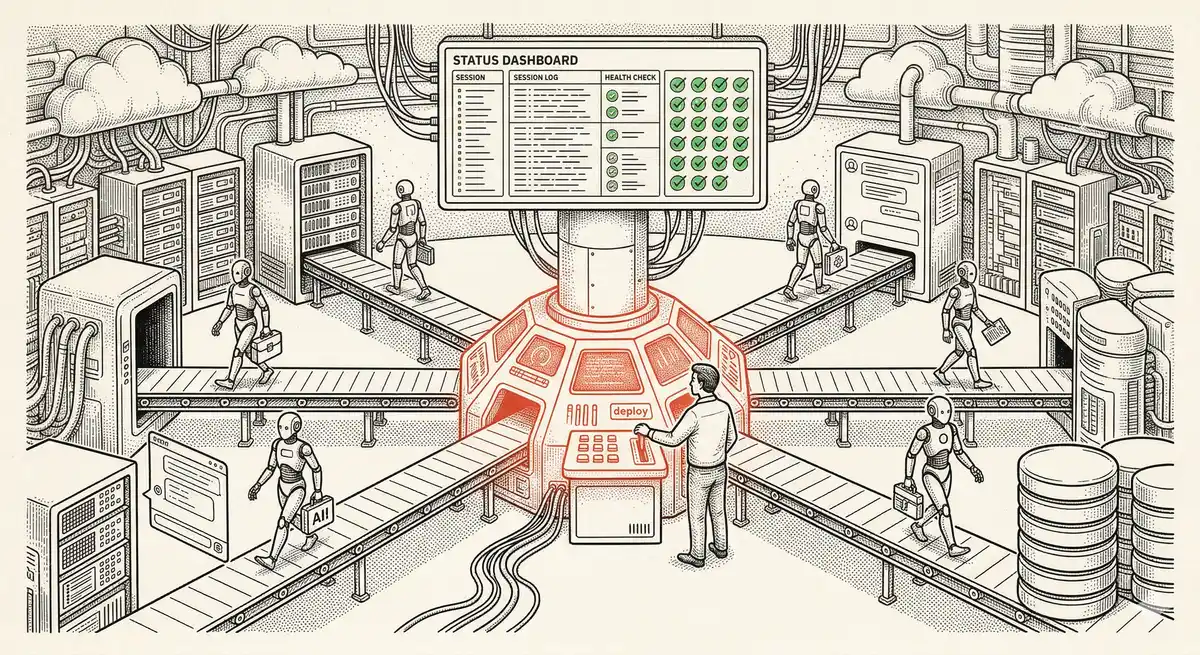
Claude Managed Agents: Anthropic's Platform for Production Agent Deployment
Anthropic launches Managed Agents: a cloud platform for deploying AI agents in production. Secure sandbox, checkpointing, multi-agent, autonomous sessions lasting hours. Notion, Rakuten, Asana and Sentry already use it.
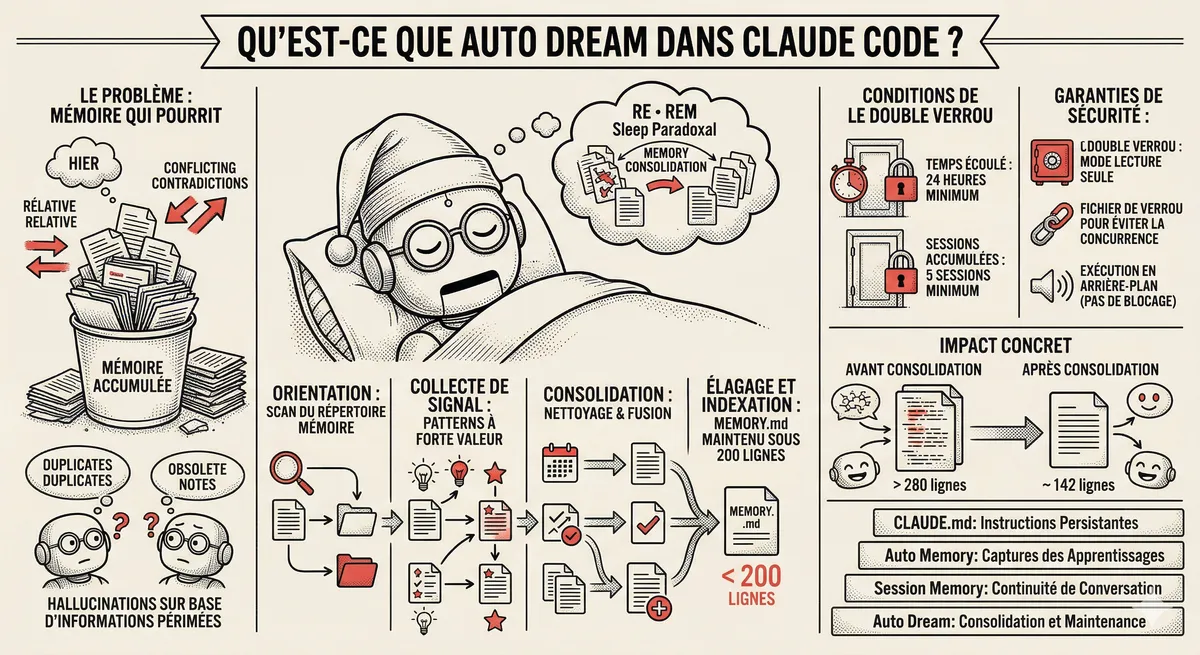
Claude Code Dream & Auto Dream: Automatic Memory Consolidation
After 20 sessions, Auto Memory notes become a mess. Auto Dream solves this by automatically consolidating Claude Code's memory: deduplication, stale entry removal, relative-to-absolute date conversion.
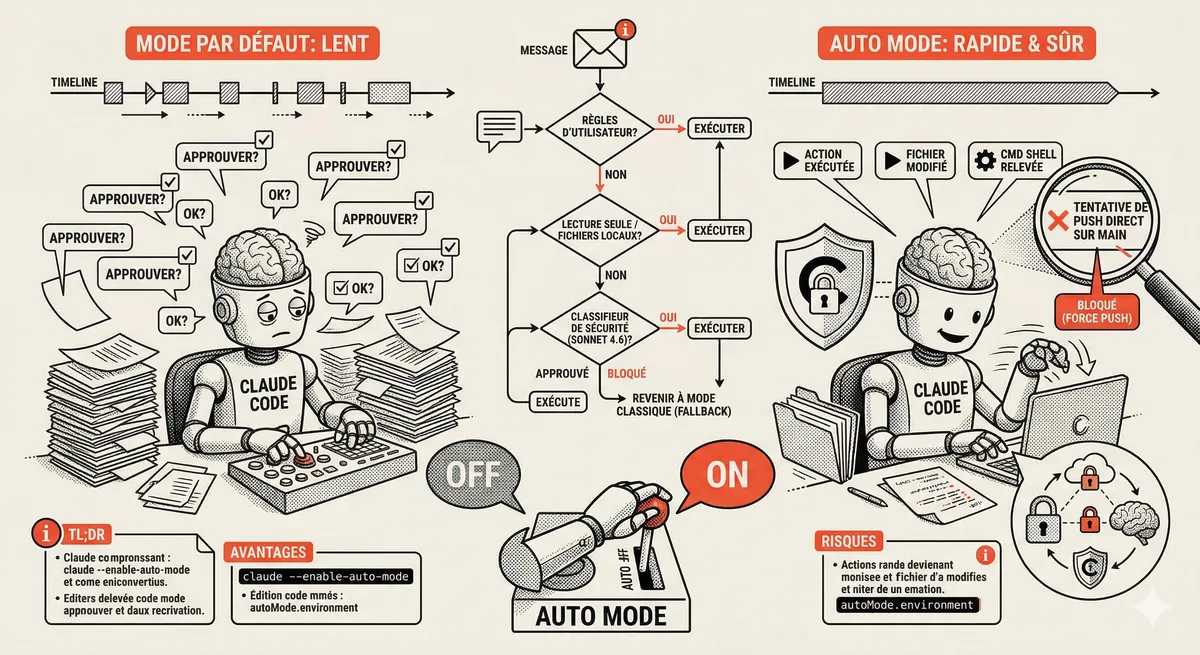
Claude Code Auto Mode: Autonomy Without the Risk
Auto Mode in Claude Code eliminates permission interruptions while keeping a safety net. A classifier analyzes every action before execution and blocks destructive operations. The sweet spot between approving everything and letting everything through.
This topic is covered in Module 5 of our Claude Code training
Sub-agents and Skills
1-day training • 60% hands-on labs • Expert instructors
View full program