TL;DR
This cheatsheet gathers all the syntax for creating your own slash commands, configuring reusable skills, orchestrating subagents and automating your Claude Code workflows with hooks. Use this practical reference to master custom commands, skills and Claude Code extensibility in minutes.
This cheatsheet gathers all the syntax for creating your own slash commands, configuring reusable skills, orchestrating subagents and automating your Claude Code workflows with hooks. Use this practical reference to master custom commands, skills and Claude Code extensibility in minutes.
Custom commands and skills in Claude Code form the extensibility system that allows adapting the AI agent to your specific workflows. Claude Code offers four complementary mechanisms: custom slash commands, skills, subagents, and hooks.
SFEIR Institute trainings
Claude Code Training
1 day · Fundamentals
AI-Augmented Developer
2 days · Intermediate
What are the most used custom commands in Claude Code?
Custom slash commands extend the set of built-in commands. Each command corresponds to a Markdown file stored in .claude/commands/ (project) or ~/.claude/commands/ (global). See the complete command reference for the exhaustive list of built-in commands.
| Command | Description | Usage example |
|---|---|---|
/review-pr | Code review on a pull request | /review-pr 142 |
/deploy | Custom deploy command | /deploy staging |
/test-unit | Runs targeted unit tests | /test-unit auth |
/lint-fix | Automatically fixes linting | /lint-fix src/ |
/changelog | Generates a changelog from commits | /changelog v2.0..HEAD |
/migrate-db | Prepares a database migration | /migrate-db add-users |
In practice, a custom slash command collapses a long, repetitive prompt into a short command. The essential slash commands cheatsheet covers the built-in commands in detail.
Key takeaway: each custom slash command is a Markdown file in .claude/commands/ that encapsulates a reusable prompt.
How to create a custom slash command step by step?
A custom command is a Markdown file whose name becomes the command suffix. Create the .claude/commands/ directory at the root of your project if it does not exist already.
Command file structure
# Create the project commands directory
mkdir -p .claude/commands

# Create a /review command
touch .claude/commands/review.md
The Markdown file content constitutes the prompt sent to Claude Code. You can use the $ARGUMENTS variable to capture arguments passed after the command.
<!--.claude/commands/review.md -->
Analyze the file $ARGUMENTS and provide:
1. Potential bugs
2. Performance issues
3. Improvement suggestions
Respond in English with corrected code examples.
Project vs global scope
| Aspect | Project (.claude/commands/) | Global (~/.claude/commands/) |
|---|---|---|
| Scope | This repository only | All your projects |
| Versionable | Yes, via Git | No (local machine) |
| Team sharing | Yes, shared commit | No |
| Priority | High (overrides global) | Low |
| Use case | Team standards | Personal preferences |
Run your command by typing /review src/auth.ts in the Claude Code prompt. The command accepts all text arguments after the name. Concretely, the file is between 5 and 500 lines depending on prompt complexity.
To avoid common errors during creation, see the common errors guide which details classic pitfalls.
Key takeaway: name your command files with short, explicit names. The file name becomes the command.
How do skills work so the AI learns your patterns?
Skills and CLAUDE.md are two distinct mechanisms. A skill is a SKILL.md file inside its own directory (following the Agent Skills open standard), and its body loads only when Claude judges it relevant to the task. CLAUDE.md files are the separate memory system: they load automatically and describe conventions, patterns, or business rules that apply across the whole session.
Where skills live
# Project skill: create the directory and its SKILL.md
mkdir -p .claude/skills/pr-review
touch .claude/skills/pr-review/SKILL.md

# Personal skill, available across all your projects
mkdir -p ~/.claude/skills/pr-review
touch ~/.claude/skills/pr-review/SKILL.md
| Skill scope | File | Loading | Primary usage |
|---|---|---|---|
| Project | .claude/skills/ | Body loads only when the skill is invoked or relevant | Shared, versioned skills |
| Personal | ~/.claude/skills/ | Body loads only when the skill is invoked or relevant | Your own reusable skills |
| Plugin | | Body loads only when the skill is invoked or relevant | Skills shipped by a plugin |
Memory files (CLAUDE.md)
The CLAUDE.md memory system is separate from skills. Unlike a skill body, CLAUDE.md content is read automatically at startup and stays in context.
| Memory scope | File | Loading | Primary usage |
|---|---|---|---|
| Project | .claude/CLAUDE.md | Automatic at each session | Team conventions |
| Subdirectory | | When Claude reads a file from the directory | Local patterns |
| User | ~/.claude/CLAUDE.md | Always loaded | Personal preferences |
| Auto memory | ~/.claude/projects/ (project derived from the git repo, requires Claude Code v2.1.59+) | Automatic per project | Incremental learning |
A well-written CLAUDE.md reduces how often you have to repeat the same corrections. Verify that your CLAUDE.md file contains clear, concise instructions: Claude Code reads it entirely at each startup.
The dedicated custom commands and skills page explores the contextual skill loading mechanics in depth.
Best practices for skills and memory
- Be specific: "Use
vitestfor tests" rather than "use a good test framework" - Give examples: include code blocks showing the expected pattern
- Keep files focused: a tight
SKILL.mdorCLAUDE.mdloads faster and stays readable - Structure by theme: separate naming conventions, architecture patterns, and test rules
In practice, a CLAUDE.md file is loaded at session start and remains in context throughout the session, while a skill body is pulled in only when Claude needs it.
Key takeaway: CLAUDE.md files load automatically and teach your conventions; skills are separate SKILL.md directories whose body loads only when invoked or relevant.
How to orchestrate subagents in Claude Code?
Subagents are autonomous Claude instances launched by the main agent via the Agent tool (formerly Task). Each subagent has its own context and its own tools. Use subagents to parallelize independent tasks such as search and implementation.
Available subagent types
| Subagent type | Available tools | Use case | Can edit files? |
|---|---|---|---|
general-purpose | All (Read, Write, Edit, Bash...) | Full implementation | Yes |
Explore | Read-only (Read, Grep, Glob) | Code search | No |
Plan | Read-only + planning | Architecture design | No |
Subagent call syntax
// Conceptual subagent orchestration example
// Claude automatically uses the Agent tool (formerly Task) internally
Agent({
 subagent_type: "Explore",
 prompt: "Find all API routes that use authentication",
 description: "Search auth routes"
})
In practice, an Explore subagent can scan a large repository quickly, and multiple subagents can run in parallel to speed up independent work.
Concretely, subagents protect the main context: a search subagent that reads 200 files does not pollute the parent agent's context window.
To understand how to effectively manage context between main agent and subagents, see the context management guide.
Key takeaway: subagents parallelize work and protect your context window: use Explore for search and general-purpose for implementation.
What hooks allow automating workflows deterministically?
Hooks are shell commands executed automatically in response to Claude Code events. Unlike skills (probabilistic), hooks are deterministic: they run every time, without exception. Configure your hooks in the .claude/settings.json file.
Hook configuration
{
 "hooks": {
 "PostToolUse": [
 {
 "matcher": "Edit",
 "hooks": [
 {
 "type": "command",
 "command": "jq -r '.tool_input.file_path' | xargs npx eslint --fix"
 }
 ]
 }
 ],
 "PreToolUse": [
 {
 "matcher": "Bash",
 "hooks": [
 {
 "type": "command",
 "command": "echo 'Bash command detected'"
 }
 ]
 }
 ]
 }
}
Each matcher group contains a nested hooks array of handler objects, each with a type of command. Hooks receive their context as JSON on stdin (fields such as tool_name and tool_input), so the eslint example reads the edited path from tool_input.file_path rather than from an environment variable. The CLAUDE_PROJECT_DIR env var is available to point at the project root.
Available hook events
| Event | Trigger | Context on stdin | Use case |
|---|---|---|---|
PreToolUse | Before each tool call | tool_name, tool_input | Validation, logging |
PostToolUse | After each tool call | tool_name, tool_input | Auto linting, formatting |
Notification | On system notification | message | Alerts, journaling |
Stop | When Claude finishes its turn | stop_hook_active | Notifications, cleanup |
Hooks read their context from JSON on stdin (for example tool_name and tool_input). The CLAUDE_PROJECT_DIR environment variable is also available to reference the project root.
A PostToolUse lint hook fixes formatting automatically, so you rarely round-trip on style issues. Run a quick test by adding a logging hook to verify the configuration works.
Permission management during hook execution is detailed in the permissions and security cheatsheet. To combine hooks and Git commands, see the Git integration cheatsheet.
Key takeaway: hooks guarantee deterministic execution: use them for automatic linting, logging, and mandatory validations.
How to extend Claude Code with plugins and MCP?
The Model Context Protocol (MCP) is Anthropic's open standard for connecting Claude Code to external tools. MCP allows adding servers that expose additional tools, resources, and prompts.
MCP configuration
{
 "mcpServers": {
 "github": {
 "command": "docker",
 "args": [
 "run", "-i", "--rm",
 "-e", "GITHUB_PERSONAL_ACCESS_TOKEN",
 "ghcr.io/github/github-mcp-server"
 ],
 "env": {
 "GITHUB_PERSONAL_ACCESS_TOKEN": "ghp_xxx"
 }
 },
 "filesystem": {
 "command": "npx",
 "args": ["-y", "@modelcontextprotocol/server-filesystem", "/path/to/project"]
 }
 }
}
Place this configuration in .mcp.json at the project root (committed and shared with your team). For user or local scope, add servers with claude mcp add ... (stored in ~/.claude.json). The settings.json file does not hold an mcpServers block. The MCP ecosystem has hundreds of community servers covering databases, cloud APIs, and DevOps tools.
| MCP server | Function | Installation |
|---|---|---|
github/github-mcp-server | Issues, PRs, repos | Remote https://api.githubcopilot.com/mcp/ or Docker ghcr.io/github/github-mcp-server |
server-filesystem | Extended file access | npx @modelcontextprotocol/server-filesystem |
server-git | Git repository tools | npx @modelcontextprotocol/server-git |
server-memory | Persistent knowledge graph | npx @modelcontextprotocol/server-memory |
To get started with custom commands examples, you will find ready-to-use MCP configurations.
Key takeaway: MCP connects Claude Code to any external tool via a standardized protocol. Start with a maintained server such as the official GitHub MCP server or the filesystem reference server for an immediate gain.
What keyboard shortcuts speed up work with commands?
Memorize these shortcuts to navigate efficiently in Claude Code. These combinations work in the Claude Code interactive terminal.
| Shortcut | Action | Context |
|---|---|---|
Enter | Send the message | Main prompt |
Escape | Cancel the current generation | During a response |
Tab | Command autocomplete / | After typing / |
Up / Down | Navigate through history | Empty prompt |
Ctrl+C | Interrupt the operation | Any situation |
Ctrl+L | Redraw / clear the visible screen (does not reset context) | Terminal |
/clear | Reset the context | Prompt |
/compact | Compress the context | When the context is saturated |
SFEIR Institute offers the Claude Code one-day training: you will practice creating slash commands, configuring skills and orchestrating subagents on real cases. To go further, the AI-Augmented Developer training covers in 2 days the complete integration of AI into your development workflow, including hooks and augmented CI/CD pipelines.
See the installation cheatsheet to verify your environment is correctly configured before customizing your commands.
Key takeaway: /compact and Escape are the two most useful daily shortcuts. The first manages context, the second interrupts an irrelevant generation.
How to structure a project with commands, skills and hooks combined?
Here is the recommended file tree for a project that fully leverages Claude Code extensibility. Organize your files according to this structure from day one.
my-project/
├── .claude/
│ ├── CLAUDE.md # Project skill (global conventions)
│ ├── settings.json # Hooks
│ └── commands/
│ ├── review.md # /review
│ ├── test.md # /test
│ ├── deploy.md # /deploy
│ └── changelog.md # /changelog
├── .mcp.json # MCP servers (project scope)
├── src/
│ └── components/
│ └── .claude/
│ └── CLAUDE.md # Directory skill (React patterns)
└── ...
Concretely, the .claude config is small and is versioned with Git like any other configuration file.
To master your first conversations with this configuration in place, the learning curve flattens noticeably.
If you want to deepen these techniques with hands-on exercises, the AI-Augmented Developer -- Advanced training from SFEIR dedicates half a day to creating personalized workflows with skills, hooks, and subagents.
Key takeaway: group commands, skills, and hooks in .claude/ at the root: version everything with Git to share conventions with your team.
What errors to avoid with custom commands?
Check these points before deploying your custom commands to the team. The most frequent errors concern file naming and variable syntax.
- Naming error: the file
my-review.mdcreates the command/my-review(the file name without the.mdextension) - Forgotten variable:
$ARGUMENTSis case-sensitive -$argumentsdoes not work - File too long: a prompt over 2,000 words consumes context unnecessarily - aim for 100 to 300 words
- Blocking hook: a
PreToolUsehook that fails (exit code != 0) blocks the tool - always test in isolation first - MCP without token: forgetting the
GITHUB_PERSONAL_ACCESS_TOKENenvironment variable silently fails the GitHub MCP server - Contradictory skill: two
CLAUDE.mdfiles with opposite instructions create unpredictable behavior
The complete common errors guide details each of these cases with associated solutions. In practice, most problems are resolved by checking the file path and the $ARGUMENTS syntax.
Key takeaway: test each command in isolation before sharing - a misnamed file or a failing hook can block the entire workflow.
Recent articles about Claude
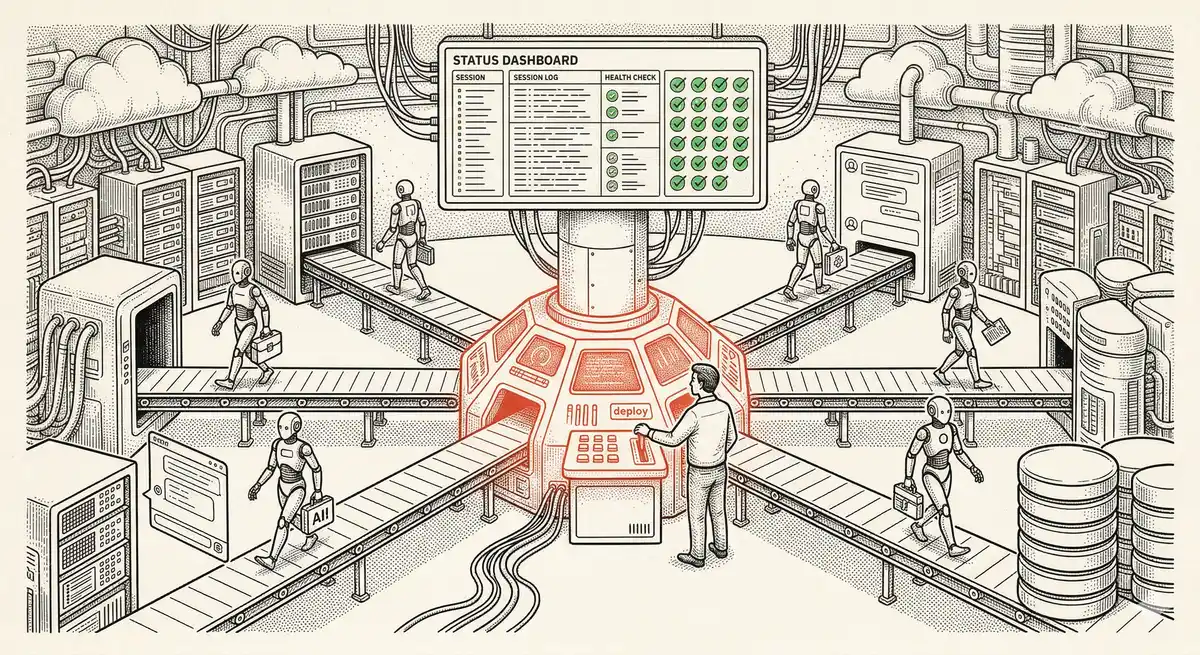
Claude Managed Agents: Anthropic's Platform for Production Agent Deployment
Anthropic launches Managed Agents: a cloud platform for deploying AI agents in production. Secure sandbox, checkpointing, multi-agent, autonomous sessions lasting hours. Notion, Rakuten, Asana and Sentry already use it.
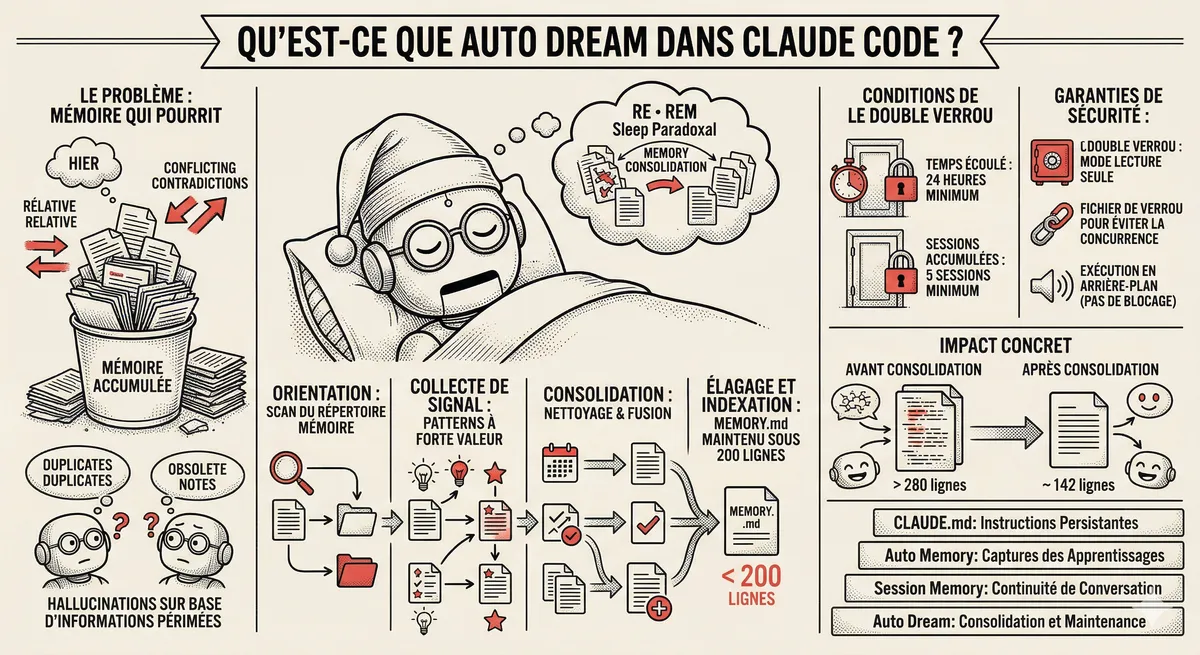
Claude Code Dream & Auto Dream: Automatic Memory Consolidation
After 20 sessions, Auto Memory notes become a mess. Auto Dream solves this by automatically consolidating Claude Code's memory: deduplication, stale entry removal, relative-to-absolute date conversion.
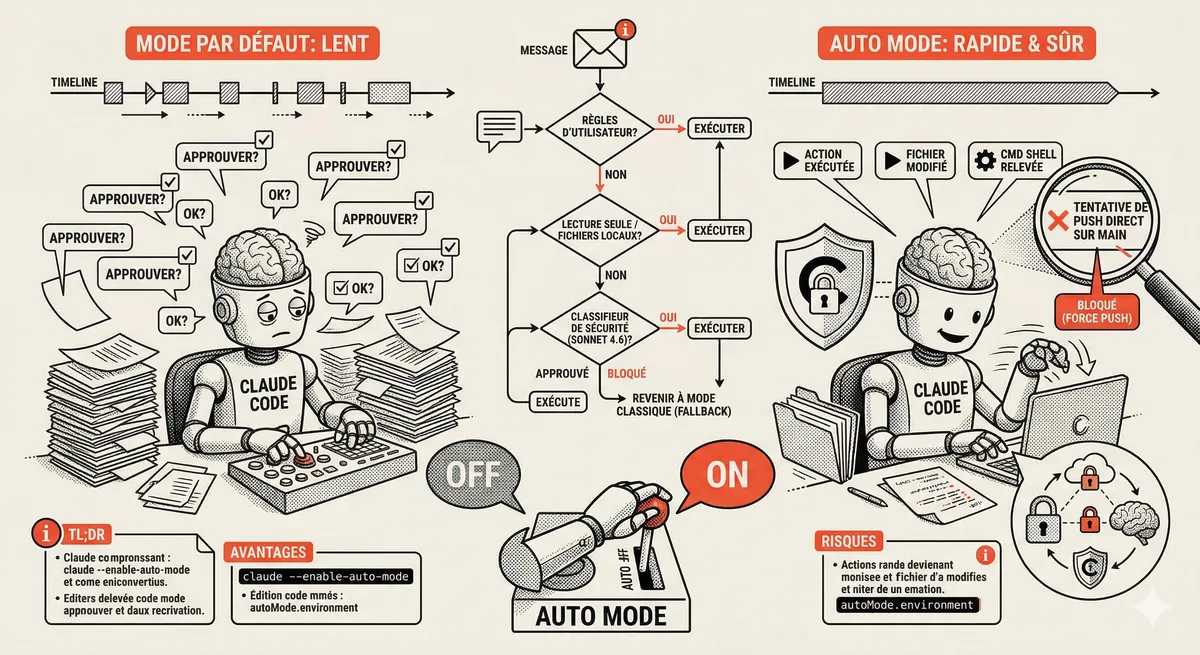
Claude Code Auto Mode: Autonomy Without the Risk
Auto Mode in Claude Code eliminates permission interruptions while keeping a safety net. A classifier analyzes every action before execution and blocks destructive operations. The sweet spot between approving everything and letting everything through.
This topic is covered in Module 5 of our Claude Code training
Sub-agents and Skills
1-day training • 60% hands-on labs • Expert instructors
View full program