TL;DR
Mastering your first conversations with Claude Code rests on three pillars: crafting precise prompts in project context, chaining the Explore → Plan → Code workflow, and letting the agent execute commands and tests on your behalf. This FAQ guide answers the concrete questions developers ask when getting started with agentic coding.
Mastering your first conversations with Claude Code rests on three pillars: crafting precise prompts in project context, chaining the Explore → Plan → Code workflow, and letting the agent execute commands and tests on your behalf. This FAQ guide answers the concrete questions developers ask when getting started with agentic coding.
Your first conversations with Claude Code are the decisive moment when you transition from a simple text editor to a true AI-powered development agent. Claude Code (available via the claude CLI on Node.js 18+) can handle many code modification requests with minimal manual intervention, and developers who structure their prompts in project context typically need fewer iterations.
To deepen the fundamentals before getting started, check the Claude Code beginner guide which covers all the basics.
SFEIR Institute trainings
Claude Code Training
1 day · Fundamentals
AI-Augmented Developer
2 days · Intermediate
How to formulate a good prompt in Claude Code?
Describe the objective, context, and expected result in a single request. An effective prompt in Claude Code follows the OCA structure: Objective → Context → Expected.
In practice, avoid vague prompts like "fix the bug". Instead specify the file concerned, the observed behavior, and the desired behavior. Structured prompts reduce the number of manual corrections and lead to fewer iterations.
# Vague prompt (avoid)
"Fix the bug in the API"

# Structured prompt (recommended)
"In src/api/users.ts, the GET /users route returns a 500
when the database is empty. Modify the handler to return
an empty array [] with a 200 status."
The table below is illustrative, comparing the typical experience of vague versus structured prompts:
| Criterion | Vague prompt | Structured prompt |
|---|---|---|
| Iterations needed | More | Fewer |
| First-try success | Lower | Higher |
| Resolution effort | Higher | Lower |
You can find advanced formulation examples in the first conversations cheatsheet.
Key takeaway: a structured OCA prompt (Objective-Context-Expected) significantly reduces the number of iterations needed.
How does a conversation session work in Claude Code?
A session is a continuous dialogue thread where Claude Code retains the context of your project. Each session starts when you launch claude in a terminal and ends when you exit with Ctrl+D (EOF) or /exit. Ctrl+C interrupts the current action and exits on a second press when idle.
In practice, Claude Code automatically loads the CLAUDE.md files present at the root of your project. These files contain conventions, important paths, and persistent instructions. A session retains a large context window (hundreds of thousands of tokens, depending on the model).
# Start a session in your project
$ cd my-project
$ claude

# Check the session cost
> /cost
Open multiple sessions in parallel if you work on separate branches. Each terminal retains its own independent context. To learn more about fine-grained context management, check the context management FAQ.
Key takeaway: a session retains a large context window (depending on the model) and automatically loads your CLAUDE.md files.
How to ask Claude Code to modify existing code?
Describe the desired modification by mentioning the file and target function. Claude Code reads the file, proposes changes via a diff, then waits for your validation before writing.
Use precise action verbs: "rename", "add", "delete", "move", "refactor". Claude Code interprets these verbs as direct instructions. Here is how to request a typical modification:
"In lib/auth.ts, rename the function checkToken to
validateAccessToken and add an optional parameter
expirationMargin of type number (default: 300 seconds)."
The result is displayed as a colored diff. You see deleted lines in red and added lines in green. Validate with y, reject with n, or request adjustments by typing your feedback directly.
In practice, single-file modifications are usually applied correctly on the first try with Claude Code. To discover the complete reference of commands available during these interactions, browse the command reference.
Key takeaway: always mention the file and target function to get a precise modification on the first try.
What permission modes are available for execution?
Claude Code asks for confirmation before risky operations. You can pre-authorize tools via permissions.allow in .claude/settings.json.
Configure permissions in your project or global configuration file:
# Pre-authorize specific tools at launch
$ claude --allowedTools "Bash(git status)" "Bash(npm test)"
To understand each permission in detail, the permissions and security FAQ answers all security questions.
Key takeaway: pre-authorize your common tools in settings.json to streamline your daily workflow.
How to run tests from Claude Code?
Ask Claude Code to run your tests by specifying the framework and scope. Claude Code automatically detects the appropriate test command from your package.json or project configuration.
# Direct request in the conversation
> "Run the unit tests for the auth module"

# Claude Code executes:
$ npm test -- --testPathPatterns="auth"
In practice, Claude Code analyzes test results and proposes automatic corrections on failure, running a test → fix → retest cycle until the suite passes. Always check the coverage report after corrections.
| Framework | Detected command |
|---|---|
| Jest | npx jest |
| Vitest | npx vitest run |
| pytest | python -m pytest |
You can check the tips for your first conversations to discover even faster test execution shortcuts.
Key takeaway: Claude Code detects your test framework and automatically fixes failures in a test-fix-retest loop.
How to use the Explore → Plan → Code workflow?
The Explore → Plan → Code workflow is the three-phase method for tackling any complex task with Claude Code. This approach reduces back-and-forth by structuring the work into distinct phases.
Phase 1, Explore. Ask Claude Code to explore the codebase before acting. Launch an open question:
> "Explore the structure of the authentication module
 and list the dependencies between files."
Phase 2, Plan. Activate plan mode with Shift+Tab (or Alt+M, which cycles permission modes) or by adding "plan" in your prompt. Claude Code generates a numbered action plan without executing any code.
> "Plan the refactoring of the auth module to
 separate JWT logic from the Express middleware."
Phase 3, Code. Validate the plan, then Claude Code implements each step. You follow the progress in real time.
For a complete view of agentic coding and its principles, explore our dedicated article. This workflow is taught in practice in the Claude Code one-day training at SFEIR Institute, with hands-on labs on real projects.
Key takeaway: Explore → Plan → Code structures every complex task into three phases and reduces iterations.
Which slash commands to use during a conversation?
The most useful commands and shortcuts in a conversation are Shift+Tab / Alt+M (permission mode cycling), /cost, /clear, and /compact. They steer Claude Code's behavior without leaving the dialogue thread.
| Command | Action | Shortcut |
|---|---|---|
| Shift+Tab / Alt+M | Cycles permission modes (default, plan, auto...) | - |
/cost | Displays session tokens and cost | - |
/clear | Resets the context | - |
/status | Displays version, model, account and connectivity status | - |
/help | Displays complete help | - |
/compact | Compresses the context | - |
Run /compact when your conversation grows long to free up contextual space without losing important decisions. This command summarizes the conversation to reduce context size, with the amount freed varying by conversation.
In practice, the /clear command should be used when you change topics in the same terminal. For the exhaustive list, check the essential slash commands FAQ.
Key takeaway: /compact and /clear are your best allies for managing context during long sessions.
How to correct an error when Claude Code gets it wrong?
Describe the observed error and paste the exact error message into the conversation. Claude Code analyzes the stacktrace and proposes a targeted correction.
Here is how to proceed in practice:
> "The npm run build command fails with the following error:
 TypeError: Cannot read properties of undefined (reading 'map')
 at src/components/UserList.tsx:42
 Fix this error."
Avoid rephrasing the error in your own words. The exact message contains line, file, and type information that Claude Code uses to locate the problem. Pasting the full stacktrace helps Claude Code locate and fix the error more reliably.
If Claude Code proposes an incorrect solution, specify what does not work rather than repeating the same request. Add context: "Your fix introduces a regression on test X" or "Type Y doesn't exist in this project".
For advanced debugging techniques, refer to the conversation tips.
Key takeaway: always paste the full stacktrace. Claude Code automatically extracts file, line, and error type from it.
Can you work on multiple files in a single conversation?
Claude Code can modify multiple related files in a single coherent request. Describe the cross-cutting change and let the agent identify the impacted files.
> "Rename the User interface to AppUser throughout the project.
 Update the imports, types, and associated tests."
Claude Code scans the project, identifies the files that reference the interface, and applies the rename in a single pass. You view a consolidated diff before validation.
In practice, multi-file modifications work best when you stay within a single functional scope (one refactoring, one feature, one bugfix). If you mix independent tasks, separate them into distinct requests.
To better understand how the agent maintains consistency across multiple files, read the article on agentic coding and its principles. The AI-Augmented Developer 2-day training at SFEIR Institute dives deeper into these multi-file workflows with hands-on exercises on full-stack projects.
Key takeaway: keep a single intent per multi-file request for maximum success rate.
Should you use a CLAUDE.md file to improve conversations?
The CLAUDE.md file at the project root improves response relevance. This file contains persistent instructions that Claude Code loads automatically at each session.
# CLAUDE.md - minimalist example
- Framework: Next.js 14 with App Router
- Tests: Vitest + Testing Library
- Style: Tailwind CSS, no CSS modules
- Conventions: file names in kebab-case
- Test command: npm run test
- Build command: npm run build
Create a CLAUDE.md file of 10 to 30 lines. Beyond 50 lines, information density drops and consumed context increases unnecessarily. Projects with a well-structured CLAUDE.md see fewer convention mismatches.
In practice, include the build, test, and lint commands, naming conventions, and critical project paths. For a complete guide on this configuration, check the installation and first launch FAQ.
Key takeaway: a 10-30 line CLAUDE.md with your project conventions improves response relevance.
How to chain multiple tasks in the same session?
Handle one task at a time and validate each result before moving on to the next. Claude Code retains the context of previous modifications, which speeds up related tasks.
Here is a typical 4-step chain:
- Explore: "Show me the structure of the payment module"
- Plan: "Plan the addition of a Stripe provider"
- Code: "Implement the plan"
- Test: "Run the payment module tests"
Each step uses the context from the previous one. Avoid running /clear between related tasks, since you would lose the accumulated context. However, use /compact when the conversation grows large and you approach the model's context limit.
You can check the complete guide on your first conversations to see more advanced chaining examples. For those who want to go further, the AI-Augmented Developer - Advanced one-day training covers multi-task orchestration patterns with Claude Code.
Key takeaway: preserve context between related tasks and use /compact when the conversation grows large.
What are the common pitfalls during first conversations?
The three most frequent errors are: prompts that are too vague, context not loaded, and mixed modifications. These are among the most common pitfalls new users encounter.
| Pitfall | Symptom | Solution |
|---|---|---|
| Vague prompt | Off-topic result | OCA structure (Objective-Context-Expected) |
| No CLAUDE.md | Conventions ignored | Create a 10-30 line file |
| Mixed tasks | Incoherent diff | One intent per request |
| Saturated context | Degraded responses | /compact when context grows large |
| Permanent ask mode | Slow workflow | Switch to auto mode |
Verify that your project contains an up-to-date .gitignore file before launching Claude Code. The agent indexes files visible to Git, so a poorly configured .gitignore slows exploration and points it at the wrong files.
To avoid permission errors that block execution, browse the permissions and security FAQ. The beginner guide also covers classic installation errors.
Key takeaway: structure your prompts, maintain an up-to-date CLAUDE.md, and separate your intents for reliable results.
How to know when to use Claude Code rather than a classic IDE?
Use Claude Code whenever the task touches more than 2 files or requires project context understanding. For a local variable rename in a single file, your IDE is sufficient.
In practice, Claude Code outperforms a classic IDE in these scenarios:
- Multi-file refactoring (interface rename, pattern migration)
- Test generation from existing code
- Unknown codebase exploration
- Bug fixing with stacktrace
- New feature creation with boilerplate scaffolding
Claude Code can work across multiple directories using --add-dir, which helps with large monorepos.
To understand the philosophy of agentic coding that underlies Claude Code, explore our foundational article. Also find the essential commands cheatsheet to keep a quick reference at hand.
Key takeaway: Claude Code excels at multi-file tasks, codebase exploration, and bug fixing with stacktrace.
Recent articles about Claude
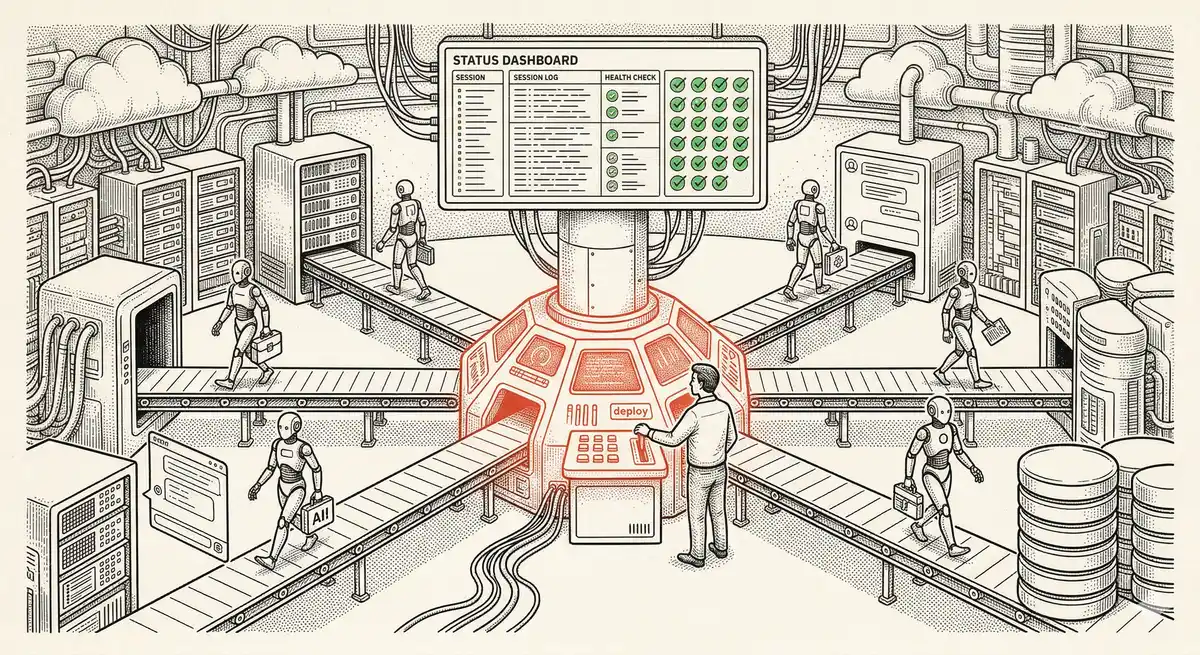
Claude Managed Agents: Anthropic's Platform for Production Agent Deployment
Anthropic launches Managed Agents: a cloud platform for deploying AI agents in production. Secure sandbox, checkpointing, multi-agent, autonomous sessions lasting hours. Notion, Rakuten, Asana and Sentry already use it.
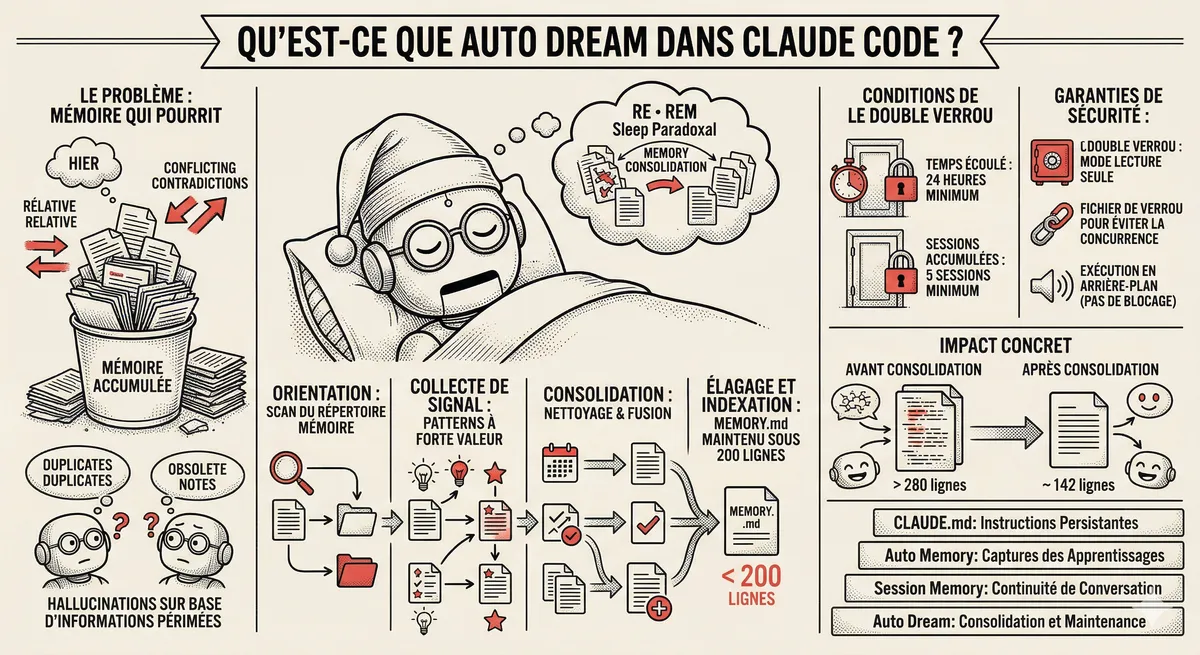
Claude Code Dream & Auto Dream: Automatic Memory Consolidation
After 20 sessions, Auto Memory notes become a mess. Auto Dream solves this by automatically consolidating Claude Code's memory: deduplication, stale entry removal, relative-to-absolute date conversion.
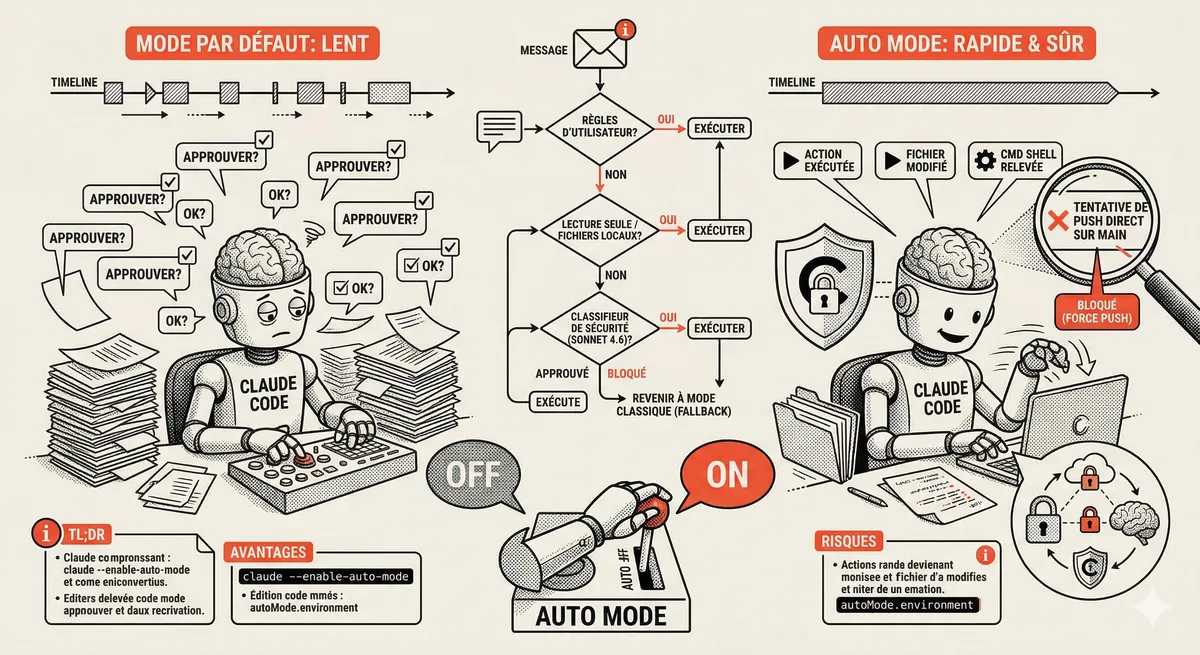
Claude Code Auto Mode: Autonomy Without the Risk
Auto Mode in Claude Code eliminates permission interruptions while keeping a safety net. A classifier analyzes every action before execution and blocks destructive operations. The sweet spot between approving everything and letting everything through.
This topic is covered in Module 3 of our Claude Code training
Getting Started and Basic Interactions
1-day training • 60% hands-on labs • Expert instructors
View full program