TL;DR
Claude Code Routines are saved configurations that run automatically on Anthropic-managed cloud infrastructure and keep working even when your computer is off. They trigger on a cron schedule, an API call, or a GitHub event, and you create them from the web, the Desktop app, or the `/schedule` command in the CLI. For quick polling inside an open session, the `/loop` command repeats a prompt on an interval.
Claude Code Routines are saved configurations that run automatically on Anthropic-managed cloud infrastructure and keep working even when your computer is off. They trigger on a cron schedule, an API call, or a GitHub event, and you create them from the web, the Desktop app, or the /schedule command in the CLI. For quick polling inside an open session, the /loop command repeats a prompt on an interval.
Where headless mode asks you to supply your own scheduler (a system cron, a CI runner), Routines move the scheduling to Anthropic. You describe the work once, attach one or more triggers, and the task runs without you keeping a machine powered on. This guide covers cloud Routines, local Desktop scheduled tasks, and the /loop command for in-session polling.
SFEIR Institute trainings
Claude Code Training
1 day · Fundamentals
AI-Augmented Developer
2 days · Intermediate
What is a Claude Code Routine and where does it run?
A routine is a saved Claude Code configuration: a prompt, one or more repositories, and a set of connectors, packaged once and run automatically. Routines execute on Anthropic-managed cloud infrastructure, so they keep working when your laptop is closed.
Each run starts a new full Claude Code cloud session. The routine clones the repository from its default branch, and Claude creates claude/-prefixed branches for its changes. Routines run autonomously: there is no permission-mode picker and no approval prompts during a run.
Routines are available on Pro, Max, Team, and Enterprise plans with Claude Code on the web enabled. You create and manage them at claude.ai/code/routines, or from the CLI with /schedule.
⚠️ Routines are in research preview. Behavior, limits, and the API surface may change.
Key takeaway: a routine is a persistent Claude Code task that runs in Anthropic's cloud, independent of your machine's state.
How do you create a Routine from the web, Desktop, or CLI?
You can create a routine from three surfaces. All of them write to the same cloud account, so a routine you create in one shows up in the others immediately.
From the web, visit claude.ai/code/routines and click New routine. The form sets up the prompt, repositories, environment, connectors, and triggers.
From the Desktop app, click Routines in the sidebar, then New routine, and choose Remote. Choosing Local instead creates a Desktop scheduled task, which runs on your machine rather than in the cloud.
From the CLI, run /schedule in any session to create a scheduled routine conversationally. You can also pass a description directly:
/schedule daily PR review at 9am
/schedule clean up feature flag in one week
Claude walks through the same information the web form collects, then saves the routine to your account. The CLI also manages existing routines:
/schedule list
/schedule update
/schedule run
/schedule in the CLI creates scheduled routines only. To add an API or GitHub trigger, edit the routine on the web. Note also that the prompt must be self-contained and explicit: the routine runs autonomously, so the prompt has to spell out what to do and what success looks like.
Key takeaway: /schedule is the CLI entry point to create and drive scheduled routines without leaving your terminal.
How does a schedule (cron) trigger work?
A schedule trigger runs the routine on a recurring cadence, or once at a specific future time. In the Select a trigger section, you pick a preset frequency: hourly, daily, weekdays, or weekly. Times are entered in your local zone and converted automatically, so the routine runs at that wall-clock time regardless of where the cloud infrastructure is located.
For a custom interval, pick the closest preset in the form, then run /schedule update in the CLI to set a specific cron expression. The minimum interval is one hour; expressions that run more frequently are rejected.
A one-off schedule fires the routine a single time at a specific timestamp. Describe the time in natural language from the CLI:
/schedule tomorrow at 9am, summarize yesterday's merged PRs
/schedule in 2 weeks, open a cleanup PR that removes the feature flag
After it fires, the routine auto-disables and the web UI marks it as Ran. One-off runs do not count against the daily routine run cap: they draw down your plan's regular subscription usage like any other session.
Key takeaway: recurring cron schedules have a one-hour minimum interval, while one-off runs target a single moment described in natural language.
How do you trigger a Routine via API or on a GitHub event?
Beyond cron, a single routine can combine multiple triggers. You attach any combination of schedule, API, and GitHub triggers to the same routine.
API trigger
An API trigger gives a routine a dedicated HTTP endpoint. POSTing to the endpoint with the routine's bearer token starts a new session and returns a session URL. API triggers are added from the web: open the routine for editing, add an API trigger, copy the URL, then generate a token. The token is shown once and cannot be retrieved later.
Then send a POST request to the /fire endpoint. The body accepts an optional text field for run-specific context, such as an alert body:
curl -X POST https://api.anthropic.com/v1/claude_code/routines/trig_01ABCDEFGHJKLMNOPQRSTUVW/fire \
  -H "Authorization: Bearer sk-ant-oat01-xxxxx" \
  -H "anthropic-beta: experimental-cc-routine-2026-04-01" \
  -H "anthropic-version: 2023-06-01" \
  -H "Content-Type: application/json" \
  -d '{"text": "Sentry alert SEN-4521 fired in prod. Stack trace attached."}'
A successful request returns a JSON body with the new session ID and URL:
{
  "type": "routine_fire",
  "claude_code_session_id": "session_01HJKLMNOPQRSTUVWXYZ",
  "claude_code_session_url": "https://claude.ai/code/session_01HJKLMNOPQRSTUVWXYZ"
}
GitHub trigger
A GitHub trigger starts a new session automatically when a matching event occurs on a connected repository. GitHub triggers are configured from the web UI only, and require installing the Claude GitHub App on the repository. Two event categories are supported: Pull request (opened, closed, assigned, labeled, synchronized) and Release (created, published, edited, deleted). You can pick a specific action such as pull_request.opened, or react to all actions in the category.
Filters narrow which pull requests start a session: author, title, body, base branch, head branch, labels, draft state, or merged state. Each matching event starts its own independent session.
To control finely what the routine can reach, the MCP (Model Context Protocol) guide details secure connection to external services via connectors, and the permissions and security guide covers limiting pushes to claude/ branches.
Key takeaway: a single routine can react to a cron, an API call, and a GitHub event at once, with each trigger opening its own cloud session.
What is a Desktop scheduled task and when should you use it?
A Desktop scheduled task runs locally on your machine, unlike a cloud routine. You create it from the Desktop app by choosing Local instead of Remote when creating a new routine.
The key difference is file access and machine state. A Desktop task has access to local files and runs on your machine, which means the machine must be on. A cloud routine works on a fresh clone, with no access to your local files, but does not depend on your machine's state. The minimum interval for a Desktop task is one minute, against one hour for a cloud routine.
| Criterion | Cloud (Routine) | Desktop | /loop |
|---|---|---|---|
| Runs on | Anthropic cloud | Your machine | Your machine |
| Requires machine on | No | Yes | Yes |
| Requires open session | No | No | Yes |
| Access to local files | No (fresh clone) | Yes | Yes |
| Minimum interval | 1 hour | 1 minute | 1 minute |
Use cloud tasks for work that should run reliably without your machine. Use Desktop tasks when you need access to local files and tools. Use /loop for quick polling during a session.
Key takeaway: a Desktop task is the right call when the work depends on local files; a cloud routine wins when persistence matters more than local access.
How do you use /loop for in-session polling?
The /loop command is the quickest way to run a prompt on repeat while the session stays open. It is a bundled skill. /loop tasks are session-scoped: they live in the current conversation and stop when you start a new one.
When you supply an interval and a prompt, Claude converts it to a cron expression, schedules the job, and confirms the cadence:
/loop 5m check if the deployment finished and tell me what happened
The supported units are s (seconds), m (minutes), h (hours), and d (days). When you omit the interval, Claude chooses one dynamically between one minute and one hour based on what it observes:
/loop check whether CI passed and address any review comments
You can also pass another command as the prompt, for example /loop 20m /review-pr 1234, to re-run a saved skill or command each iteration. For a one-time reminder, just describe what you want in natural language:
remind me at 3pm to push the release branch
To stop a /loop while it is waiting for the next iteration, press Esc. Recurring in-session tasks automatically expire 7 days after creation.
Key takeaway: /loop excels at watching a deployment or a PR during an open session, but stops as soon as the session ends.
Which scheduling option should you choose for the job?
The three options serve distinct needs, and the right choice depends on the expected lifetime and resource access.
Use a cloud routine for unattended automation that must survive independently of any session: nightly PR review, alert triage via an API endpoint, deploy verification. It is the only mode that runs with the machine off.
Use a Desktop task when the work needs local files or tools installed on your machine, while keeping durable scheduling that survives restarts.
Use /loop for short, one-off polling during an active session, where the overhead of creating a routine is not justified. To orchestrate these automations with multi-turn sessions and headless mode, see the headless mode and CI/CD tutorial, and check the Git integration guide to understand how Claude handles branches during automated runs.
If you want structured guidance on automating your workflows with Claude Code, the Claude Code training from SFEIR Institute covers headless mode and automation patterns in 1 day, and the AI-Augmented Developer training goes deeper into integrating AI across the full development cycle.
For common questions on triggers, usage limits, and troubleshooting, the headless mode FAQ gathers the essential answers.
Key takeaway: cloud for reliability without a machine, Desktop for durable local access, /loop for quick in-session polling.
Recent articles about Claude
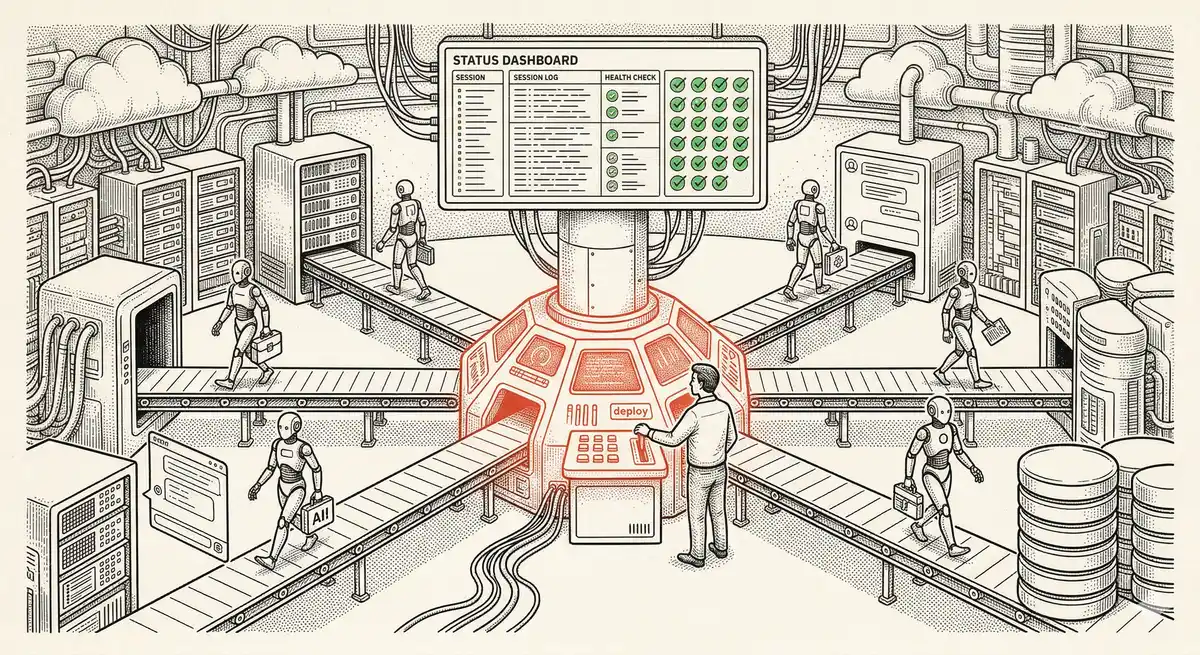
Claude Managed Agents: Anthropic's Platform for Production Agent Deployment
Anthropic launches Managed Agents: a cloud platform for deploying AI agents in production. Secure sandbox, checkpointing, multi-agent, autonomous sessions lasting hours. Notion, Rakuten, Asana and Sentry already use it.
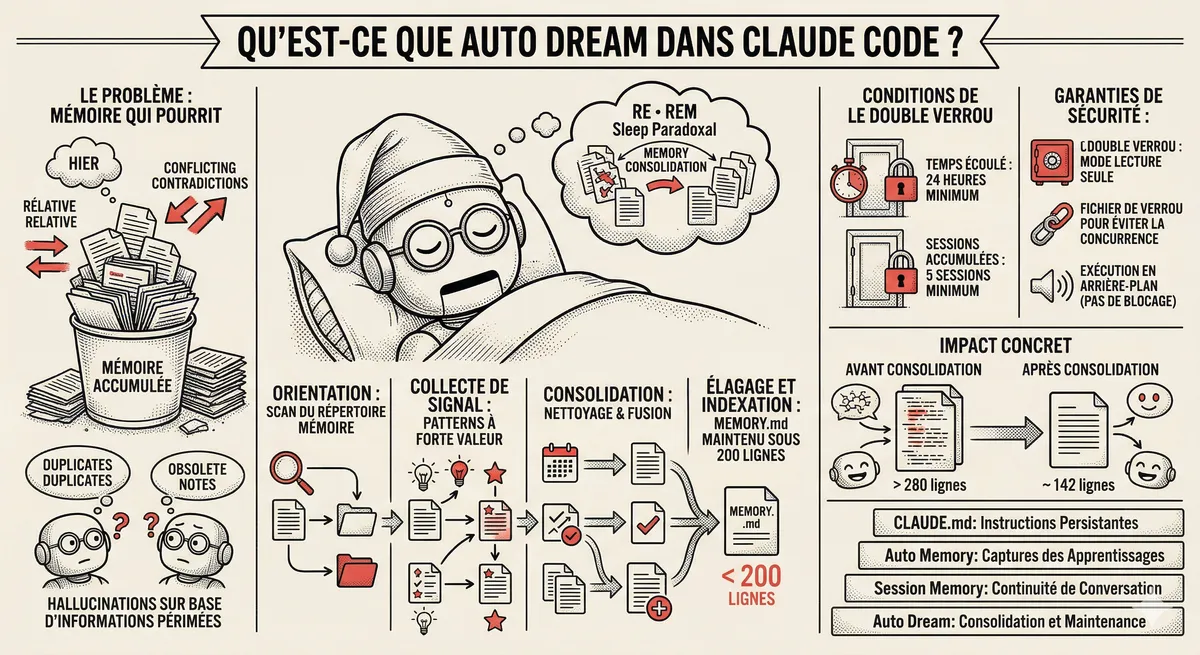
Claude Code Dream & Auto Dream: Automatic Memory Consolidation
After 20 sessions, Auto Memory notes become a mess. Auto Dream solves this by automatically consolidating Claude Code's memory: deduplication, stale entry removal, relative-to-absolute date conversion.
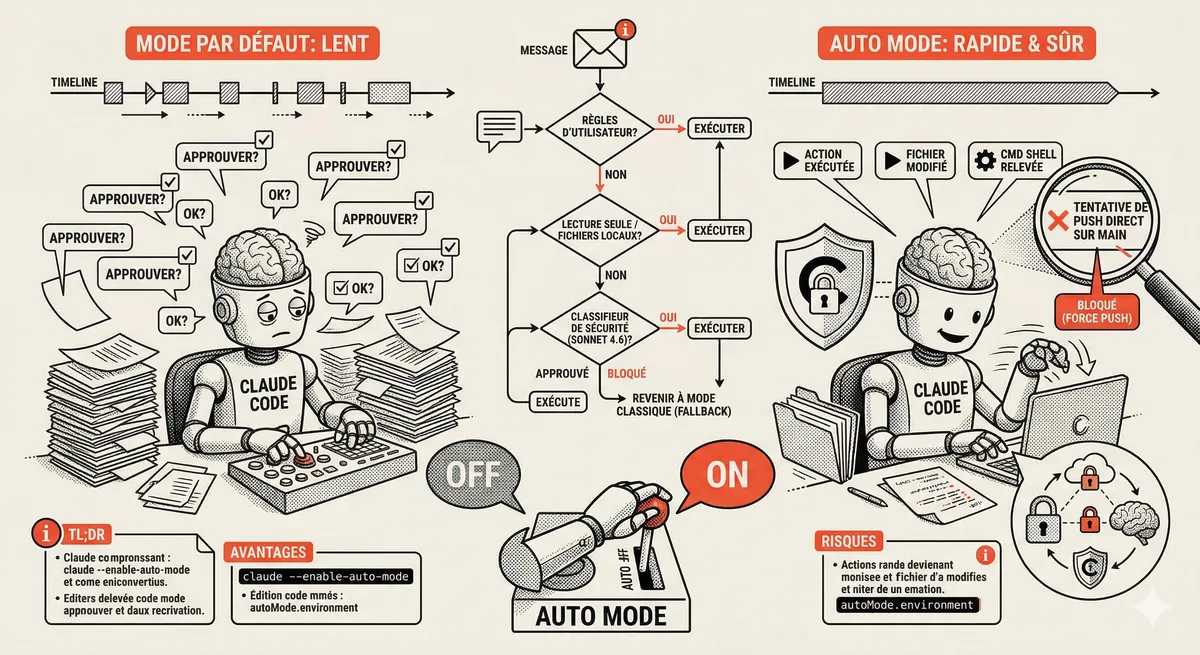
Claude Code Auto Mode: Autonomy Without the Risk
Auto Mode in Claude Code eliminates permission interruptions while keeping a safety net. A classifier analyzes every action before execution and blocks destructive operations. The sweet spot between approving everything and letting everything through.
Claude Code Training
Master Claude Code fundamentals in 1 day with our expert instructors. 60% hands-on practice on real-world cases.
Discover the training