TL;DR
This advanced troubleshooting guide helps you diagnose and fix the most common errors encountered with Claude Code. You will find quick resolution tables, diagnostic commands, and proven methods to unblock every situation in just a few minutes.
This advanced troubleshooting guide helps you diagnose and fix the most common errors encountered with Claude Code. You will find quick resolution tables, diagnostic commands, and proven methods to unblock every situation in just a few minutes.
Solving a problem during the final assessment of the advanced Claude Code track requires a structured troubleshooting method. Troubleshooting advanced best practices is a discipline that consists of systematically identifying, isolating, and fixing malfunctions encountered during expert use of Claude Code. Many issues reported by advanced users can be resolved quickly with the right diagnostic command.
SFEIR Institute trainings
Claude Code Training
1 day · Fundamentals
AI-Augmented Developer
2 days · Intermediate
How to solve a problem during the final assessment of the advanced Claude Code track?
When you encounter a blocker during the final assessment, the first step is to check your environment. Run the following command to display the installed version:
claude --version
In practice, an outdated version is a frequent cause of assessment failures. Verify that you are running a recent 2.1.x release. If not, run an immediate update.
npm install -g @anthropic-ai/claude-code@latest
# or
claude update
Check the comprehensive Claude Code troubleshooting guide for an exhaustive list of error codes. You will find step-by-step solutions for every blocking situation.
Key takeaway: always check your Claude Code version before any other diagnosis. It is one of the most common causes of assessment problems.
What are the most common problems and their solutions?
Here is how to quickly identify the cause of your problem. The table below lists the 12 most frequent symptoms encountered by advanced Claude Code users:
| Symptom | Probable cause | Solution |
|---|---|---|
ECONNREFUSED on connection | Proxy or firewall blocking port 443 | Configure HTTPS_PROXY in your terminal |
| Response cut off mid-output | Max output-token limit reached | Ask Claude to continue or split the task into smaller steps |
| Timeout or very long request | Context too large or task too broad | Reduce or clear the context with /clear or /compact, and split the task into smaller steps |
Permission denied on a file | Permission mode too restrictive | Check permissions with ls -la then chmod 644 |
MODEL_NOT_FOUND error | API key associated with a plan without Opus access | Check your plan on console.anthropic.com |
| Infinite loop of suggestions | .claude/settings.json file corrupted | Delete the file and rerun claude, then type /init to recreate the CLAUDE.md |
ENOMEM - insufficient memory | Accumulated context or memory pressure | Start a fresh session with /clear or by relaunching claude |
| Response in English despite a FR prompt | Missing language directive | Add "language": "fr" in ~/.claude/settings.json, or write "Always respond in French" in CLAUDE.md |
| Diff incorrectly applied by the agent | Line conflict in the target file | Run git diff HEAD and resolve conflicts |
API_KEY_INVALID at launch | Environment variable overwritten | Export ANTHROPIC_API_KEY in .zshrc or .bashrc |
| Latency >10 s per request | Server overloaded or custom endpoint misconfigured | Check the ANTHROPIC_BASE_URL environment variable if you use a custom endpoint |
| Generated code incomplete | Ambiguous prompt without format constraint | Add structured instructions in CLAUDE.md |
To dive deeper into errors specific to first-time usage, check the common errors for first conversations page. You will find concrete examples tailored to beginners.
Key takeaway: this table covers many. Print it or add it to your bookmarks for quick access.
How to diagnose an API connection problem?
Connection errors are among the most common issues reported. Start by testing raw connectivity:
curl -s -o /dev/null -w "%{http_code}" https://api.anthropic.com/v1/messages
This test mainly confirms reachability and the TLS handshake: a GET on the POST-only messages endpoint will not return 200, so any HTTP response means the host is reachable. A 401 code indicates an authentication problem, a 403 means the request is forbidden, and a 529 signals temporary server overload.
Concretely, here is the complete diagnostic sequence:
# Check the environment variable
echo $ANTHROPIC_API_KEY | head -c 10

# Test with a minimal call
claude "ping" --model claude-sonnet-4-6
If you are using a corporate proxy, configure the following variables before relaunching Claude Code:
export HTTPS_PROXY=http://proxy.company.com:8080
export NO_PROXY=localhost,127.0.0.1
Network troubleshooting is also covered in the installation troubleshooting guide, with detailed network flow diagrams.
Key takeaway: a curl to the Anthropic API is your first reflex. It quickly isolates a network problem from an application problem.
Why does Claude Code generate incorrect or incomplete responses?
Response quality depends directly on the quality of the context provided. In practice, a well-structured CLAUDE.md file noticeably improves response relevance.
First check that your CLAUDE.md file exists and contains clear directives:
cat CLAUDE.md | wc -l
The official docs recommend keeping each CLAUDE.md under 200 lines. A file that is too short can leave the context insufficient, while one that is too long adds noise that degrades accuracy. A focused, well-organized file works better than either extreme.
You may also encounter this problem when the selected model does not match the task. Use Claude Opus 4.8 (claude-opus-4-8) for complex refactoring tasks and Claude Sonnet 4.6 (claude-sonnet-4-6) for quick fix tasks. You can also use the generic aliases opus and sonnet.
Find additional tips in the advanced tips for Claude Code. You will learn how to structure your prompts to get reliable results on the first try.
Key takeaway: keep each CLAUDE.md under 200 lines as the docs recommend. Beyond that, prune the superfluous content.
How to resolve permission and security errors?
Claude Code applies a granular permission model. Each tool (Read, Write, Bash, Edit) has its own authorization level. You will encounter this term when the agent attempts to access a file outside the authorized scope.
Check the active permission configuration:
cat .claude/settings.json
Here is how to unblock the most frequent situations:
- Open the
.claude/settings.jsonfile - Locate the
permissionsobject (with itsallow,ask, anddenyarrays) - Add the blocked tool (e.g.,
"Bash") topermissions.allow, for example{ "permissions": { "allow": ["Bash"] } } - Restart Claude Code to apply the changes
The complete permissions and security troubleshooting guide details each authorization level with concrete examples. This guide will help you avoid the most common configuration mistakes.
In bypassPermissions mode, Claude Code still prompts as a circuit breaker for the most destructive commands, specifically rm -rf / and rm -rf ~. All other commands run without prompting in that mode.
Key takeaway: never run with bypassPermissions in production. Adjust permissions tool by tool in settings.json instead.
How to debug a Git workflow integrated with Claude Code?
Git integration is one of Claude Code's strongest features, but it also generates specific errors. Many advanced problems involve conflicts between automated Git actions and the local repository state.
| Git error | Cause | Resolution command |
|---|---|---|
pre-commit hook failed | ESLint or Prettier hook failing | npx lint-staged --debug |
merge conflict in file.ts | Divergent branch | git mergetool or manual resolution |
detached HEAD | Checkout on a commit without a branch | git checkout -b fix-branch |
push rejected (non-fast-forward) | Remote history modified | git pull --rebase origin main |
Run this command to get a complete diagnostic of the Git state before any action:
git status && git log --oneline -5 && git stash list
The Git integration troubleshooting guide covers interactive rebase and cherry-pick scenarios assisted by Claude Code. You will find workflows tested in real-world conditions.
Key takeaway: always run a git status before asking Claude Code to act on your repository. This prevents most conflicts.
How to resolve problems related to MCP servers?
The Model Context Protocol (MCP) is a standardized protocol that allows Claude Code to communicate with external context servers. You will encounter this term when connecting databases, third-party APIs, or custom tools.
In practice, MCP errors fall into three categories:
- Connection error: the MCP server fails to start or does not respond
- Schema error: the format of the data sent does not match the contract
- Timeout error: the MCP server takes too long to respond
Check the MCP configuration in your project file:
{
 "mcpServers": {
 "my-server": {
 "command": "node",
 "args": ["server.js"]
 }
 }
}
Most MCP servers are launched as stdio subprocesses (a command plus args), so they have no port. A port only applies to remote transport servers, which are configured with a url instead of a command. The recommended remote transport is Streamable HTTP ("type": "http"); the legacy SSE transport ("type": "sse") is deprecated and should only be used as a fallback for servers that have not yet migrated.
Check the MCP troubleshooting guide for detailed solutions to each error type. SFEIR Institute also offers hands-on labs on MCP configuration in its training programs.
Key takeaway: most MCP errors come from an incorrect command path or a server that fails to start. Check these two points first.
When should you contact Anthropic support?
Some problems go beyond the scope of local troubleshooting. Contact Anthropic support in the following situations:
- Persistent
500error after 3 attempts spaced 60 seconds apart - API key revoked without any action on your part
- Inconsistent billing (tokens counted != tokens used)
- Systematic empty response despite a valid prompt
- Dangerous or unexpected model behavior
Before contacting support, prepare this information:
- Exact Claude Code version (
claude --version) - Operating system and Node.js version (
node --version) - Output from
/doctorin session orclaude --verbose - Screenshot or copy of the complete error message
Response times vary by plan and request volume. Refer to Anthropic's official support channels for current expectations.
Also check the general Claude Code troubleshooting page and the advanced debugging guide before opening a ticket. You will find solutions to the vast majority of cases encountered in these resources.
Key takeaway: opening a support ticket with logs and the exact version speeds up resolution. Prepare these elements before contacting Anthropic.
Can you automate the detection of recurring errors?
Advanced users save time by automating monitoring. Claude Code supports custom hooks that trigger on each event (pre-commit, post-generation, error).
Here is a helper script you can call to capture diagnostic context. Note that this is a user-authored helper, not a Claude Code auto-discovered hook: real hooks are registered under the hooks key in settings.json, not by dropping files in a directory.
#!/bin/bash
# ~/scripts/on-error.sh
echo "$(date) - Error detected" >> ~/claude-errors.log
claude --version >> ~/claude-errors.log
node --version >> ~/claude-errors.log
This script captures context whenever you run it after an error. In practice, a structured log noticeably reduces diagnostic time on recurring errors.
To go further, you can check the advanced best practices cheatsheet. It gathers essential commands on a single printable page.
If you want to master these troubleshooting techniques in real-world conditions, the Claude Code training from SFEIR Institute guides you in 1 day through hands-on labs covering installation, configuration, and resolution of common problems.
To dive deeper into integration within your daily workflows, the AI-Augmented Developer training over 2 days covers advanced use cases with Git, MCP, and CI/CD pipelines. Experienced developers can also take the AI-Augmented Developer - Advanced module in 1 day, focused on prompt optimization and complex debugging.
Key takeaway: automate log collection from the first recurring incident. Your future self will thank you.
Which complementary tools facilitate advanced troubleshooting?
Several third-party tools integrate with Claude Code to accelerate diagnosis. Here is a comparison of the most widely used ones:
| Tool | Function | Setup time | Compatibility |
|---|---|---|---|
claude doctor (built-in) | Automatic environment diagnostic | Built in | macOS, Linux, Windows |
@modelcontextprotocol/inspector | MCP connection inspection | Quick | macOS, Linux |
| VS Code Extension | IDE integration with error panel | Quick | VS Code |
Run the built-in diagnostic for a quick one-command check:
claude doctor
You can also run /doctor directly inside an interactive session. This checks the installation, version, and configuration, and helps surface common problems without manual inspection.
Find all the advanced best practices to get the most out of these tools in your daily workflow.
Key takeaway: claude doctor is your diagnostic Swiss army knife. Run it for every incident.
Recent articles about Claude
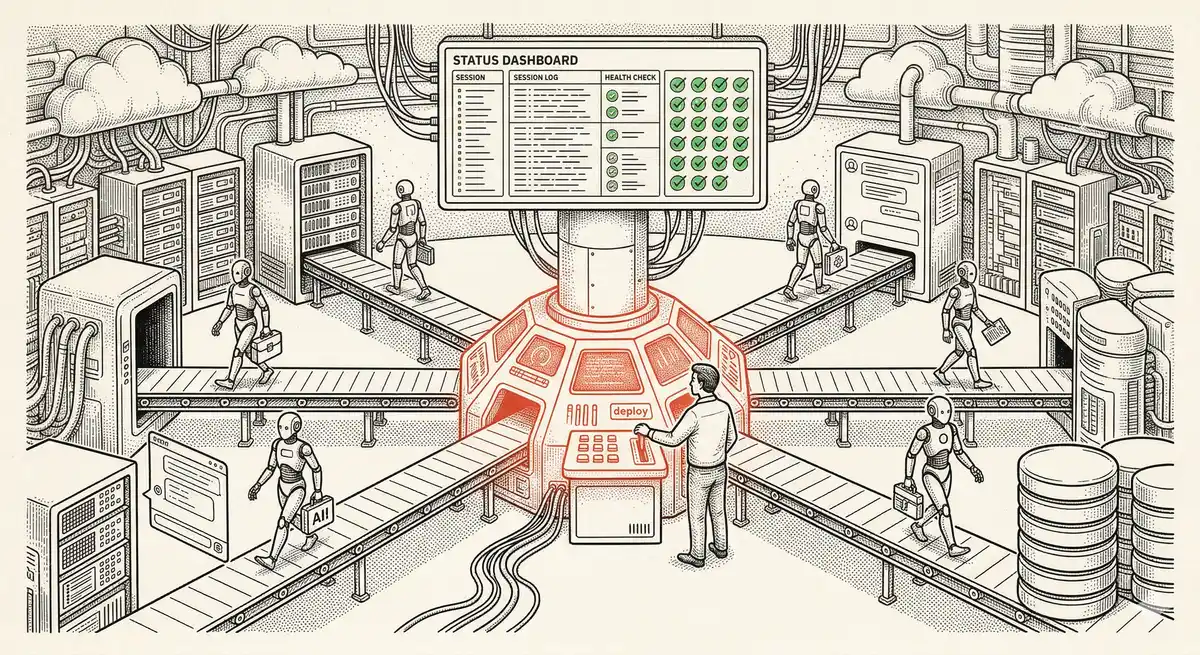
Claude Managed Agents: Anthropic's Platform for Production Agent Deployment
Anthropic launches Managed Agents: a cloud platform for deploying AI agents in production. Secure sandbox, checkpointing, multi-agent, autonomous sessions lasting hours. Notion, Rakuten, Asana and Sentry already use it.

Claude Code Dream & Auto Dream: Automatic Memory Consolidation
After 20 sessions, Auto Memory notes become a mess. Auto Dream solves this by automatically consolidating Claude Code's memory: deduplication, stale entry removal, relative-to-absolute date conversion.
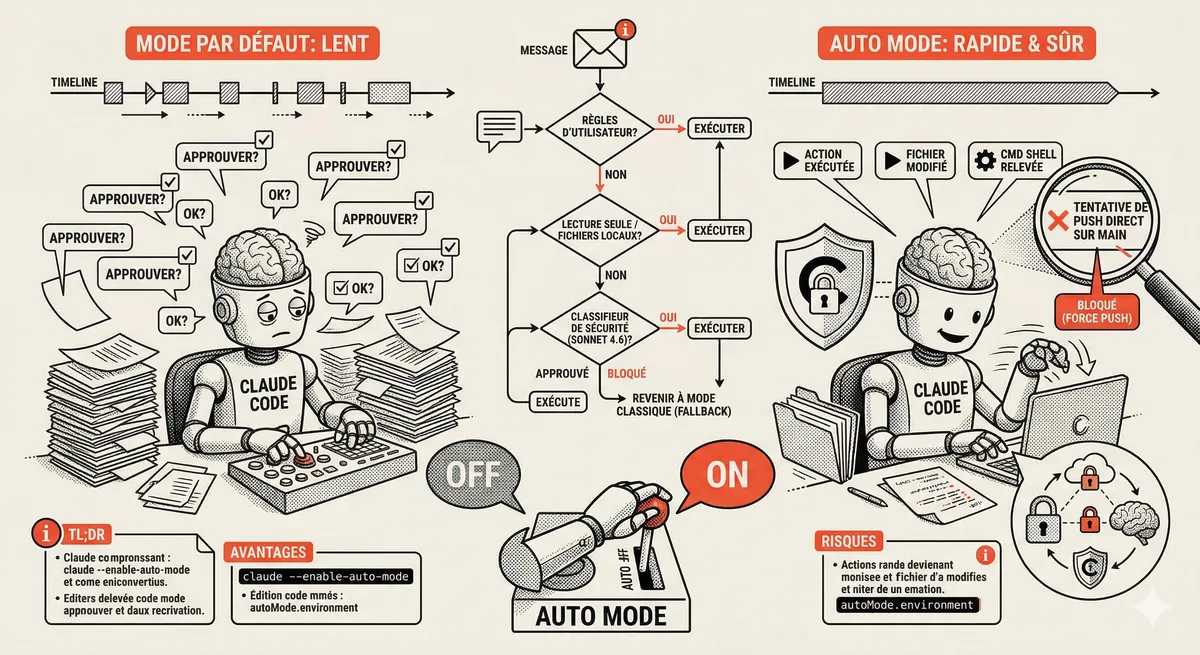
Claude Code Auto Mode: Autonomy Without the Risk
Auto Mode in Claude Code eliminates permission interruptions while keeping a safety net. A classifier analyzes every action before execution and blocks destructive operations. The sweet spot between approving everything and letting everything through.
Claude Code Training
Master Claude Code fundamentals in 1 day with our expert instructors. 60% hands-on practice on real-world cases.
Discover the training